
TL;DR: install Knocket on Squarespace in minutes
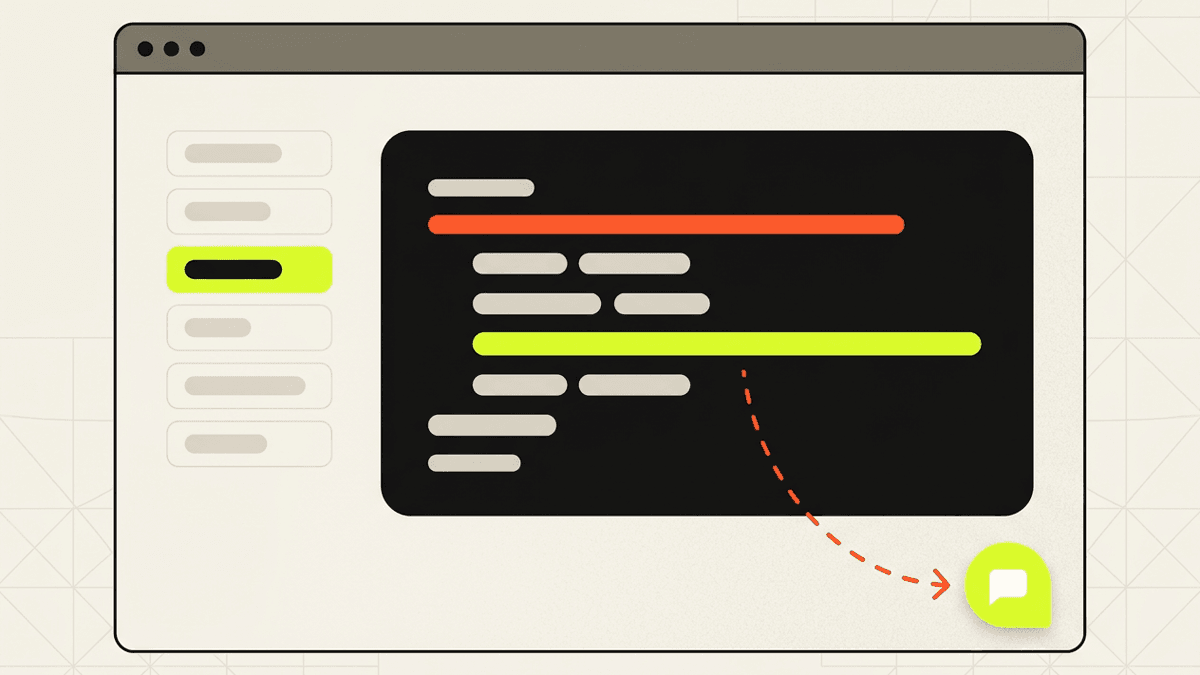
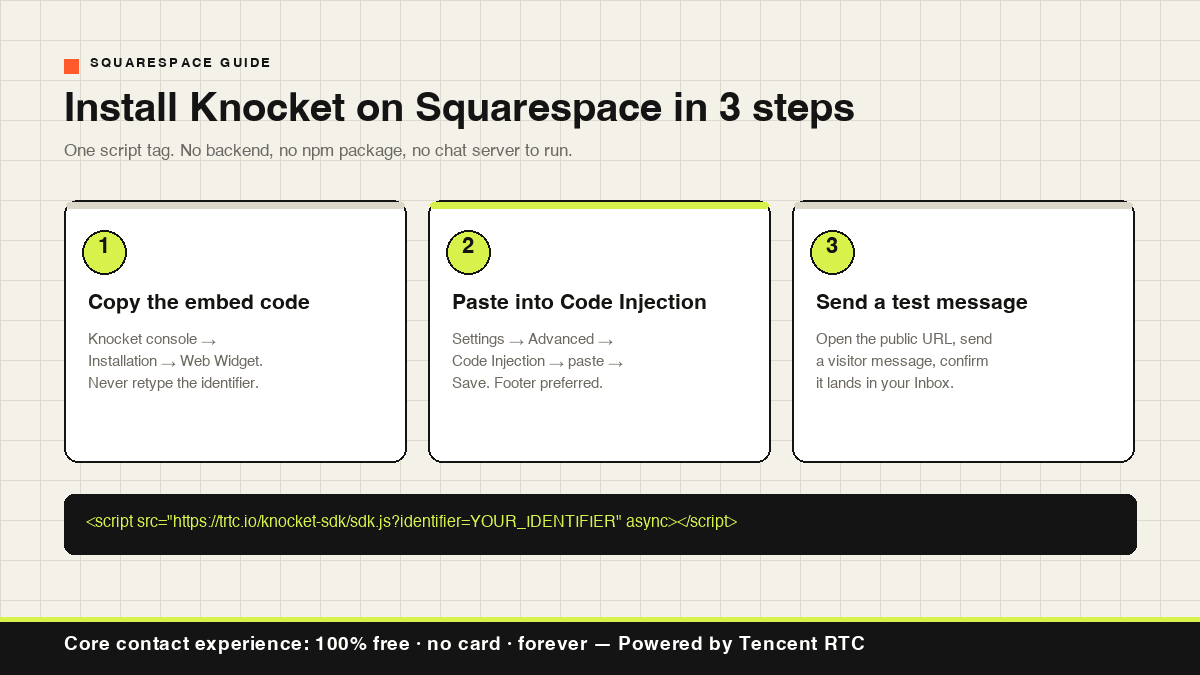 Paste one script into Squarespace Settings → Advanced → Code Injection. Use site-wide injection to show the chat button everywhere, or page-level injection for a single landing page.
<script src="https://trtc.io/knocket-sdk/sdk.js?identifier=YOUR_IDENTIFIER" async></script>
Replace YOUR_IDENTIFIER with the value from your Knocket console, save, then send a test message from a visitor browser and confirm it lands in your Inbox.
Visitor messages arrive in Knocket Inbox. On your phone you can reply from the same Inbox in a mobile browser, or connect Telegram and answer by quoting the notification. Knocket's core contact experience is 100% free · no card · forever, and it is Powered by Tencent RTC.
Start here: Knocket Installation · Web Widget settings · Inbox · Contact Page
New to script-based chat? How to add live chat to any website covers the same pattern for other platforms.
Before you start
This guide assumes your Squarespace site already exists and you just want chat installed.
Knocket adds a floating chat button to your Squarespace site. Visitors click it, send a message, and you receive it in the Knocket Inbox. There is no backend to build, no chat server to run, and no npm package to install.
Keep these references open while you work: Squarespace Code Injection documentation, MDN: the script element, Telegram Bot documentation.
What you need to know before installing
No backend required. Messages travel from the widget to your Knocket Inbox without any server, database, or message API on your side.
Visitors do not register. People chatting on your site never create a Knocket account — only you, the site owner, need one. Depending on your widget configuration you may collect visitor details before a conversation or when you are offline.
The core experience is free. The Web Widget, Contact Page, and unified Inbox are 100% free · no card · forever. Read the reasoning in Why free.
Any script adds some page work. The Knocket snippet loads with async, so it does not block rendering, but you should still measure before and after. Paste it once, prefer footer placement, and check with PageSpeed Insights.
Copy the embed code
Open Knocket Installation → Web Widget and copy the complete script. Do not retype it by hand — the identifier controls which Inbox receives your messages.
<script src="https://trtc.io/knocket-sdk/sdk.js?identifier=YOUR_IDENTIFIER" async></script>
| Part | What it does |
|---|---|
src |
Loads the Knocket Web Widget SDK. Must start with https:// or the browser resolves it as a relative path and the widget never loads. |
identifier=... |
Routes messages to your widget configuration and Inbox. Never reuse another site's identifier. |
async |
Loads the script without blocking page rendering. |
Prefer generating the snippet rather than editing it? Use the embed code generator.
Method 1: site-wide install (Settings → Advanced → Code Injection)
Use this when you want chat available on every page.
- Log in to Squarespace and open the site.
- Go to Settings → Advanced → Code Injection.
- Paste the Knocket script into the injection field.
- Click Save.
- Open the public site (not the editor preview) and confirm the chat button appears.
- Check a second, deeper page such as
/contactto confirm it is truly site-wide.
Header or footer?
| Location | Recommendation |
|---|---|
| Footer / end-of-body | Preferred. Keeps a non-critical widget out of the initial head path. |
| Header | Use only if your setup requires it. async means it will not block parsing, but later placement is cleaner. |
Hard refresh if the widget does not appear immediately.
Method 2: single-page install
Use this for a campaign landing page, pricing page, or beta signup page.
- Open Pages in Squarespace admin.
- Select the target page.
- Open that page's settings or advanced/code area.
- Paste the same script and save.
- Open the public page URL and confirm the button appears only there.
If the code shows up as visible text instead of running, it was pasted into a normal content block. Move it to a code injection area that actually executes scripts.
Running several campaigns? Give each landing page the identifier from its own Knocket installation so messages route to separate inboxes. After each install, send a test from that exact public URL and confirm it reaches the expected Inbox.
Site-wide or single-page?
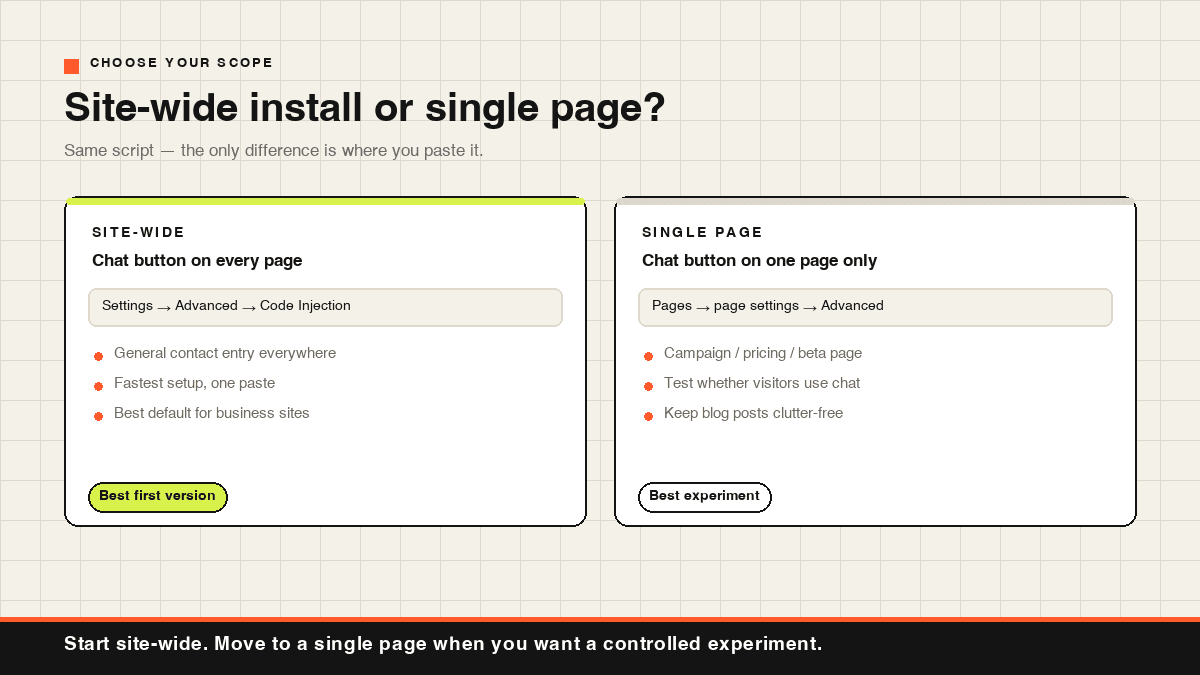
| Your situation | Choose |
|---|---|
| You want a general contact entry everywhere | Site-wide |
| Chat only on a campaign or pricing page | Single page |
| You want the fastest setup | Site-wide |
| You are testing whether visitors use chat at all | Single page |
| You worry about clutter on blog posts | Single page |
Site-wide is the better first version for most business sites. Single-page is the better experiment.
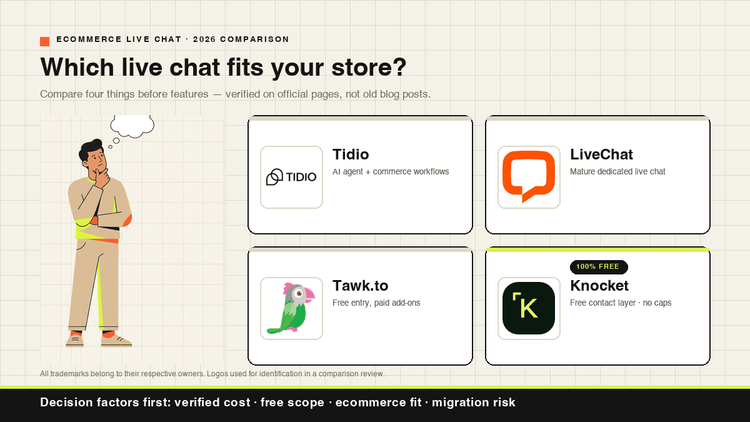
Comparing script-based tools such as Crisp, Tidio, or tawk.to? Treat this as a setup-workflow comparison only — their pricing and limits change frequently and were not verified for this article. See the alternatives breakdown for a maintained comparison.
Verify it works
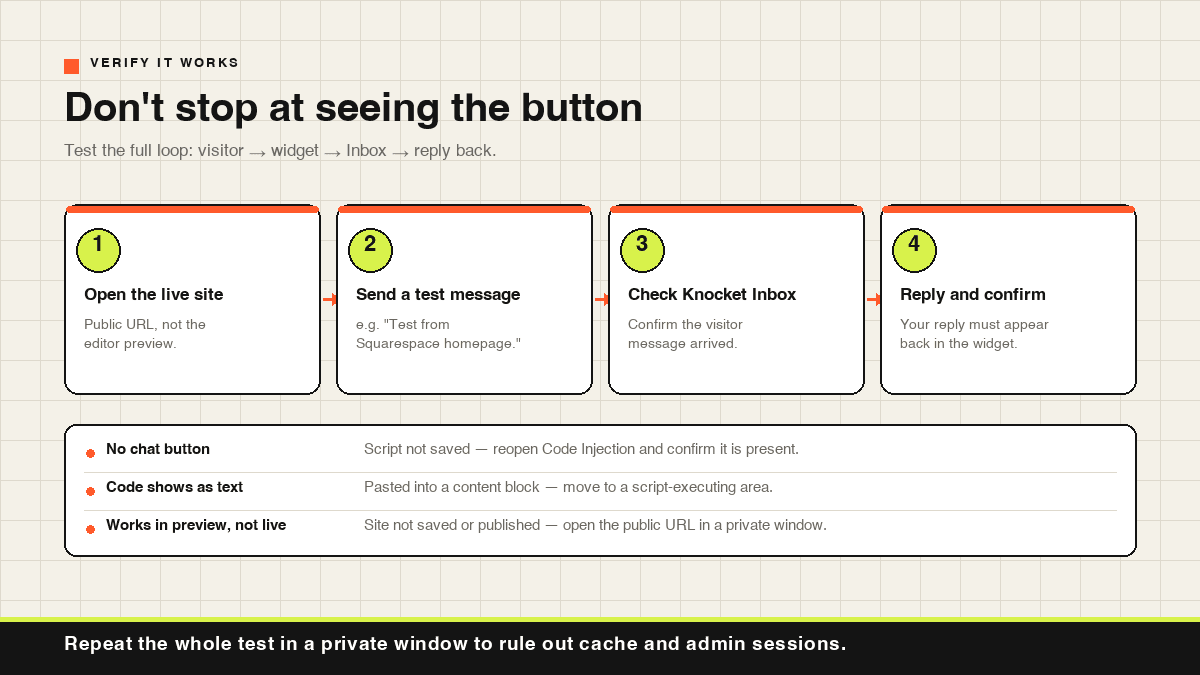
Do not stop at seeing the button. Test the full loop.
- Open the live site in a normal browser tab.
- Click the chat button and send: "Test from Squarespace homepage."
- Open Knocket Inbox and confirm the message appears.
- Reply from the Inbox and confirm it appears back in the visitor widget.
- Repeat in a private/incognito window to rule out cache and admin-session effects.
| Symptom | Likely cause | Fix |
|---|---|---|
| No chat button | Script not saved, or wrong injection area | Reopen Code Injection and confirm the script is present |
| Code displays as text | Pasted into a content block | Move to Code Injection or a script-executing embed block |
| Button on one page only | Installed at page level | Use Settings → Advanced → Code Injection for site-wide |
| Message never reaches Inbox | Wrong identifier | Copy the full script again from Knocket Installation |
| Works in preview but not live | Site not saved/published | Save, then open the public URL |
Mobile checks
Most Squarespace visitors arrive on phones, so test there too.
- Open the live URL in Safari or Chrome on your phone.
- Confirm the button is visible and not covered by a cookie banner, sticky bar, or promo popup.
- Tap it, send a visitor message, and confirm it reaches the Inbox.
- Reply and confirm the reply returns to the phone.
To reply from your phone, open Knocket Inbox in your mobile browser. The Inbox is the operator side; visitors use the widget on your site. If the button shows on desktop but not mobile, a mobile-only element is usually covering it — test the public URL in a real mobile browser, not the editor preview. Full details: Web Widget.
Telegram notifications and quote reply
If you would rather answer from Telegram than keep the Inbox open:
- Open Notifications in the console.
- Connect Telegram and choose Full and quote reply mode.
- Send a test message from your Squarespace site.
- In Telegram, use quote/reply on the notification — the reply is delivered back to the visitor's widget.
In Notification only mode Telegram only alerts you; you must open the Inbox to read and reply. The connection itself takes about 30 seconds once you are on the setup screen.
Telegram can rate-limit high message volumes, so use the Inbox as the canonical conversation view rather than treating Telegram as a delivery log.
Performance
The script is async, so it loads without blocking HTML parsing — the correct pattern for a non-critical widget. Knocket runs on infrastructure Powered by Tencent RTC; you do not need to integrate any Tencent SDK yourself, you only paste this one script.
After installing, check with PageSpeed Insights, comparing mobile and desktop separately. Paste the script once, prefer footer placement, and remove duplicate installs.
Uninstalling
Remove the script from wherever you installed it and save again, then confirm in a private window that the button is gone.
If the button still shows, look for duplicate installs — commonly site-wide Code Injection plus a page-level block, or a theme-level custom code area plus Code Injection. Check every custom-code location and keep exactly one install for the scope you want.
Final checklist
| Step | Pass condition |
|---|---|
| Copy script | Copied complete script from Installation, identifier included |
| Paste | Saved in Code Injection or a script-executing page area |
| Scope | Confirmed whether it appears site-wide or on one page |
| Visitor test | Test message reaches Knocket Inbox |
| Reply test | Inbox reply returns to the visitor widget |
| Mobile test | Button works and messages send from a phone browser |
| Telegram test | Quote reply returns to the visitor chat |
| Performance | PageSpeed shows acceptable load after install |
| Removal | You know where the script lives and can delete it |
Ready to add live chat to your Squarespace site? Start free with Knocket — no card required.
FAQ
Do I need a specific Squarespace plan to use code injection?
Yes. Squarespace limits code injection to Core, Plus, Advanced and some legacy plans, and injected code never runs on checkout pages. If the Code Injection panel is missing from your admin, your plan does not include it — see [Squarespace's code injection guide](https://support.squarespace.com/hc/en-us/articles/205815908-Customize-parts-of-your-site-with-code-injection) for the current list. If your plan does not support code injection, use Method 2 in a page-level area that explicitly runs scripts, or upgrade.
Should I install the chat widget in the header or footer?
Use the footer or end-of-body injection area when possible. A live chat button is helpful, but it is not usually required for the first paint of the page. Footer placement keeps the install cleaner, while the async attribute helps the widget load without blocking HTML parsing.
Why does the chat button appear in preview but not on my live Squarespace site?
This usually means the page or code injection changes were not saved or published, or you are looking at a cached version of the public page. Save the Squarespace settings, open the public URL in a private window, and confirm the script is present only once in the correct injection area.
Can I use different chat inboxes for different Squarespace pages?
Yes. Use a different Knocket installation identifier for each campaign, landing page, or section where you want separate message routing. After installing each script, send a test message from the exact public page URL and confirm it reaches the expected Knocket Inbox.
Will visitors need to create an account to chat?
No. Visitors use the widget directly on your Squarespace site. Only the site owner or operator needs access to Knocket Inbox to receive and reply to messages.
How do I stop the chat widget loading twice?
Check every custom-code location on your site: site-wide Code Injection, page-level code areas, embed blocks, and theme-level custom code. Keep exactly one install for the scope you want.
Can I remove Knocket from my Squarespace site later?
Yes. Delete the script from wherever you installed it, save, then confirm in a private window that the button is gone.