
TL;DR
Shopify live chat lets shoppers ask product, shipping, discount, and checkout questions while they are still deciding. With Knocket, you can add a lightweight online store support widget to Shopify by pasting one async script into your theme, then reply from the Knocket Inbox, Telegram, or email notifications.
Quick setup:
- Create your Knocket widget in the Knocket console.
- Copy the Shopify installation script from the Knocket installation console.
- Paste it into
theme.liquidbefore</head>or</body>. - Test the shopper message and founder reply loop.
- Add Telegram or email notifications so you do not miss buying-intent questions.
Knocket is 100% free forever, with no ads and no seat limits. It is not a CRM or a large customer-service suite; it is a simple way for small Shopify stores and indie merchants to talk to real shoppers.
What Shopify Live Chat Does for Online Stores
Shopify live chat gives visitors a direct way to ask questions from product, cart, and store pages without searching for an email address or waiting for a form reply. For small stores, this matters most when a shopper is close to buying but still uncertain.
Typical Shopify customer messaging includes:
| Shopper moment | Common question | Useful response |
|---|---|---|
| Product page | “Will this fit?” “Is this compatible?” | Size, material, compatibility, or variant guidance |
| Cart page | “Can I use two discounts?” | Clear discount and bundle rules |
| Shipping page | “When will this arrive?” | Delivery estimate, shipping region, carrier policy |
| Return policy page | “Can I return opened items?” | Short policy answer plus link to full policy |
| Post-purchase | “Can I update my address?” | Order update instructions or contact path |
The main difference between live chat and a static FAQ is timing. A FAQ helps shoppers who are willing to hunt. A chat widget helps shoppers who are hesitating right now.
External references worth bookmarking:
- Shopify’s official Help Center for platform-specific store administration.
- Shopify’s guide to editing theme code before changing Liquid files.
- Baymard Institute’s cart abandonment research for understanding why shoppers leave before buying.
Information checked: August 19, 2026.
Why Real-Time Conversations Improve Store Conversion Rates
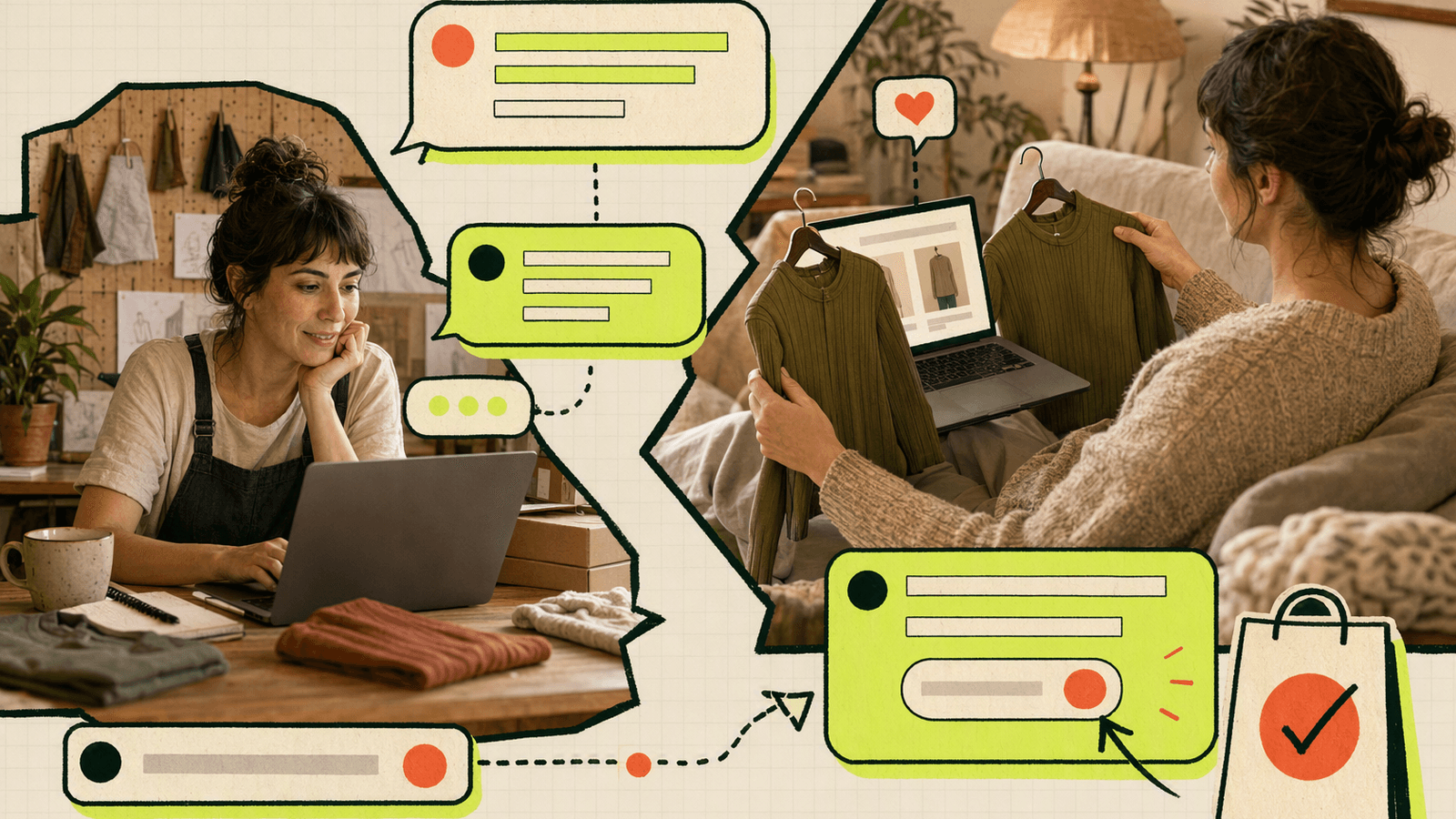
A live chat widget will not magically fix poor product-market fit, unclear pricing, or slow shipping. It does something narrower and more practical: it catches objections while the shopper is still on the page.
Baymard Institute’s cart abandonment research regularly shows that a large share of carts are abandoned across ecommerce sites. The exact rate varies by study and date, so store owners should read Baymard’s current methodology directly, but the takeaway is stable: checkout friction is expensive.
For early Shopify merchants, real-time shopper assistance is especially useful because you do not yet know every objection. The first 100 conversations often reveal questions your product page failed to answer:
- “Is this vegan?”
- “Does it ship to Canada?”
- “Can I get this before Friday?”
- “Is the blue one the same size as the black one?”
- “Can I pay with Shop Pay or PayPal?”
Those questions are conversion research. You can answer the shopper, then update your product copy, shipping notes, FAQ, or cart messaging so the next shopper does not need to ask.
For broader ecommerce context, Statista’s retail ecommerce statistics and Grand View Research’s live chat software market analysis show why online communication tools keep growing. For a small Shopify store, the practical goal is simpler: remove uncertainty before it becomes abandonment.
How Knocket Supports Shopify Merchants
Knocket for Shopify stores is built for small teams that need a direct customer contact layer, not a heavy operations platform. You install a lightweight live chat widget, receive messages in one place, and reply quickly.
Knocket supports Shopify merchants with:
- A Knocket live chat widget that can be added with one async script.
- A unified inbox for messages from your store widget and connected channels.
- Telegram and email notifications so you can respond even when the console is not open.
- A no-code Knocket Contact Page builder for your Instagram bio, TikTok profile, email signature, packaging QR code, or “Contact us” link.
- 100% free forever pricing, with no ads and no seat limits.
Knocket does not try to become your CRM, marketing automation stack, or ticketing workflow. Many small Shopify teams need a reliable way to hear from shoppers and reply.
Step-by-Step Setup for Adding Knocket to a Shopify Store
Before you edit Shopify theme files, duplicate your theme. Shopify also recommends understanding theme code changes before editing Liquid directly, especially on live stores.
Before-you-start checklist
You need Shopify admin access, permission to edit the active theme, a Knocket account, your widget identifier from the Knocket installation console, and a test browser session where you are not logged into your Shopify admin.
1. Create your Knocket widget
Open the Knocket console and create a web widget. Configure the basics first: store-friendly color, welcome message, offline message, avatar or brand image, and language.
Keep the first version simple. A good welcome message is:
“Questions about size, shipping, or availability? Send us a message.”
2. Copy the Shopify script
From the installation page, copy your full script. It will follow this pattern, with your own identifier:
<!-- Knocket live chat widget: paste before </head> or </body> -->
<script>
  window.knocketSettings = {
    placement: "shopify-store",
    pageType: "{{ template.name | escape }}"
  };
</script>

<script
  src="https://trtc.io/knocket-sdk/sdk.js?identifier=YOUR_ID"
  async>
</script>
Replace YOUR_ID only with the identifier provided in your Knocket console. The async attribute helps avoid blocking page rendering.
3. Paste it into Shopify
In Shopify admin:
- Go to Online Store.
- Open Themes.
- Click Edit code on the theme you want to modify.
- Open
layout/theme.liquid. - Paste the Knocket script before
</head>or before</body>. - Save the file.
- Open your storefront in an incognito window and confirm the widget appears.
If your theme uses app blocks, custom sections, or a head-injection area, you can also place the script there. The key is that it loads on the storefront pages where you want shoppers to contact you.
4. Verify the full reply loop
Do not stop after seeing the chat bubble. Test the complete path: send a message from a product page, confirm it appears in Knocket, reply from the inbox, confirm the shopper sees the reply, then test Telegram or email notifications.
Best Chat Widget Placements Across Product, Cart, and Checkout Pages
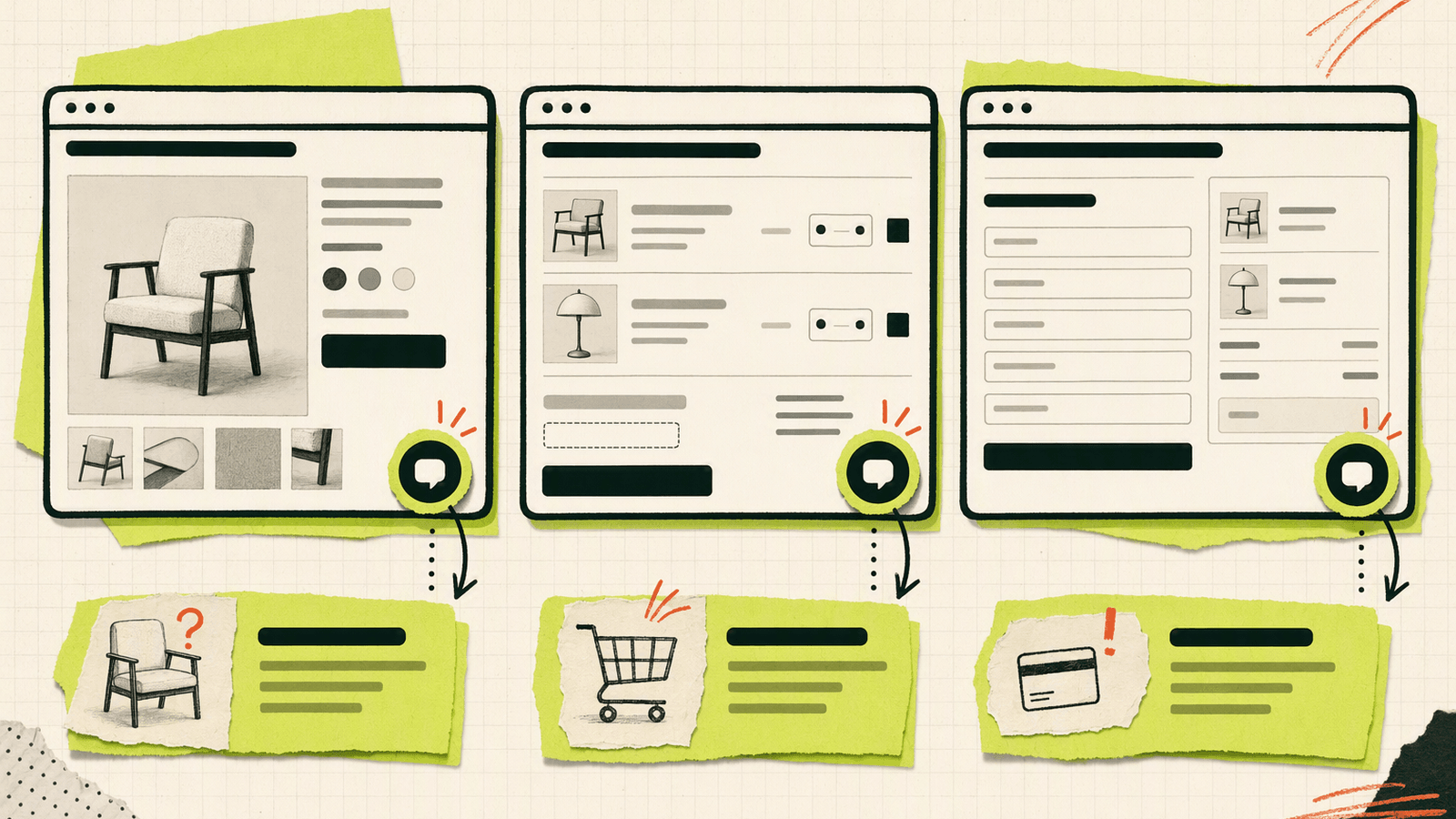
The best Shopify live chat placement depends on the question you want to catch.
| Page type | Best use | Suggested prompt |
|---|---|---|
| Homepage | General store trust | “Need help choosing? Ask us anything.” |
| Collection page | Product discovery | “Looking for a specific style or size?” |
| Product page | Pre-purchase detail | “Questions about fit, material, or shipping?” |
| Cart page | Cart recovery chat | “Stuck before checkout? We can help.” |
| Policy pages | Trust and risk reduction | “Questions about returns or delivery?” |
Be careful with checkout. Shopify checkout customization depends on your store setup, theme, apps, and Shopify’s current checkout extensibility rules. Many merchants cannot simply inject arbitrary scripts into every checkout step. Instead of assuming full checkout access, use:
- Product page chat prompts before checkout.
- Cart page or cart drawer prompts.
- A visible “Contact us” link near policy and footer areas.
- A Contact Page link in order confirmation emails where appropriate.
- Shopify-supported checkout customization options documented in Shopify’s official help resources.
For most small stores, the cart page is the safest place to handle checkout support messages because the shopper is close to purchase and the theme is usually editable.
High-Converting Message Examples for Shopify Shoppers
Good chat prompts are short, specific, and tied to buying intent. Avoid vague copy like “How may we help you?” on every page.
Product page chat prompts
- “Not sure which size to choose? Send us your usual size.”
- “Questions about materials, fit, or care? Ask before you order.”
- “Need this by a specific date? Message us your location.”
Cart recovery chat prompts
- “Before you checkout: want us to confirm shipping time?”
- “Having trouble with a discount code? Send us the code.”
- “Need help picking between two items? We’ll reply here.”
Checkout support messages
Use these outside restricted checkout areas unless your Shopify setup allows compliant customization:
- “Questions before paying? Chat with us from the cart.”
- “Need help with shipping or returns? We’re here.”
- “For urgent order questions, contact us here.”
Post-purchase prompts
- “Need to update your address? Message us as soon as possible.”
- “Questions about your order? Send your order number.”
The best prompt is the one that matches the page. Product pages need product confidence. Cart pages need friction removal. Policy pages need trust.
How to Use Chat Data to Reduce Cart Abandonment
Chat data is most useful when you turn repeated questions into storefront changes. You do not need advanced analytics to start. A simple weekly review is enough.
| Tag | What it means | Store update to consider |
|---|---|---|
| Product clarity | Shopper does not understand item details | Add comparison table, size guide, material note |
| Shipping concern | Shopper worries about arrival date or region | Add delivery estimate near add-to-cart |
| Discount issue | Shopper cannot apply code | Clarify promo terms on cart page |
| Return risk | Shopper hesitates because of policy | Summarize return policy near product CTA |
Review conversations every Friday. Ask which question appeared more than three times, which came from shoppers with items in cart, which answer belongs in product copy, which answer needs a policy change, and which prompt attracted useful questions.
Then update one page, not ten. For example, if five shoppers ask whether a jacket is waterproof, add “water-resistant, not waterproof” near the buy button.
Support Workflow Tips for Small Shopify Teams
A small Shopify team needs speed without pretending to be online 24/7. Set expectations clearly.
Practical workflow:
- Connect Telegram notifications if you already live in Telegram.
- Connect email notifications if your team handles orders by email.
- Check the unified inbox twice daily if you are not always available.
- Use short saved notes outside Knocket for repeated answers, but personalize the first sentence.
- Add your Contact Page link to social bios and packaging inserts using the Knocket Contact Page builder.
Suggested response targets:
| Message type | Good small-team target |
|---|---|
| Product question during working hours | Under 15 minutes |
| Cart or discount question | As soon as possible |
| Shipping policy question | Same business day |
| Post-purchase change request | Same business day, faster if address-related |
Be honest in your offline message. “We usually reply within a few hours” is better than pretending to offer instant support when you do not.
Launch Checklist for Your Shopify Chat Widget
Before announcing the widget, run this checklist:
- Widget appears on homepage, product pages, collection pages, and cart page.
- Widget does not cover the add-to-cart button on mobile.
- Welcome message mentions product, shipping, or order questions.
- Offline message sets a realistic response expectation.
- Telegram or email notifications are enabled.
- You tested a shopper message from an incognito browser.
- You tested a reply from the Knocket Inbox.
- You tested on iPhone and Android screen sizes.
- You added a Contact Page link to your footer or social bio.
- You reviewed Shopify’s current theme and checkout customization guidance.
If you want a no-code contact destination outside your store, publish a page with the Knocket Contact Page builder and add it to your Instagram bio, TikTok profile, email signature, or printed QR code.
FAQ
Is Knocket free for Shopify live chat?
Yes. Knocket is 100% free forever, with no ads and no seat limits. You can add the widget to your Shopify store and manage shopper messages without paying per teammate.
Can I add Knocket to Shopify without an app?
Yes. You can paste the async Knocket script into your Shopify theme code. Get the exact code from the Knocket installation console.
Can I show live chat on Shopify checkout pages?
It depends on your Shopify setup and Shopify’s current checkout customization rules. Many stores should place chat on product pages, cart pages, policy pages, and contact links instead of assuming arbitrary checkout script access.
What should my first Shopify chat prompt say?
Use a buying-intent prompt: “Questions about size, shipping, or availability? Send us a message.” It works better than generic copy because it tells shoppers what kind of help they can ask for.
Can I reply from Telegram or email?
Knocket supports Telegram and email notifications. You can use them to avoid missing live shopper questions when the console is not open.
Is Knocket a CRM or large support suite?
No. Knocket is a lightweight contact tool for indie developers, small Shopify merchants, and early teams. It focuses on real conversations through a widget, Contact Page, unified inbox, and notifications.
Try Knocket to add a 100% free Shopify live chat widget and start helping shoppers in real time.