

TL;DR: Wix Live Chat Setup in 5 Minutes
If you want Wix live chat without a heavy support suite, install Knocket as a lightweight chat button using Wix Custom Code. Create a Knocket widget, copy the async script, paste it into your Wix site’s Head custom code area, publish, then test the visitor-to-founder reply loop.
Quick steps:
- Create your free Knocket workspace.
- Configure your widget color, welcome message, avatar, and offline text.
- Copy your one-line install script from the Knocket console.
- In Wix, go to Settings → Custom Code → Add Custom Code.
- Paste the script, place it in the Head, apply it to the right pages, and publish.
- Open your live Wix site in an incognito window and send a test message.
- Reply from the Knocket Inbox, Telegram, or email notification.
Knocket is built for indie developers, solo founders, small studios, service businesses, and early teams. It is 100% free forever, with no ads and no seat limits.
What Wix Live Chat Is and Who It Helps
Wix live chat is a small messaging widget on your Wix website that lets visitors ask questions while they are already looking at your page. That matters because the visitor may not be ready to fill out a long contact form, book a call, or send an email.
A live chat widget is useful when the next question is simple:
- “Do you work with clients in my timezone?”
- “Can I see pricing?”
- “Do you take custom projects?”
- “Is this beta still open?”
This article is about adding Knocket to your own Wix website. It is different from contacting Wix Customer Care. Wix has its own support flow for Wix account and platform issues, documented in the official Wix Customer Care support page. Knocket is for messages from your site visitors to you.
Use Knocket on Wix if you run:
- A landing page for a new SaaS or app
- A portfolio site for freelance work
- A small online store
- A local business site
- A course, newsletter, or community page
- A pre-launch waitlist
You can start from the Knocket lightweight contact widget and connect the rest later.
Why Add a Real-Time Chat Widget to a Wix Site
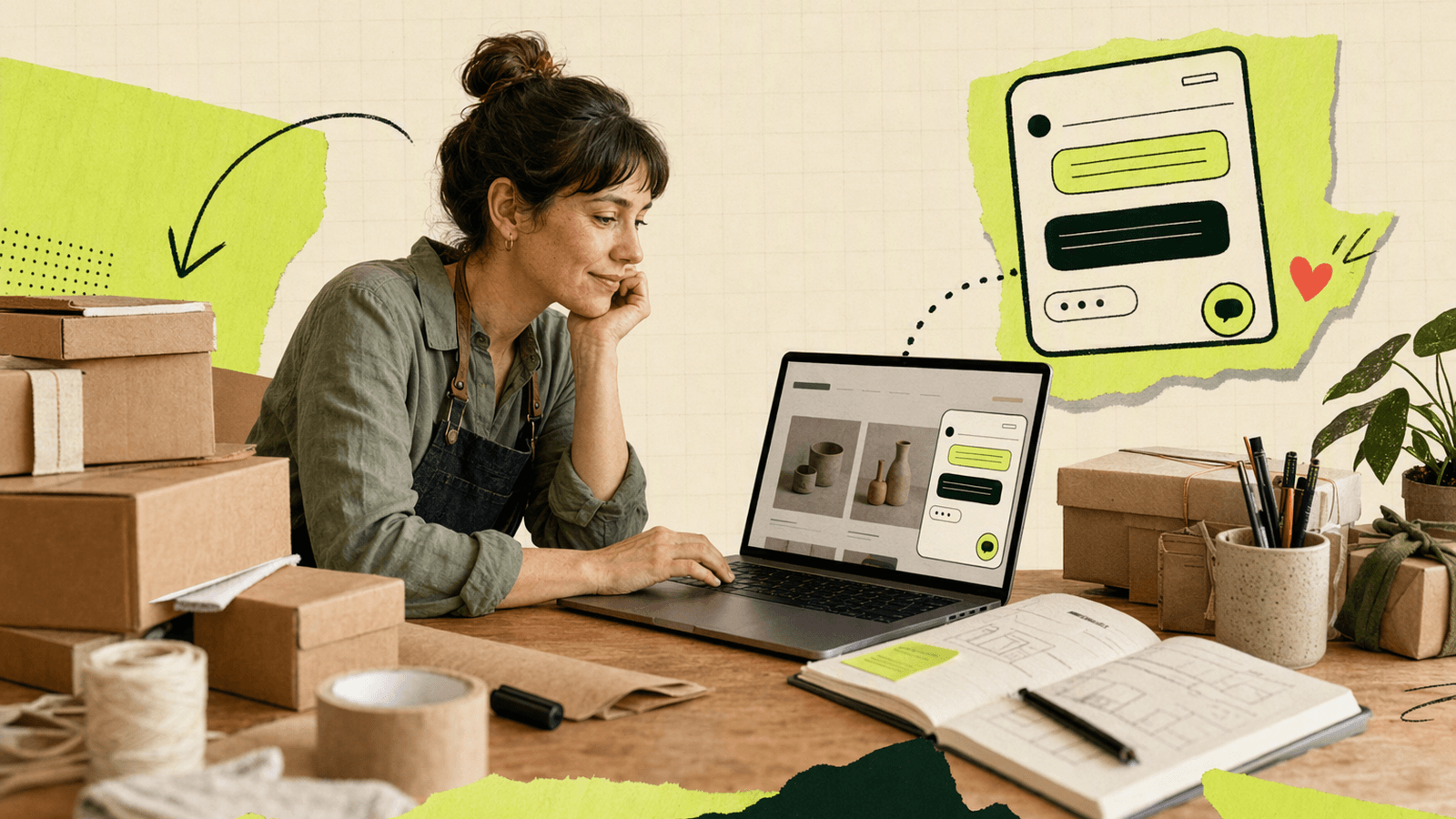
Most Wix sites already have a contact page. The problem is timing. A visitor reading your pricing, product details, or service page may have one blocking question. If they have to leave the page, find a form, and wait, many will not bother.
| Job | What the widget does | Why it matters |
|---|---|---|
| Answer buying questions | Lets visitors ask without leaving the page | Reduces friction before signup or purchase |
| Capture intent | Turns casual visits into named conversations | Useful before you have analytics scale |
| Learn from users | Reveals repeated objections in their words | Helps improve copy, pricing, and onboarding |
Baymard Institute reports a high average online shopping cart abandonment rate in its public cart abandonment rate statistics. Live chat will not fix every cause, but unanswered questions are one thing a small site owner can address quickly.
Knocket keeps this simple: widget, Contact Page, and Unified Inbox. No CRM setup. No ticket queues.
Knocket Features That Work Well for Wix Website Owners
Knocket fits Wix well because the integration model is simple: copy one script, paste it into site settings, publish, and test.
Key features for Wix:
One-line website widget
Add a floating chat button to your Wix pages through Custom Code. The script is async, so it does not block your page rendering.Custom welcome and offline messages
Match your site tone. A portfolio site can sound personal. A store can be concise. A beta product can invite feedback.Unified Inbox
Messages from the website widget, Contact Page, Telegram, and email can land in one Knocket Inbox. Start with the widget, then connect more channels through the Knocket unified inbox workflow.Telegram and email notifications
You do not have to keep a dashboard open all day.Contact Page for places Wix cannot reach
A Knocket Contact Page gives you a shareable contact URL for social bios, email signatures, QR codes, and launch posts. Create one from the Knocket Contact Page console.100% free forever
Knocket has no ads and no seat limits.
How to Install Knocket on Wix Step by Step
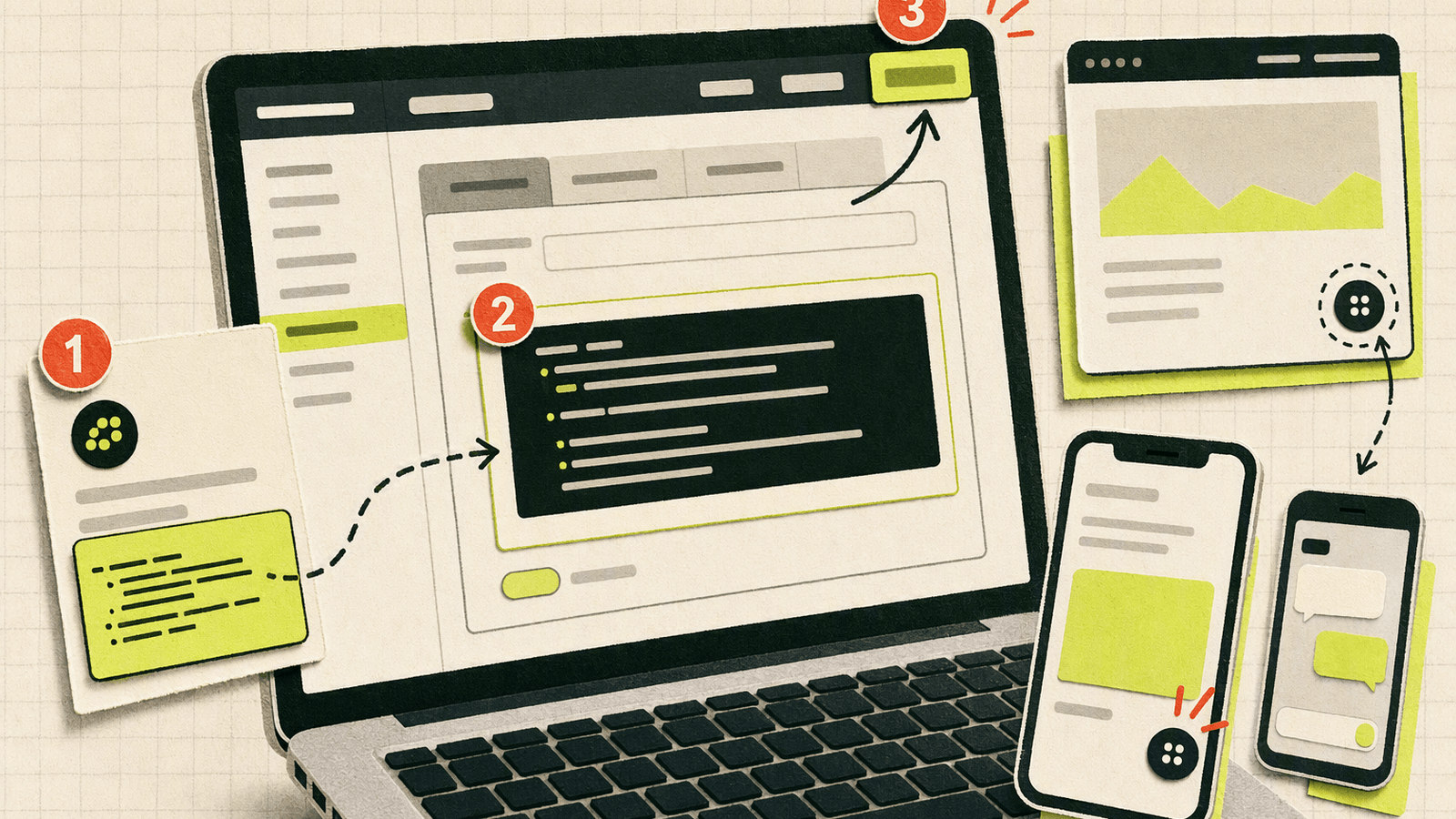
Before you start, check three things:
- You can access your Wix site dashboard.
- Your Wix site can use Custom Code. Wix documents this feature in its official Adding custom code to your site guide.
- You have created a Knocket widget in the console.
Step 1: Create your Knocket widget
Go to Knocket and open the console. Create a web widget, then set:
- Theme color
- Welcome message
- Avatar
- Language
- Offline message
- Notification preference
Keep the first version simple. You can improve the greeting after seeing what visitors ask.
Step 2: Copy the install script
Open the Knocket installation page and copy the script generated for your widget.
It will look like this:
<!-- Paste before </head> or </body>. Replace YOUR_ID with your console identifier. -->
<script
  src="https://trtc.io/knocket-sdk/sdk.js?identifier=YOUR_ID"
  async>
</script>
Use the full script from your console. Replace YOUR_ID only if you are adapting the example manually.
Step 3: Add the script in Wix
In your Wix dashboard:
- Open the site you want to edit.
- Go to Settings.
- Open Custom Code.
- Click Add Custom Code.
- Paste the Knocket script.
- Name it something obvious, such as
Knocket live chat. - Choose placement in the Head.
- Apply it to all pages or selected pages.
- Save and publish your site.
If the menu labels differ, refer to Wix’s official custom code documentation linked above.
Step 4: Verify the live site, not only the editor
Open your published Wix domain in an incognito browser window. Do not rely only on the Wix editor preview, because third-party scripts can behave differently in preview mode.
Test this loop:
- Click the Knocket chat button.
- Send a message as a visitor.
- Confirm the message appears in your Knocket Inbox.
- Reply from the Inbox.
- Confirm the visitor sees your reply in the chat widget.
- If Telegram or email notifications are enabled, confirm those arrive too.
If that works, your Wix live chat is ready.
Best Pages to Add Chat on a Wix Website
You do not have to show chat everywhere on day one. Put it where questions block action.
| Wix page type | Why chat helps | Suggested setting |
|---|---|---|
| Homepage | Visitors need quick orientation | Friendly general greeting |
| Pricing page | Questions affect conversion | Direct “Need help choosing?” message |
| Product page | Details may be missing | Ask if they need sizing, specs, or availability |
| Service page | Buyers compare providers | Invite project-fit questions |
| Contact page | Some people prefer chat over forms | Use chat as a faster alternative |
| Waitlist page | Early users may want details | Invite beta questions and feedback |
For a one-person business, start with the homepage, pricing/service page, and contact page. If your Wix site is part of a launch campaign, add your Knocket Contact Page to your social profiles too.
Greeting Message Examples for Service, Portfolio, and Store Sites
The best Wix customer chat widget greeting is specific enough to invite a useful question, but not so pushy that it feels like a sales popup.
| Site type | Greeting message |
|---|---|
| Freelance service site | “Hi, I’m around. Tell me what you’re trying to build and I’ll let you know if I can help.” |
| Design portfolio | “Thanks for checking out my work. Want context on a project or availability?” |
| SaaS landing page | “Have a question before trying it? Send it here — I read every message.” |
| Online store | “Need help choosing a size, color, or option? Ask here before ordering.” |
| Local business | “Hi! Ask about availability, pricing, or booking times.” |
| Beta waitlist | “Curious about the beta? Send your use case and I’ll reply personally.” |
Also set an honest offline message:
- “I’m not online right now, but leave your email and I’ll reply soon.”
- “I usually reply within a day. Send your question here.”
- “Thanks for the message — I’ll get back to you as soon as I can.”
How to Capture Leads from Wix Visitors
A Wix lead capture chat should not feel like a form wearing a chat costume. The goal is to continue a real conversation and collect only the information needed to reply.
Use this simple flow:
- Visitor asks a question.
- You answer directly.
- If follow-up is needed, ask for email or Telegram.
- Improve your page copy based on repeated questions.
Good lead-capture prompts:
- “I can send details — what email should I use?”
- “Want me to follow up when the beta opens?”
- “If you share your site URL, I can give a more specific answer.”
- “What are you trying to use this for?”
Bad prompts:
- “Please provide your full name, company size, budget, timeline, and phone number.”
- “Book a call before I answer.”
- “Fill out this form first.”
You can also route messages into the Knocket Inbox and connect supported notifications. If you prefer a standalone contact link for campaigns, publish a no-code Knocket Contact Page.
Troubleshooting Common Wix Chat Widget Issues
If the chat button does not appear after publishing, work through this checklist.
| Problem | Likely cause | Fix |
|---|---|---|
| Widget does not show | Script was added to the wrong site or not published | Recheck Wix dashboard site, save, and publish |
| Widget shows in editor but not live site | Preview/live script behavior differs | Test only on the published domain |
| Widget appears twice | Script added in multiple places | Remove duplicate Custom Code entries |
| No messages arrive | Wrong identifier or wrong widget script | Copy the latest script from the Knocket console |
| Notifications do not arrive | Telegram/email notification not enabled | Reconnect the channel and send a new test message |
| Chat hidden behind another element | Wix element or app has a high z-index | Test on desktop/mobile and adjust overlapping widgets |
| Slow page concern | Too many third-party scripts overall | Keep only necessary scripts and use async widgets |
Because Knocket’s script uses async, it is designed not to block rendering. Still, every third-party script should earn its place. Google’s web performance guidance explains why render-blocking resources matter in web.dev’s render-blocking resources guide.
If your Wix site already has multiple popups, cookie banners, booking widgets, or store apps, test on mobile carefully.
Final Optimization Tips Before You Go Live
Before announcing the widget, do a final five-minute pass.
Write like a real person
Use a greeting you would actually send.Set expectations
If you reply once per day, say that.Test mobile
Make sure the chat button does not cover checkout, cookie consent, or booking buttons.Check key pages
Visit homepage, pricing, product, service, and contact pages after publishing.Turn on notifications
If you will not keep the Inbox open, configure Telegram or email.Create a Contact Page backup
Add a shareable contact link from the Knocket Contact Page console to your social bio, email signature, and launch posts.Review questions weekly
If three visitors ask the same thing, add the answer to your Wix page.
FAQ
Is Knocket the same as Wix Customer Care chat?
No. Wix Customer Care helps you contact Wix about Wix account or platform issues. Knocket lets visitors on your Wix website contact you. If you need help from Wix itself, use the official Wix support flow.
Can I add Knocket to Wix without coding?
Yes. You do not need to build an app or use npm. You copy the Knocket script and paste it into Wix Custom Code. If your Wix setup does not show Custom Code, check Wix’s official requirements for that feature.
Where should I place the Knocket script in Wix?
Use Settings → Custom Code → Add Custom Code, paste the Knocket script, and place it in the Head. Then publish the site and test on the live domain.
Does Knocket slow down my Wix website?
Knocket’s website script loads asynchronously, so it should not block rendering. That said, keep your Wix site clean: too many third-party widgets can still hurt the overall experience.
Can I receive Wix visitor messages outside the dashboard?
Yes. Knocket supports notifications through channels such as Telegram and email. Messages can also be managed from the Knocket Inbox.
Is Knocket free for multiple team members?
Yes. Knocket is 100% free forever, with no ads and no seat limits.
Can I use Knocket only on selected Wix pages?
Yes. In Wix Custom Code settings, choose whether the script applies to all pages or selected pages. Start with high-intent pages such as pricing, services, product pages, and contact pages.
What if I also need a link for social profiles?
Use a Knocket Contact Page. It gives you a shareable contact URL that works outside your Wix site, such as in social bios, email signatures, QR codes, and launch posts.
Add Knocket to your Wix site and start catching real visitor questions today at https://knocket.trtc.io/.