

TL;DR: WordPress Live Chat Setup
If you want WordPress live chat without installing a heavy plugin, Knocket lets you add a lightweight website chat button with one async script. Create a widget in the Knocket console, copy your install code, paste it before </head> or </body> in WordPress, then test the full loop.
Quick steps:
- Create your widget in the Knocket console.
- Copy the script from Knocket installation settings.
- Add it using your theme header, a header/footer code plugin, or a child theme.
- Send a test message from an incognito browser window.
- Connect Telegram or email notifications.
- Add a no-code Knocket Contact Page where a widget is not enough.
What WordPress Live Chat Means for Modern Websites
WordPress live chat gives visitors a real-time way to message the person behind a site while they are still interested. For an indie developer, solo founder, small shop owner, or early SaaS team, that can matter more than a complex support stack.
It is also easy to confuse two different things:
| Searcher intent | What it means |
|---|---|
| “How do I contact WordPress.com support?” | You need help from WordPress.com about your account, billing, or hosted site. WordPress.com documents its own support options on its official support page and contact page. |
| “How do I add live chat to my WordPress site?” | You want your own visitors to message you from your own website. That is what this guide covers. |
A WordPress chat plugin alternative like Knocket is useful when you want a simple website chat button for WordPress, not another bulky plugin or seat-based tool.
Why Add Knocket to a WordPress Site

Knocket is a lightweight contact tool for early-stage teams, not a CRM, helpdesk, or Intercom replacement. The value is simple: add a live chat widget, publish a contact page, and manage messages from one inbox.
For WordPress, the main reasons to use Knocket for website visitor messaging are:
| Need | How Knocket helps |
|---|---|
| Fast install | Paste one async script into WordPress. No npm, no build tools. |
| Low overhead | Avoid loading a large plugin for one contact button. |
| Real conversations | Visitors message you; you reply from the Knocket Inbox or notifications. |
| Early-stage friendly | 100% free forever, no ads, no seat limits. |
| More than a widget | Add a no-code Contact Page and connect Telegram or email notifications. |
This helps across blog posts, landing pages, docs, pricing pages, and contact pages where visitors may have a specific question before converting.
Key Features to Look For in a WordPress Chat Solution
Before installing any WordPress live chat tool, check the practical details.
| Feature | What to check | Why it matters |
|---|---|---|
| Async loading | The script should not block page rendering. | Google’s Core Web Vitals documentation explains why loading performance affects user experience. |
| Easy install | You should be able to add it in your theme, header/footer plugin, or site builder. | WordPress sites vary widely. |
| Mobile-friendly widget | The button and chat panel should work on small screens. | Many visits come from mobile search and social links. |
| Unified inbox | Website, Contact Page, Telegram, and email messages should not scatter. | Early founders lose leads when conversations live in too many places. |
| Clear notifications | Browser, Telegram, or email notifications help you reply quickly. | A chat button is only useful if you actually see messages. |
| Honest pricing | Avoid unclear usage limits if you are not ready for a support budget. | Knocket is 100% free forever, with no ads and no seat limits. |
Good chats are not always support tickets. They can be demo requests, pricing questions, bug reports, or feature requests.
How to Install Knocket on WordPress Step by Step
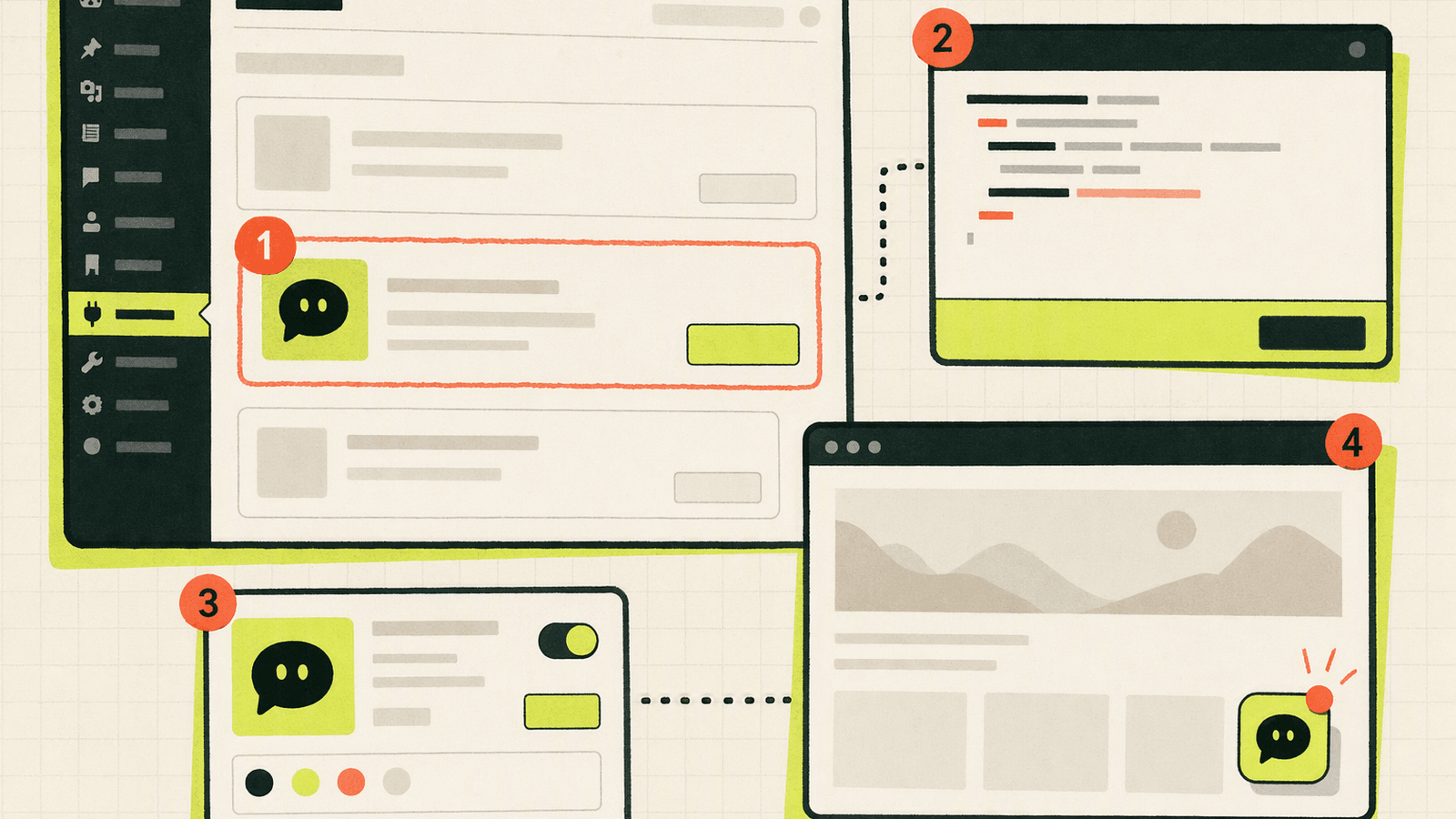
You can install the Knocket WordPress integration without a dedicated WordPress plugin.
1. Create your Knocket widget
Go to the Knocket live chat setup page and sign in to the console. Create a widget, then configure:
- Brand color
- Welcome message
- Offline message
- Avatar
- Language
- Notification preference
Keep the first version simple. A clear greeting beats a clever one.
2. Copy your install script
Open the Knocket installation page and copy the full script. It will look like this, with your own identifier from the console:
<!-- Paste before </head> or </body>. Replace YOUR_ID with your console identifier. -->
<script
  src="https://trtc.io/knocket-sdk/sdk.js?identifier=YOUR_ID"
  async>
</script>
The async attribute helps the browser continue rendering the page instead of waiting for the script first.
3. Add the script to WordPress
Choose one installation path:
| WordPress setup | Recommended install path |
|---|---|
| Classic theme with file access | Appearance → Theme File Editor → header.php, paste before </head> |
| Safer non-code method | Use a reputable “insert headers and footers” style plugin and paste into the header area |
| Child theme | Enqueue the script from functions.php |
| Block theme | Use a custom code/header plugin unless your theme exposes a header code field |
| Managed WordPress.com site | Check whether your plan supports custom code |
If you prefer a child theme approach, keep it short:
add_action('wp_enqueue_scripts', function () {
  wp_enqueue_script(
    'knocket-widget',
    'https://trtc.io/knocket-sdk/sdk.js?identifier=YOUR_ID',
    array(),
    null,
    true
  );
});
Replace YOUR_ID with the identifier from your Knocket installation settings.
4. Clear caches
If your site uses a caching plugin, CDN, or managed host cache, clear it after saving. Then open your site in a private browser window. You should see the Knocket chat button after the page loads.
5. Verify the full message loop
Test the actual experience:
- Open the site in an incognito window.
- Click the chat button.
- Send a test message as a visitor.
- Confirm that you receive it in the Knocket Inbox or notification channel.
- Reply as yourself.
- Confirm that the visitor sees your reply.
- Test on mobile.
Where to Place Your Chat Widget for More Conversations
A live chat widget should be visible without interrupting the page. For most WordPress sites, a bottom-right floating button is familiar and works well. Prioritize pages where visitors have questions:
| Page type | Why chat helps | Suggested greeting |
|---|---|---|
| Pricing page | Visitors compare, hesitate, or need clarification. | “Have a question before choosing? I’m here.” |
| Product landing page | Early users may not understand the value yet. | “Want to know if this fits your use case?” |
| Documentation | Confusion can block activation. | “Stuck on setup? Send me the page you’re on.” |
| Blog posts with buying intent | Search visitors may be evaluating options. | “Reading this for a project? Ask me anything.” |
| Contact page | Some people prefer chat over forms. | “You can message me here instead of sending an email.” |
If you run WooCommerce or sell services, chat can also help on product and checkout-adjacent pages. Do not treat chat as a magic fix, but do use it to capture objections while they are fresh.
Best Automation and Greeting Messages for WordPress Visitors
Knocket is intentionally not a heavy automation suite. For WordPress live chat, the best “automation” is a thoughtful greeting, reliable notifications, and a clear offline message.
Use greetings that match the page context:
| Page | Weak greeting | Better greeting |
|---|---|---|
| Homepage | “Hi, how can we help?” | “Building something with this site? Ask me directly.” |
| Pricing | “Need help?” | “Not sure which option fits? Tell me your use case.” |
| Docs | “Welcome!” | “Stuck on a step? Send the page URL and what happened.” |
| Blog | “Chat with us.” | “Have a question about this guide? I’ll reply here.” |
| Contact | “Leave a message.” | “Message me here, or use the links on this page.” |
For offline messages, set expectations:
- “I’m not online right now, but I’ll reply as soon as I can.”
- “Leave your email if you want the reply delivered outside this chat.”
- “If this is about setup, include the page URL and what you expected to happen.”
You can also use Knocket Contact Page as a no-code fallback for social bios, newsletters, email signatures, and beta waitlists.
If you want AI-assisted replies, Knocket also has an open-source AI Agent project on GitHub. Treat that as optional.
How to Measure Chat Performance and Lead Quality
Do not measure WordPress visitor messaging only by total chat volume. Track these signals manually at first:
| Metric | What to record | Why it matters |
|---|---|---|
| Page where chat started | Pricing, docs, blog, homepage | Shows where visitors need help or have intent. |
| First message topic | Pricing, bug, feature, setup, partnership | Helps you improve copy and onboarding. |
| Reply time | How long before you answered | Faster replies usually create better conversations. |
| Outcome | Demo booked, bug fixed, idea captured, no fit | Connects chat to learning and conversion. |
| Lead quality | High, medium, low | Prevents optimizing for empty volume. |
For analytics, use your existing tools alongside chat. Google’s GA4 events documentation is useful if you already track website actions.
Common WordPress Setup Mistakes to Avoid
Most WordPress live chat issues come from install location, caching, or expectations.
| Mistake | Symptom | Fix |
|---|---|---|
| Pasting the script into a page body only | Widget appears on one page but not across the site | Add it globally in the header/footer area. |
Forgetting to replace YOUR_ID |
Widget does not connect to your configuration | Copy the full script from the Knocket console. |
| Cache not cleared | Old version of the site still loads | Clear WordPress plugin cache, host cache, and CDN cache. |
| Installing multiple chat tools | Overlapping buttons or slower pages | Keep one live chat widget active. |
| Testing while logged into WordPress only | You miss the real visitor view | Test in incognito and on mobile. |
| No notification channel | Visitors message you, but you notice too late | Enable Telegram or email notifications. |
| Vague greeting | Visitors do not know what to ask | Use page-specific prompts. |
Also check custom code permissions. WordPress.org self-hosted sites generally give you more control. WordPress.com hosted sites may depend on the account and site configuration.
Final Checklist for Launching Knocket on WordPress
Before you announce your new WordPress live chat button, run this checklist:
- Widget created in the Knocket console.
- Theme color, avatar, welcome message, and offline message configured.
- Script copied from Knocket installation settings.
- Script added globally before
</head>or through a trusted header/footer method. - WordPress, host, and CDN caches cleared.
- Chat button tested on desktop and mobile.
- Visitor message sent from an incognito browser.
- Reply tested from your inbox or notification flow.
- Telegram or email notifications enabled.
- Important pages reviewed: homepage, pricing, docs, blog, checkout/contact.
- Optional Knocket Contact Page published.
The goal is not to create a support department. The goal is to avoid losing the visitor who was one question away from trying your product.
FAQ
Is Knocket a WordPress chat plugin?
Knocket is a lightweight live chat widget that can be added to WordPress with an async script. You do not need a dedicated WordPress plugin if you can add custom header or footer code.
Can I use Knocket on WordPress.com?
It depends on whether your WordPress.com setup allows custom code. Check WordPress.com’s official support documentation for your site type and permissions.
Will Knocket slow down my WordPress site?
Knocket’s website widget is loaded with an async script, which helps avoid blocking page rendering. You should still test your own site with tools such as PageSpeed Insights.
Is Knocket a CRM or helpdesk?
No. Knocket is not a CRM, helpdesk, enterprise support suite, or Intercom replacement. It is a lightweight contact tool for indie developers and early teams.
How much does Knocket cost?
Knocket is 100% free forever, with no ads and no seat limits.
Can I reply from Telegram or email?
Knocket supports Telegram and email notification workflows. Messages from your website, app, or Contact Page can flow into the Knocket Inbox.
What is the best first page to add WordPress live chat to?
Add it globally, then pay special attention to high-intent pages: pricing, product landing pages, documentation, contact pages, and blog posts that attract comparison or buying-intent traffic.
Add Knocket to your WordPress site today and start catching the visitors who are ready to talk.