
TL;DR: Astro Chat Setup in 5 Minutes
If you mean “Astro chat” as a chat widget for the Astro web framework—not astrology chat apps or horoscope charts—the fastest path is to add Knocket’s async script once in your shared Astro layout. Knocket gives you a lightweight live chat widget for static, SSR, and hybrid Astro sites without npm packages, build plugins, or a heavy customer-service stack.
Quick setup:
- Create your Knocket widget in the Knocket console.
- Copy your installation script from Knocket installation settings.
- Paste the async script before
</head>or</body>in your main Astro layout. - Deploy your site.
- Open the page as a visitor, send a message, then reply from the Knocket Inbox, Telegram, or email notification.
Knocket is built for indie developers and early teams trying to reach their first 100 users. It is 100% free forever, with no ads and no seat limits.
What Astro Chat Means for Fast Static and Hybrid Websites
“Astro chat” is an ambiguous keyword. Current search results often point to astrology sites, horoscope tools, or mobile apps. This guide focuses on the developer meaning: adding a customer chat widget to an Astro website.
Astro is popular because it ships less JavaScript by default. Its island architecture lets you hydrate only the interactive components that need client-side JavaScript, instead of turning the whole page into a client-rendered app. The official Astro docs describe this as “content-driven” development with selective interactivity through islands and client directives: Astro Islands documentation.
That creates a practical question: how do you add website messaging without undermining the performance benefits that made you choose Astro?
| Astro site type | Why add chat? | What the visitor expects |
|---|---|---|
| SaaS landing page | Pre-signup questions | Fast answer from the founder |
| Docs site | Clarify setup problems | A way to ask without opening GitHub |
| Open-source project page | Contributor or sponsor contact | Human response |
| Productized service site | Lead qualification | Lightweight conversation |
| Static blog | Reader feedback or partnership inquiry | Easy contact |
Knocket fits this because it is not a CRM, helpdesk, or enterprise customer-service suite. It is a small contact layer: a Web Widget, Contact Page, Unified Inbox, and Telegram/email notifications.
Why Performance Matters When Adding a Chat Widget
Astro sites are often chosen for Core Web Vitals, SEO, and fast first loads. A chat widget should not become the heaviest thing on the page.
Google’s Core Web Vitals guidance focuses on user-visible performance metrics such as Largest Contentful Paint, Interaction to Next Paint, and Cumulative Layout Shift. See Google’s official overview on web.dev Core Web Vitals. For a static or hybrid Astro site, the key chat-widget risks are:
- blocking the initial render with synchronous JavaScript;
- loading too much third-party code before content appears;
- shifting layout when the widget appears;
- slowing interaction on content-heavy pages;
- adding a widget to every page when only product pages need it.
Knocket’s web installation uses an async script. That matters because async tells the browser not to block HTML parsing while the script downloads. MDN’s HTMLScriptElement.async reference explains the behavior in detail: MDN async script documentation.
Still, test after installation. Load it asynchronously, place it once, avoid duplicate embeds, then verify with Lighthouse or Chrome DevTools.
How Knocket Works with Astro Projects
Knocket works with Astro as a plain browser script. You do not need an Astro integration, React island, Vue component, Svelte component, or npm dependency.
The flow is:
- Visitor opens your Astro page.
- Knocket’s async script loads.
- A floating live chat widget appears based on your console configuration.
- The visitor sends a message.
- You receive it in the Knocket Inbox and, if enabled, through Telegram or email notifications.
- You reply, and the visitor sees the response in the original chat.
You configure the widget in Knocket’s web contact tool: theme color, welcome message, avatar, language, and offline state. The same account can also publish a no-code Contact Page through Knocket Contact Page settings.
For Astro specifically, the cleanest installation point is usually a shared layout such as src/layouts/BaseLayout.astro, src/layouts/Layout.astro, or src/layouts/MarketingLayout.astro. If your site has separate layouts for docs, blog, and app marketing pages, install Knocket only where visitor conversation is useful.
Step-by-Step Setup for Adding Knocket to an Astro Site
Before you edit code, prepare three things:
- A Knocket account from the Knocket homepage.
- Your widget identifier from the installation page in the console.
- Access to the main Astro layout used by the pages where chat should appear.
1. Create and configure your widget
In the Knocket console, create a Web Widget. Keep the first version simple:
- welcome message: one sentence;
- offline message: honest response expectation;
- color: match your primary CTA color;
- avatar: founder photo, product icon, or simple brand mark;
- language: match your main site language.
For a solo founder, a good first welcome message is direct:
“Hey, I’m building this. Ask me anything about setup, pricing, or whether it fits your use case.”
Do not over-script it. Knocket’s value is real conversation, not pretending to be a large support department.
2. Copy the async install script
From Knocket installation settings, copy the full script for your widget. It follows this pattern:
<script
  src="https://trtc.io/knocket-sdk/sdk.js?identifier=YOUR_ID"
  async>
</script>
Use the complete version from the console because your identifier is account-specific.
3. Add the script to your Astro layout
Open the layout that wraps your public pages. A minimal Astro layout might look like this:
---
// src/layouts/BaseLayout.astro
const { title = 'My Astro Site', description = 'A fast Astro website' } = Astro.props;
---

<!doctype html>
<html lang="en">
  <head>
    <meta charset="UTF-8" />
    <meta name="description" content={description} />
    <meta name="viewport" content="width=device-width, initial-scale=1.0" />
    <title>{title}</title>
    <script src="https://trtc.io/knocket-sdk/sdk.js?identifier=YOUR_ID" async></script>
  </head>
  <body>
    <slot />
  </body>
</html>
Replace YOUR_ID with the identifier from your Knocket console. Deploy, then test on the live URL as well as locally.
Where to Place the Chat Script in an Astro Project
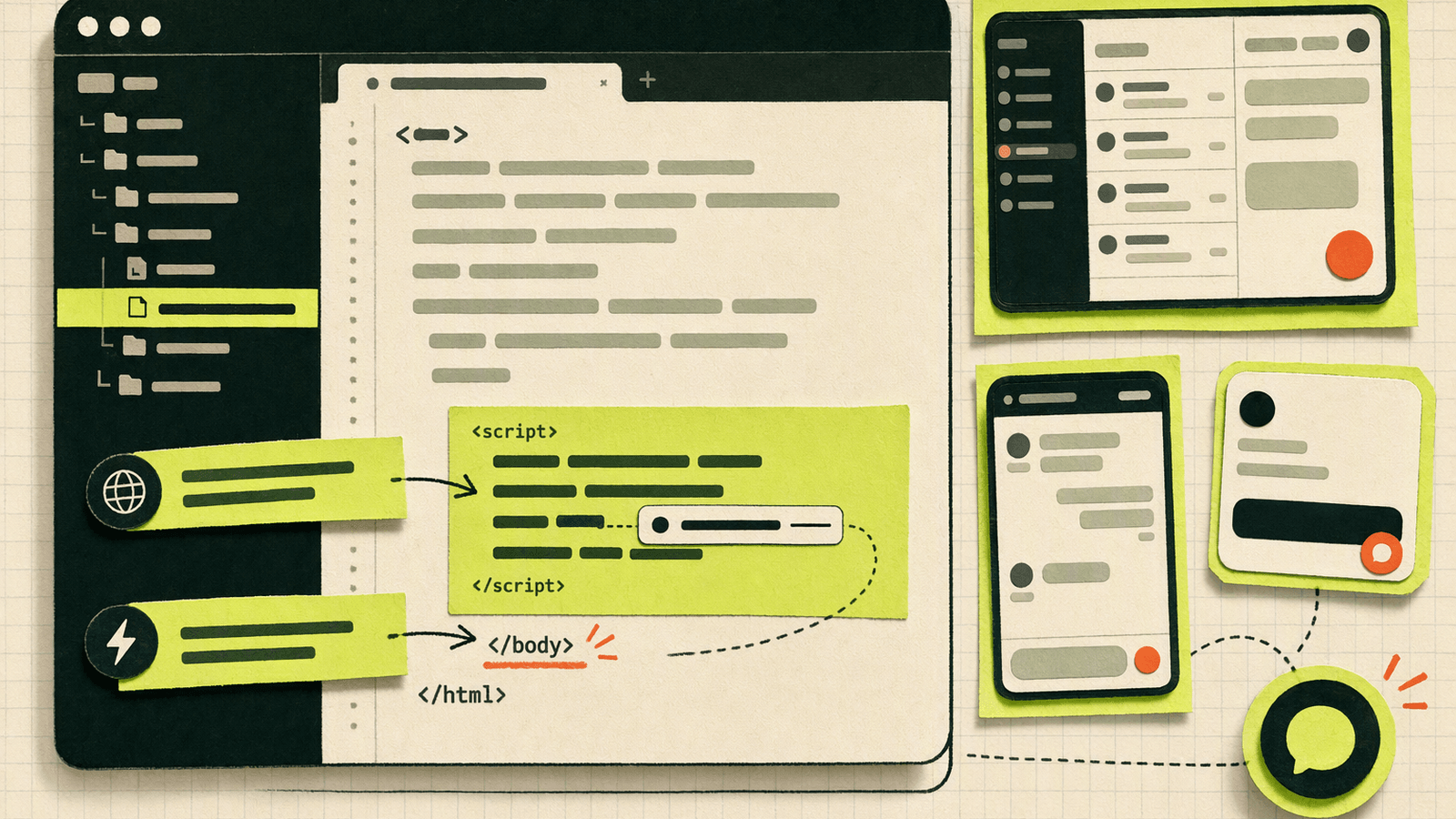
For most Astro sites, place the Knocket script in the <head> of a shared layout. Because it is async, it should not block rendering. This also avoids duplicating the widget across individual pages.
| Placement | Good for | Avoid when |
|---|---|---|
Shared <head> layout |
Most marketing sites, docs, blogs | You only want chat on one page |
Before </body> |
Teams that prefer scripts at the end | You need the widget as early as possible |
| Page-specific layout | Landing pages, beta signup pages | The whole site needs contact |
| Component-level embed | Rare conditional use | You may render it multiple times |
The main mistake is adding the script in both a layout and a component. That can create duplicate widgets or repeated network requests.
If your Astro site has multiple layouts, audit which pages use each layout:
DocsLayout.astro: add chat if users ask setup questions.BlogLayout.astro: add chat only if reader contact is important.LandingLayout.astro: usually the best place for chat.AppShell.astro: avoid if this is behind login and not intended for visitor contact.
Handling Layouts, Components, and Client-Side Loading
Astro’s island architecture is a strength, but a third-party chat widget is not an Astro island. Treat it as a global browser enhancement.
You usually do not need client:load, client:idle, or client:visible because those directives apply to Astro framework components, not plain external scripts. If you want more control, use a tiny inline loader that appends the script after the page loads:
<script is:inline>
  window.addEventListener('load', () => {
    const script = document.createElement('script');
    script.src = 'https://trtc.io/knocket-sdk/sdk.js?identifier=YOUR_ID';
    script.async = true;
    document.head.appendChild(script);
  });
</script>
Use this only if performance testing shows the default async placement is not ideal for your site. The tradeoff is simple: delayed loading may improve the initial waterfall, but the chat button appears later.
Best Practices for Chat UX on Content and Product Sites

A chat widget is only useful if visitors understand when and why to use it. For early-stage teams, optimize for low-friction human contact.
Set a founder-style welcome message.
Avoid corporate wording. “Questions about the API? I can help.” is better than “How may our team assist you today?”Be honest about response time.
If you are not always online, say so. Knocket can route notifications through Telegram and email, so you can respond without sitting in a dashboard all day.Put chat where intent is high.
Good pages: pricing, demo, docs quickstart, beta signup, integration guide, open-source sponsor page.Use a Contact Page for places your Astro site cannot reach.
A no-code Contact Page from Knocket Contact Page works well in social bios, email signatures, GitHub READMEs, and launch posts.Keep the widget lightweight in purpose.
Do not turn it into a ticket queue. Knocket is for catching real user intent early: “Can this solve my problem?” “Does it work with Astro?” “Can I try it today?”Connect the Unified Inbox before launch.
With Knocket’s unified contact workflow, messages from the website widget, Contact Page, Telegram, and email can be handled in one place.
For indie projects, the best chat experience is not automation-heavy. It is a short path from visitor curiosity to founder reply.
Testing Performance After Installing a Chat Widget
After installing any chat widget, measure rather than guess. Use at least two tools:
- Lighthouse in Chrome DevTools for Core Web Vitals diagnostics and third-party script visibility.
- WebPageTest for waterfall analysis from different locations and devices.
- HTTP Archive for broader context on how JavaScript weight affects the modern web.
Run tests before and after adding Knocket. Use the same URL, device profile, network setting, and test location.
| Metric | What to check | What you want |
|---|---|---|
| LCP | Did main content load slower? | No meaningful regression |
| INP/TBT | Did interactivity suffer? | Minimal added blocking time |
| CLS | Did the widget shift layout? | No visible layout jump |
| Requests | Did third-party requests multiply? | One expected widget load path |
| Waterfall | Did chat block critical assets? | No blocking of HTML/CSS/hero assets |
Also test the actual message loop:
- Open your deployed Astro site in an incognito window.
- Click the Knocket widget.
- Send a realistic visitor question.
- Confirm the message appears in the Knocket Inbox.
- If enabled, confirm Telegram or email notification arrives.
- Reply from the Inbox or notification flow.
- Confirm the visitor sees the reply in the widget.
This end-to-end test matters more than a perfect Lighthouse number. A chat widget that loads fast but does not notify you is broken for its real purpose.
Astro Chat Implementation Checklist
Use this checklist before you ship:
- Widget created in the Knocket console.
- Correct identifier copied from Knocket installation settings.
- Script added once, not in multiple layouts.
-
asyncis present on the script. - Widget appears on intended pages only.
- Welcome message matches your product voice.
- Offline message sets realistic expectations.
- Telegram or email notifications are enabled if you do not monitor the Inbox.
- Test visitor message sent from an incognito window.
- Reply verified in the visitor widget.
- Lighthouse or WebPageTest comparison completed.
- Contact Page published if you need a shareable link outside your Astro site.
- Team members know where replies should happen.
If you want a simple rule: install Knocket on pages where a conversation can change the outcome. That usually means signup, docs, pricing, and demo pages—not every URL by default.
FAQ
Is Knocket an Astro integration or npm package?
No. Knocket is installed as an async browser script. You do not need an Astro integration, npm package, or build plugin.
Will adding chat hurt my Astro performance?
Any third-party script can affect performance, so test it. Knocket’s web widget uses an async script, which helps avoid blocking initial rendering. Run Lighthouse or WebPageTest before and after installation.
Should I put the script in <head> or before </body>?
For most Astro sites, put it in the shared layout’s <head> with async. If you prefer to keep third-party scripts near the end of the document, before </body> is also acceptable. The key is to add it once.
Can I add Knocket only to specific Astro pages?
Yes. Use a page-specific layout or add the script only to the layout used by those pages. This is useful for pricing pages, waitlists, docs quickstarts, and landing pages.
Does Knocket work on static Astro sites?
Yes. Knocket works on static, SSR, and hybrid Astro sites because it is loaded in the browser as a lightweight widget script.
Can I reply without keeping the console open?
Yes. You can use the Knocket Inbox, and you can enable Telegram or email notifications. Telegram notification flows can support replying back to the live chat conversation.
Is Knocket a CRM or helpdesk?
No. Knocket is a lightweight contact tool for indie developers and early teams. It helps you catch and reply to real user messages; it is not a CRM, helpdesk, or enterprise customer-service suite.
What if I do not have an Astro site yet?
Use a no-code Contact Page from Knocket. You can share it in a social bio, email signature, GitHub README, launch post, or QR code while your site is still being built.
Add Knocket to your Astro site and start catching real visitor questions today at https://knocket.trtc.io/.