
To add a React live chat widget with Knocket, create your widget in the Knocket console, copy the async script, and load it once from your React app shell using useEffect. The result is a lightweight contact button your visitors can use to message you while you reply from Knocket Inbox, Telegram, or email.
TL;DR: React Live Chat Widget Setup
- Create a Knocket widget in the Knocket console.
- Copy your full install snippet from Knocket installation settings.
- Add the script once in your React root layout or app shell.
- Test the loop: visitor message → notification → reply → visitor sees reply.
- Optional: publish a no-code Knocket Contact Page for places where you cannot embed JavaScript.
Knocket is built for indie developers and early teams trying to reach their first 100 users. It is not a CRM, helpdesk, or enterprise customer-service suite. It is a 100% free forever contact widget with no ads and no seat limits.
What a React Live Chat Widget Does in Modern Apps

A React live chat widget gives visitors a direct way to contact the person behind the product without leaving the page. In early-stage apps, that helps you learn when someone is confused, interested, blocked, or ready to buy.
In a React app, the widget usually appears as a floating button. A visitor clicks it, sends a message, and you receive it in a shared inbox or notification channel. With Knocket, your website widget, Contact Page, Telegram, and email notifications can feed into one Knocket Inbox.
| Visitor action | What you get |
|---|---|
| “Does this support my use case?” | A real conversation before the visitor bounces |
| “I found a bug” | Feedback while the user is still active |
| “Can I get a demo?” | A lead without forcing a long form |
| “I’m stuck on setup” | A chance to fix onboarding |
Knocket focuses on this early contact loop: one line of JavaScript, a small widget, a unified inbox, and optional Telegram/email notifications.
Key Considerations for Single-Page Applications
React apps behave differently from traditional multi-page websites. In a single-page application, route changes happen client-side, so your chat embed should be loaded carefully.
| Concern | What to do in React |
|---|---|
| Duplicate scripts | Load the widget once, usually in the root app shell |
| Server-side rendering | Only access window or document in client-side effects |
| Route changes | Decide whether the widget should stay visible across all routes |
| Auth pages | Hide the widget on sensitive screens if needed |
| Performance | Use async and avoid blocking the initial render |
React’s official documentation recommends Effects for synchronizing a component with an external system, which fits script injection when you cannot place the script directly in static HTML. See the official React guide on synchronizing with Effects.
If your app framework supports a document-level head file or script component, you may load the script there. For plain Vite, Create React App, or custom React builds, a small useEffect loader is usually enough.
How Knocket Fits Into a React Project
Knocket fits React projects as a small external script. You do not need npm packages, a backend endpoint, or a build-time integration. The widget is configured in Knocket, then embedded in your app.
The basic web install script looks like this:
<script src="https://trtc.io/knocket-sdk/sdk.js?identifier=YOUR_ID" async></script>
Replace YOUR_ID with the identifier from your Knocket console. Get the full official snippet from your Knocket installation page rather than guessing the identifier manually.
A typical React setup looks like this:
- Sign in to the Knocket console.
- Create or configure a Web Widget.
- Set the theme color, welcome message, avatar, language, and offline state.
- Copy the install script.
- Load it once in your React app.
- Send a test message from your app.
- Reply from Knocket Inbox, Telegram, or email.
If you do not have a website ready yet, use a no-code Knocket Contact Page instead. It gives you a shareable contact URL with live chat and social links, useful for social bios, waitlists, launch posts, and email signatures.
Step-by-Step Installation in a React App
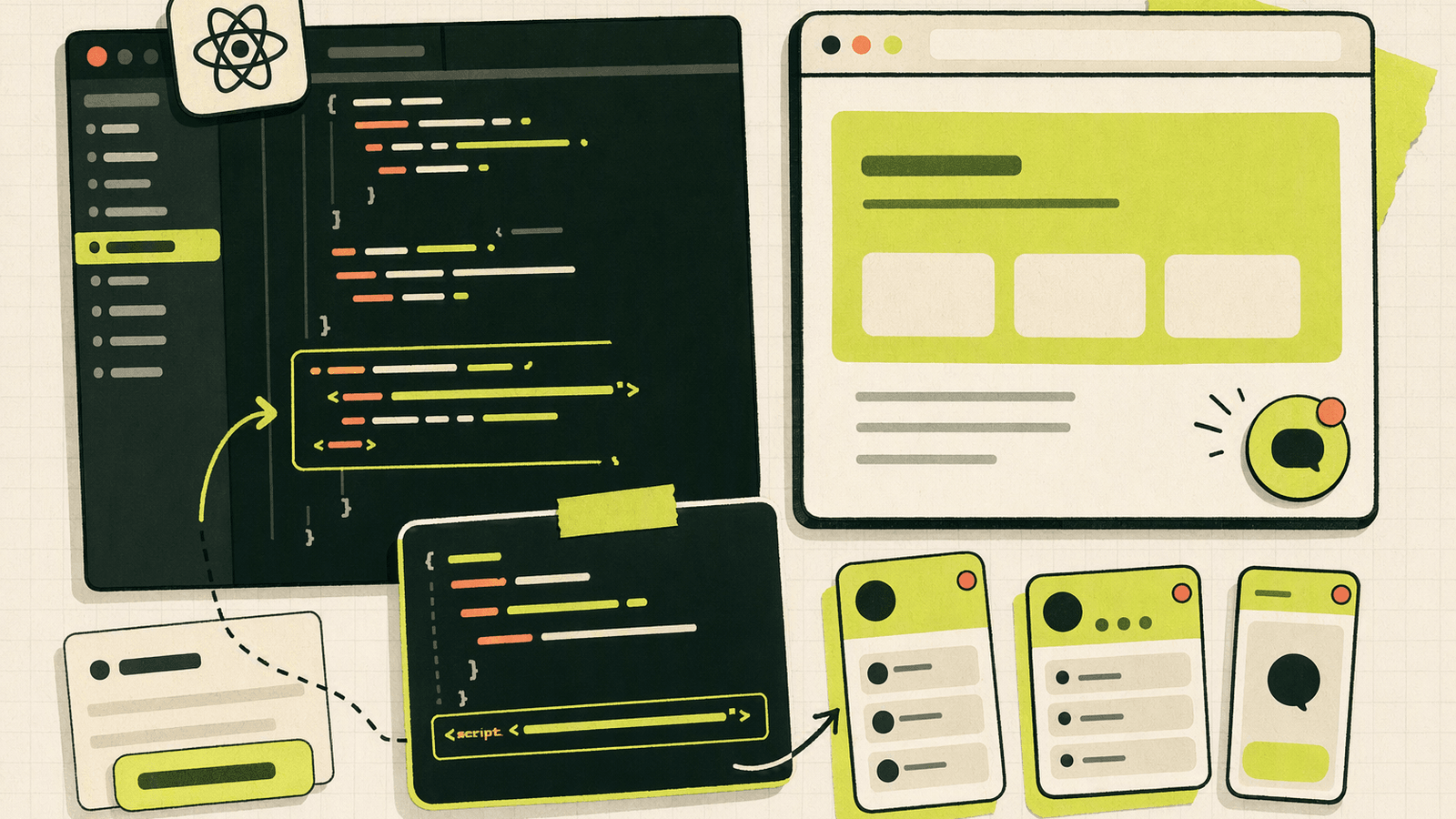
Start with the simplest reliable path: load the widget once from your top-level app component.
1. Create your Knocket widget
Open the Knocket console and create a Web Widget. Configure the widget color, welcome message, offline message, avatar, language, and notification preferences before embedding.
This keeps styling and messaging out of your React code. If you change the greeting later, you can do it from the console without redeploying the app.
2. Copy the official script
Go to Knocket installation settings and copy the full script. It should include your unique identifier.
Use the console-provided code as the source of truth. The example in this article shows the shape of the script, but your production app needs your real identifier.
3. Choose the loading location
For most React apps, load the script in the root component that stays mounted across routes:
App.tsxin Vite or Create React App- Root layout in a custom React shell
- Client component in frameworks that separate server and client rendering
Avoid placing the script inside page components that mount and unmount often. That can create duplicate buttons or repeated initialization.
4. Deploy and test on a real URL
Localhost testing is useful, but also test on your deployed domain. Browser privacy settings, CSP headers, script blockers, and deployment-specific HTML can affect third-party scripts.
For general script behavior, MDN’s reference on the HTMLScriptElement is a useful source, especially for understanding async.
Loading the Chat Script Safely with React Hooks
Use this pattern when your React app does not have a dedicated document head file. It checks for an existing Knocket script before adding a new one.
import { useEffect } from "react";

const KNOCKET_SCRIPT_ID = "knocket-live-chat";

export function KnocketChat() {
  useEffect(() => {
    if (typeof window === "undefined") return;

    const existingScript = document.getElementById(KNOCKET_SCRIPT_ID);
    if (existingScript) return;

    const script = document.createElement("script");
    script.id = KNOCKET_SCRIPT_ID;
    script.src = "https://trtc.io/knocket-sdk/sdk.js?identifier=YOUR_ID";
    script.async = true;

    document.body.appendChild(script);
  }, []);

  return null;
}
Then render <KnocketChat /> once near your app root.
Why this works:
useEffectruns only in the browser, not during server rendering.- The script ID prevents duplicate injection.
asyncavoids blocking page rendering.- Keeping the script mounted across routes prevents flicker in an SPA.
If your framework has a first-class script loader, use that instead. For example, Next.js documents script loading strategies in its official Next.js Script component documentation.
Managing Routes, User Context, and Widget Visibility
Most early-stage products should show the widget on public pages: home, pricing, docs, changelog, waitlist, and onboarding. Those are the places where visitors are most likely to have questions.
You may want to hide the widget on:
- OAuth callback pages
- Payment redirect pages
- Full-screen editor views
- Internal admin screens
- Legal pages where a floating button overlaps fixed content
A simple route-based approach is to render the chat component only in layouts where it belongs. For example, keep it in your public marketing layout and omit it from your internal app layout.
If you have authenticated users, avoid over-engineering the first version. Start with the anonymous visitor flow: user opens widget, sends message, you reply. If a conversation needs more context, ask directly.
For apps that cannot embed JavaScript everywhere, use the Knocket Contact Page publisher. Add the page link to your footer, command menu, GitHub README, social bio, or email signature.
Performance Best Practices for React Chat Integrations
A chat widget should not slow down the first meaningful render of your React app. Knocket’s web install uses an async script, which is the right default for a lightweight client-side chat embed.
| Practice | Why it matters |
|---|---|
| Load once | Prevents duplicate widgets and extra network work |
Use async |
Avoids blocking HTML parsing and rendering |
| Keep it out of critical UI components | Chat should not affect core product rendering |
| Test on slow networks | Early users may visit from mobile or shared Wi-Fi |
| Watch layout overlap | Floating buttons can cover cookie banners or mobile nav |
For broader performance guidance, Google’s web.dev guide on optimizing JavaScript is a good reference. You can also use Lighthouse in Chrome DevTools to compare before and after installing any third-party script.
A practical test: open your production site in an incognito window, throttle the network to “Fast 3G,” and confirm that the main page content appears before the chat widget.
Testing Chat Behavior in Development and Production
Do not stop after the button appears. Test the complete contact loop.
Development test
- Run your React app locally.
- Confirm the widget appears once.
- Send a message as a visitor.
- Check Knocket Inbox.
- Reply from the inbox.
- Confirm the visitor sees the reply.
Production test
- Deploy your app.
- Open the production URL in an incognito window.
- Send a new message.
- Check Telegram or email notification if enabled.
- Reply from the channel you actually plan to use.
- Navigate between routes and confirm the widget does not duplicate.
Common issues
| Symptom | Likely cause | Fix |
|---|---|---|
| Widget does not appear | Wrong identifier or script blocked | Copy the snippet again from the console |
| Widget appears twice | Script loaded in multiple components | Load it once in the root app shell |
| Works locally, not in production | CSP or deployment HTML issue | Check browser console and response headers |
| Widget overlaps UI | Floating button conflicts with layout | Adjust page layout or hide on that route |
| No notifications | Notification channel not connected | Recheck Telegram/email settings in Knocket |
Information checked: this tutorial uses supplied Knocket product facts and official React, MDN, Next.js, and web.dev documentation. No live competitor SERP, pricing, or ranking verification was available, so this article does not make current competitor plan or limit claims. Always verify time-sensitive provider details on official product pages.
React Chat Widget Launch Checklist
Use this checklist before announcing your React app, waitlist, or beta.
| Item | Done |
|---|---|
| Knocket widget created in the console | ☐ |
| Theme color and welcome message configured | ☐ |
| Official script copied from installation settings | ☐ |
| Script loaded once in the React root shell | ☐ |
| Production deployment tested in incognito mode | ☐ |
| Visitor message received in Knocket Inbox | ☐ |
| Reply confirmed from inbox, Telegram, or email | ☐ |
| Widget checked on mobile viewport | ☐ |
| Sensitive routes reviewed for visibility | ☐ |
| Contact Page published for external links | ☐ |
For many indie products, the Contact Page is the missing second surface. The widget handles visitors already on your site. The Contact Page catches people from social profiles, launch directories, newsletters, and README files. You can create one from Knocket Contact Page settings and share the URL anywhere.
If you are still finding your first 100 users, keep the setup intentionally small: a widget, a Contact Page, a unified inbox, and notifications you will actually answer.
FAQ
What is the easiest way to add a React live chat widget?
The easiest way is to create a Knocket Web Widget, copy the async script from the console, and load it once in your React app shell using useEffect or your framework’s script loader.
Do I need an npm package for Knocket React setup?
No. Knocket’s web widget is installed with a JavaScript snippet. You do not need an npm package, custom backend, or build plugin.
Where should I put the Knocket script in a React SPA?
Put it in a root component or layout that stays mounted across route changes. Avoid loading it inside individual pages unless you intentionally want the widget only on those pages.
Can I use Knocket with Vite, Create React App, or Next.js?
Yes. Any React app that can load a client-side script can embed the Knocket widget. For Next.js, use a client-side location or the framework’s Script component. For Vite and Create React App, a small useEffect loader works well.
Is Knocket a CRM or helpdesk?
No. Knocket is a lightweight contact tool for indie developers and early-stage teams. It provides a live chat widget, Contact Page, unified inbox, and Telegram/email notifications, but it is not a CRM or helpdesk system.
Is Knocket free?
Yes. Knocket is 100% free forever, with no ads and no seat limits.
What if I do not have a React site ready yet?
Use a Knocket Contact Page. It is no-code, shareable, and works well for social bios, waitlists, launch posts, and email signatures.
Add Knocket to your React app and make it easy for early users to reach you: https://knocket.trtc.io/.