
TL;DR: Add Squarespace Live Chat with Knocket
If you want Squarespace live chat on your own website, you do not need a heavy CRM, a complex support suite, or a paid seat-based tool. Knocket adds a lightweight chat button to your Squarespace site with one async script, so visitors can ask questions while they are already looking at your services, portfolio, shop, or booking page.
Quick setup:
- Create a widget in Knocket.
- Copy your install script from the Knocket installation console.
- In Squarespace, go to Settings → Developer Tools → Code Injection.
- Paste the script into Header or Footer.
- Save, open your live site, send yourself a test message, and reply from the Knocket inbox or connected notifications.
Knocket is 100% free forever, with no ads and no seat limits. It is designed for indie developers, solo founders, studios, and service businesses that need to catch real conversations before visitors leave.
Information checked: August 19, 2026. Squarespace menus and plan availability can change, so verify custom-code access in the official Squarespace documentation before installing.
Why Squarespace Sites Benefit from Real-Time Chat
Squarespace is great for publishing quickly: templates, commerce, scheduling, portfolios, landing pages, and content are all in one builder. The gap appears after a visitor lands on the site and has a question that is too small for email but important enough to block conversion.
A Squarespace chat widget helps with that moment:
| Visitor question | Without live chat | With live chat |
|---|---|---|
| “Are you available next Friday?” | Visitor leaves or hunts for email | They ask from the page they are viewing |
| “Do you ship to Canada?” | They abandon the product page | You answer while intent is high |
| “Can you customize this package?” | They compare another provider | You qualify the lead immediately |
This is different from contacting Squarespace Customer Support. Squarespace’s own support flow helps site owners get help from Squarespace, as documented in its official guide to contacting Squarespace Customer Support. A visitor conversation widget, by contrast, lets your customers contact you from your Squarespace website.
Common Use Cases for Squarespace Business Owners
Squarespace live chat works best when the website already has clear intent. Knocket is especially useful for pages where a short answer can move the visitor forward.
| Site type | Good first response goal |
|---|---|
| Service website | Qualify budget, timeline, and fit |
| Portfolio | Ask for project details and preferred date |
| Local business | Confirm hours, appointments, or location |
| Online store | Reduce shipping, sizing, or custom order hesitation |
| Course or coaching site | Route to booking or waitlist |
| Indie product landing page | Learn the use case and capture email |
| Agency website | Ask for URL, goal, and contact info |
The key is not to turn every visitor into a chat. The goal is to give high-intent visitors a low-friction way to raise their hand.
Knocket’s unified inbox helps keep live chat, Telegram notifications, and email-connected conversations in one place.
How Knocket Fits Into a Squarespace Website
Knocket fits into Squarespace as a lightweight website contact layer. You keep your existing Squarespace design, pages, products, forms, and analytics. Knocket adds the conversation entry point.
A typical setup looks like this:
- Visitor opens your Squarespace page.
- A small chat button appears in the corner.
- Visitor sends a message.
- You receive it in Knocket Inbox, Telegram, or email notification depending on your setup.
- You reply, and the visitor sees the answer in the chat thread.
Knocket is intentionally not a CRM, not a helpdesk, and not an Intercom replacement. It is for the stage where you still want to personally read what people ask and answer like a founder.
Knocket also gives you a no-code Contact Page. You can add the Contact Page link to Instagram, X, LinkedIn, a newsletter, a QR code, an email signature, or a proposal PDF.
Step-by-Step Guide to Adding Knocket on Squarespace
Before you start, confirm two things:
- Your Squarespace plan supports custom code injection. Squarespace documents code injection in its official Using code injection guide.
- You can access your Knocket widget identifier from the Knocket installation console.
1. Create your Knocket widget
Open Knocket and create a Web Widget. Configure the basics first:
- Widget color
- Welcome message
- Offline message
- Avatar or profile image
- Language
- Notification preferences
Keep the first version simple. You can tune the wording later after seeing what visitors actually ask.
2. Copy the install script
From the installation page, copy the full script generated for your widget. It will look like this:
<!-- Paste before </head> or </body>. Replace YOUR_ID with your console identifier. -->
<script src="https://trtc.io/knocket-sdk/sdk.js?identifier=YOUR_ID" async></script>
Use the complete code from your console, not a guessed identifier. The async attribute tells the browser not to block page rendering while the script loads. MDN’s HTML reference explains how async scripts behave.
3. Paste it into Squarespace
In Squarespace:
- Open your website dashboard.
- Go to Settings.
- Open Developer Tools.
- Choose Code Injection.
- Paste the Knocket script into Header or Footer.
- Save.
- Open your published site in a new browser tab.
If your template or Squarespace version shows a slightly different path, search Squarespace settings for “Code Injection.” Do not paste the script into a normal text block, markdown block, or page content area.
4. Test the full reply loop
Do not stop after the button appears. Test the actual loop:
- Open your live Squarespace site in an incognito window.
- Click the chat button.
- Send a test message as a visitor.
- Confirm that the message appears in your Knocket inbox.
- Reply from Knocket.
- Confirm the reply appears in the visitor chat window.
- If you enabled Telegram or email notifications, confirm those arrive too.
This five-minute test catches most installation mistakes before a real lead hits the widget.
Best Chat Widget Placement for Squarespace Templates
Most Squarespace sites should keep the chat button in the bottom-right corner because visitors already expect messaging tools there. Still, check placement against your specific template:
| Page element | What to check |
|---|---|
| Cookie banner | Accept/decline banner on desktop and mobile |
| Mobile checkout bar | Product and cart pages |
| Scheduling button | Booking flow on a phone |
| Sticky footer | Page bottom |
| Accessibility widget | Enough spacing between corner tools |
For service websites, leave the chat visible across the whole site. For commerce sites, test carefully on cart and checkout-adjacent pages. For portfolio sites, make sure the widget does not cover image captions or project navigation.
If you are unsure, start with the default placement and run real tests on iPhone Safari, Android Chrome, Desktop Chrome, and Desktop Safari.
Conversation Starters for Service, Portfolio, and Commerce Pages
A chat button is only useful if the opening message feels relevant. Avoid vague greetings like “How can we help?” when the page has obvious intent.
| Page | Conversation starter |
|---|---|
| Service homepage | “Have a project in mind? Send a few details and I’ll reply personally.” |
| Pricing page | “Not sure which package fits? Tell me your goal and timeline.” |
| Portfolio page | “Want something similar? Share the project type you’re planning.” |
| Product page | “Questions about sizing, shipping, or custom options? Ask here.” |
| Booking page | “Need help choosing a time or service? Message me before booking.” |
| Waitlist page | “Want early access? Send your use case and email.” |
For early products, the best opener often asks about the visitor’s situation, not your feature list. That gives you better lead context and better product feedback.
If you also publish a Knocket Contact Page, keep the wording consistent. The widget can handle visitors on your Squarespace pages; the Contact Page can handle people coming from social bios, directories, communities, or email signatures.
How to Turn Squarespace Visitors into Qualified Leads
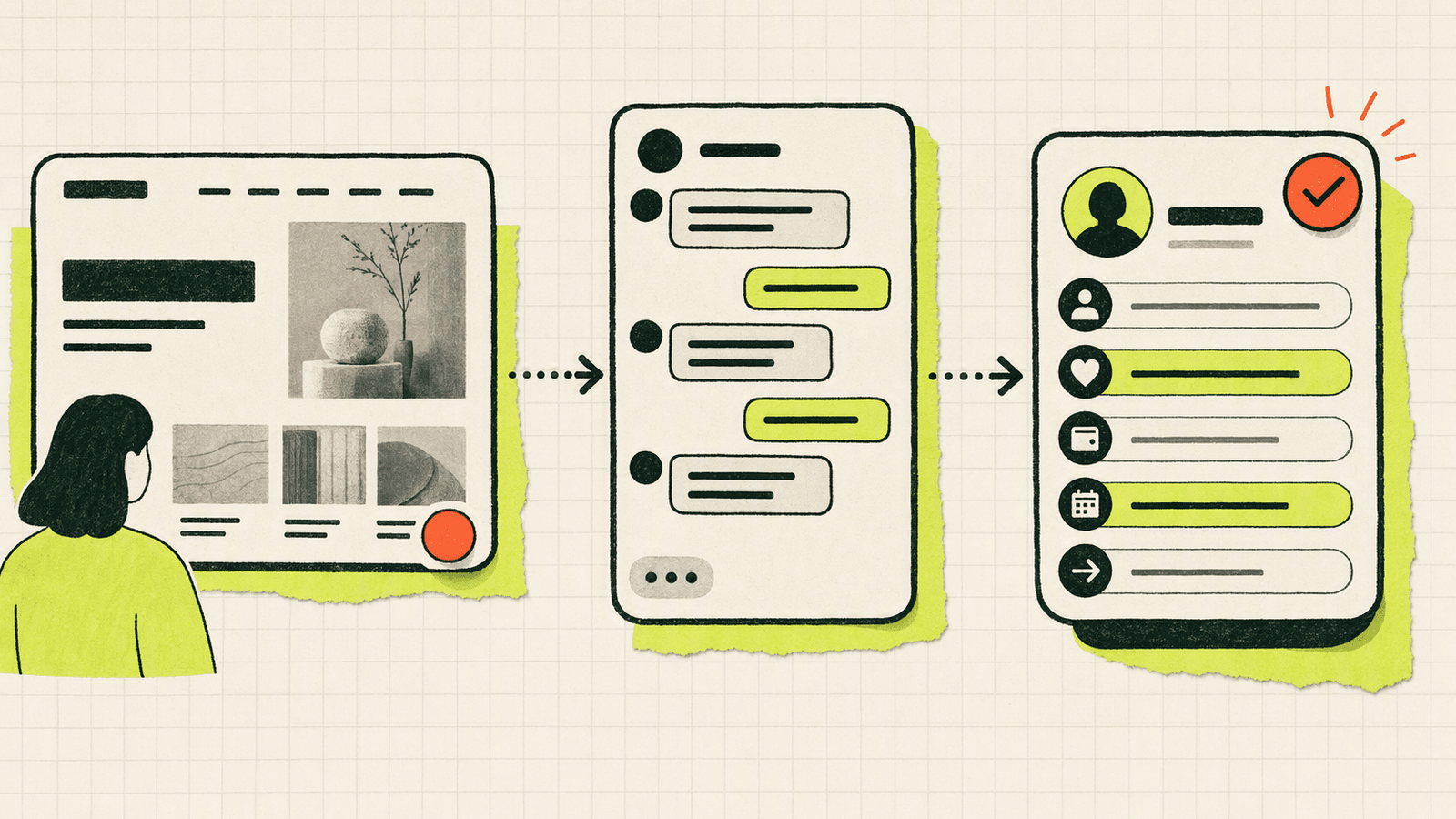
Live chat lead capture works when you ask for the minimum useful context. If you ask for too much, it feels like a form. If you ask for too little, you cannot reply well.
A practical qualification flow:
- Answer the immediate question first.
- Ask one context question.
- Ask for email only when follow-up is needed.
- Summarize the next step.
- Move the conversation to booking, proposal, checkout, or beta access.
Example:
Visitor: “Do you build Squarespace sites for coaches?”
You: “Yes. I usually help coaches with service pages, booking flows, and lead capture. Are you launching a new site or improving an existing one?”
Visitor: “Improving an existing one.”
You: “Got it. Send the URL and the main thing you want to improve. If it looks like a fit, I can reply with next steps.”
That is a qualified lead without a long form.
For broader UX guidance, Baymard’s research library has useful writing on form field usability. The same principle applies to chat: every extra field or question should earn its place.
Knocket helps here because you can reply from a single conversation view instead of chasing leads across site forms, DMs, and email. If you connect Telegram or email notifications through Knocket, you can respond quickly without leaving your normal workflow.
Design Tips to Match Your Chat Widget with Your Brand
Your Squarespace template already has a visual system. The chat widget should feel like it belongs, not like a random plugin pasted on top.
| Design setting | Recommendation |
|---|---|
| Primary color | Match your main CTA button or accent color |
| Welcome message | Use your brand voice, but keep it direct |
| Avatar | Use founder photo, logo mark, or recognizable brand image |
| Offline message | Set honest expectations instead of pretending you are always online |
| Mobile spacing | Test with thumb zones and sticky buttons |
| Contrast | Make sure the launcher is visible on light and dark sections |
For service businesses, a real founder photo can increase trust because the visitor knows who will reply. For indie products, a simple brand icon is usually enough.
Avoid making the chat button the loudest element on the page. Your primary CTA still matters. The widget is there for visitors who need one more answer before taking action.
Squarespace Chat Launch Checklist
Use this checklist before announcing the new chat option.
| Check | Done? |
|---|---|
| Knocket widget created in console | |
| Correct script copied from your widget installation page | |
| Script pasted into Squarespace Code Injection | |
| Chat button visible on desktop and mobile | |
| Test visitor message received | |
| Reply appears in visitor chat | |
| Telegram or email notification tested if enabled | |
| Welcome and offline messages reviewed | |
| Widget does not cover cookie banner, cart, or booking buttons | |
| Contact Page link added to social bio or email signature if useful |
If the widget does not appear, check these common issues:
- The script was pasted into a page block instead of Code Injection.
- The identifier was edited or copied incompletely.
- The site cache or browser cache needs a refresh.
- Custom code is not available on the current Squarespace plan.
- A consent or security setting is blocking third-party scripts.
- You are previewing inside the editor instead of the published site.
When in doubt, publish, open the live URL in an incognito window, and inspect the page source to confirm the Knocket script is present.
FAQ
Is this the same as Squarespace Customer Support live chat?
No. Squarespace Customer Support helps you as the site owner. Knocket adds live chat to your own Squarespace website so your visitors can contact you.
Do I need to know code to add Knocket to Squarespace?
You only need to paste one script into Squarespace Code Injection. You do not need npm, a build step, or a custom Squarespace template.
Is Knocket free for Squarespace live chat?
Yes. Knocket is 100% free forever, with no ads and no seat limits.
Can I use Knocket as a Squarespace lead capture tool?
Yes. Use the widget to answer high-intent questions, ask one or two qualifying questions, and collect contact details when follow-up is needed.
Where should I place the chat button on a Squarespace site?
Start with the default bottom-right placement. Then test mobile pages, product pages, booking pages, sticky footers, cookie banners, and cart flows for overlap.
Can I reply without keeping the Knocket console open all day?
Yes. Knocket supports notifications through channels such as Telegram and email. With Telegram notification setup, you can receive live chat messages and reply back without opening the console.
Should I use a Contact Page too?
Use both if people find you outside your website. The widget helps Squarespace visitors. The Contact Page gives you a shareable contact link for social profiles, email signatures, QR codes, communities, and launch posts.
Add Knocket to your Squarespace site and start catching real visitor questions today at https://knocket.trtc.io/.