
TL;DR
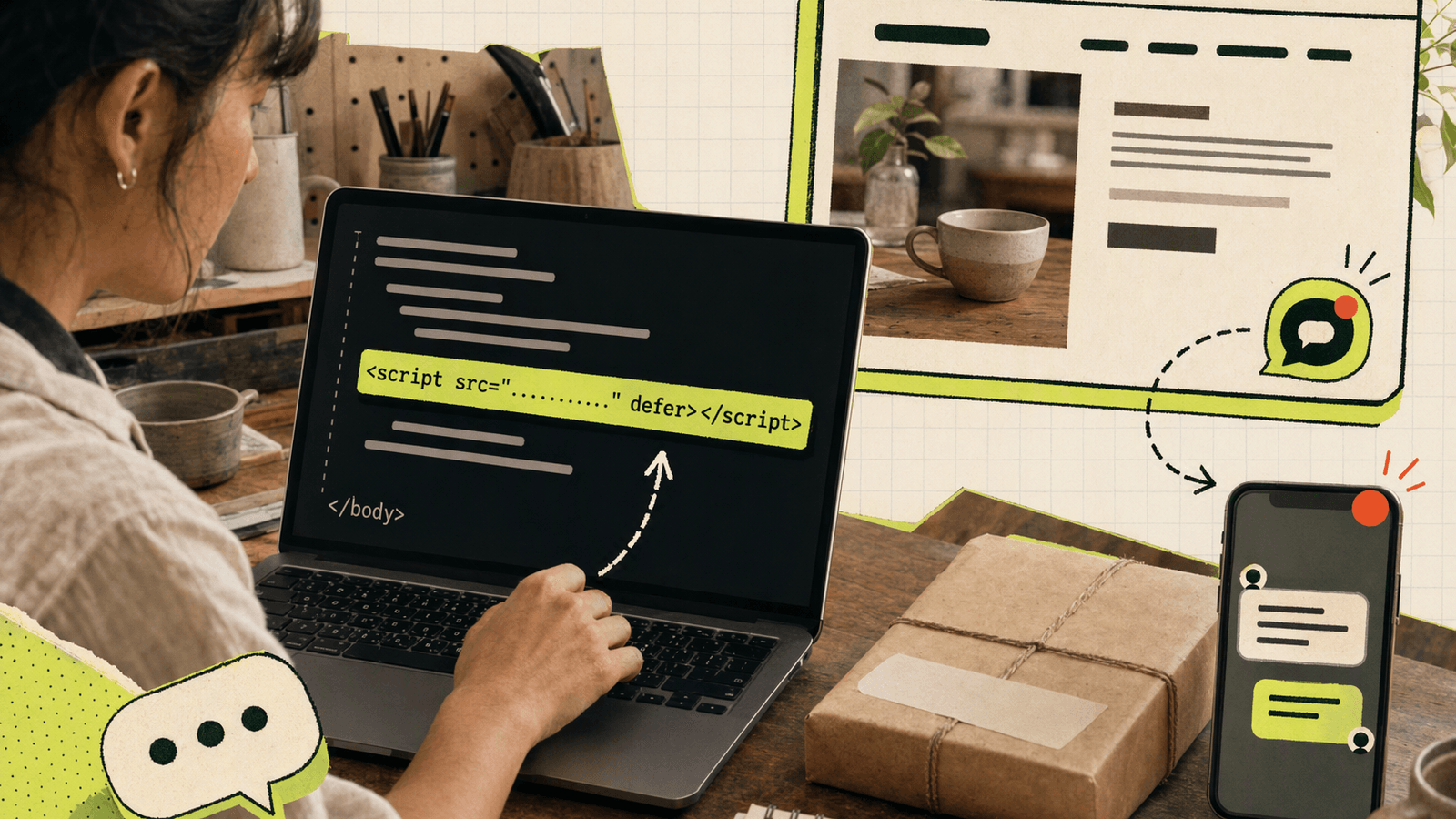
To add live chat to your website, create a Knocket Web Widget, copy its generated <script> tag, and paste it before the closing </head> or </body> tag. The script loads asynchronously, so it does not block initial page rendering.
<script src="https://trtc.io/knocket-sdk/sdk.js?identifier=YOUR_ID" async></script>
Replace YOUR_ID with the identifier generated in your Knocket console. Publish the change, send a test message, and reply from the unified inbox or Telegram.
Knocket is 100% free forever, with no ads or seat limits. You can create your free contact widget with Knocket and complete the visitor-to-reply test in about five minutes.
What You Need Before Adding Live Chat
You do not need npm, a backend service, or a separate build pipeline. Before starting, confirm that you have:
- Access to edit and publish your website
- A Knocket account
- A modern browser for testing
- Telegram or an email address for external notifications
The installation method depends on your website:
| Website type | Where the live chat code goes |
|---|---|
| Plain HTML | Before </head> or </body> |
| WordPress | header.php or a header injection plugin |
| Shopify | theme.liquid before </head> |
| Webflow | Project Settings → Custom Code → Head |
| Framer | Site Settings → Code → Head |
| Ghost | Code Injection → Site Header |
| Wix | Settings → Custom Code → Head |
| Squarespace | Advanced → Code Injection → Header |
| Next.js | Root layout or _app.tsx using next/script |
| Astro | Shared layout <head> |
| Nuxt 3 | App or layout configuration with useHead |
If your platform does not permit custom JavaScript, publish a no-code Knocket Contact Page and link to it from your navigation, social bio, or call-to-action button.
Create and Customize Your Knocket Web Widget
Start at the Knocket website, register, and create a Web Widget. Configure these visitor-facing details:
- Theme color: Match the widget to your site while maintaining contrast.
- Welcome message: Give visitors a reason to write, such as “Questions about the beta? Message the founder.”
- Avatar: Use a recognizable founder or product image.
- Language: Select your visitors’ primary language.
- Offline message: Set expectations when you cannot reply immediately.
For an early-stage product, a personal welcome message usually fits better than corporate support language. Check the widget on light and dark pages, and verify that it does not cover cookie banners, mobile navigation, checkout buttons, or accessibility tools.
Copy the One-Line Live Chat HTML Code
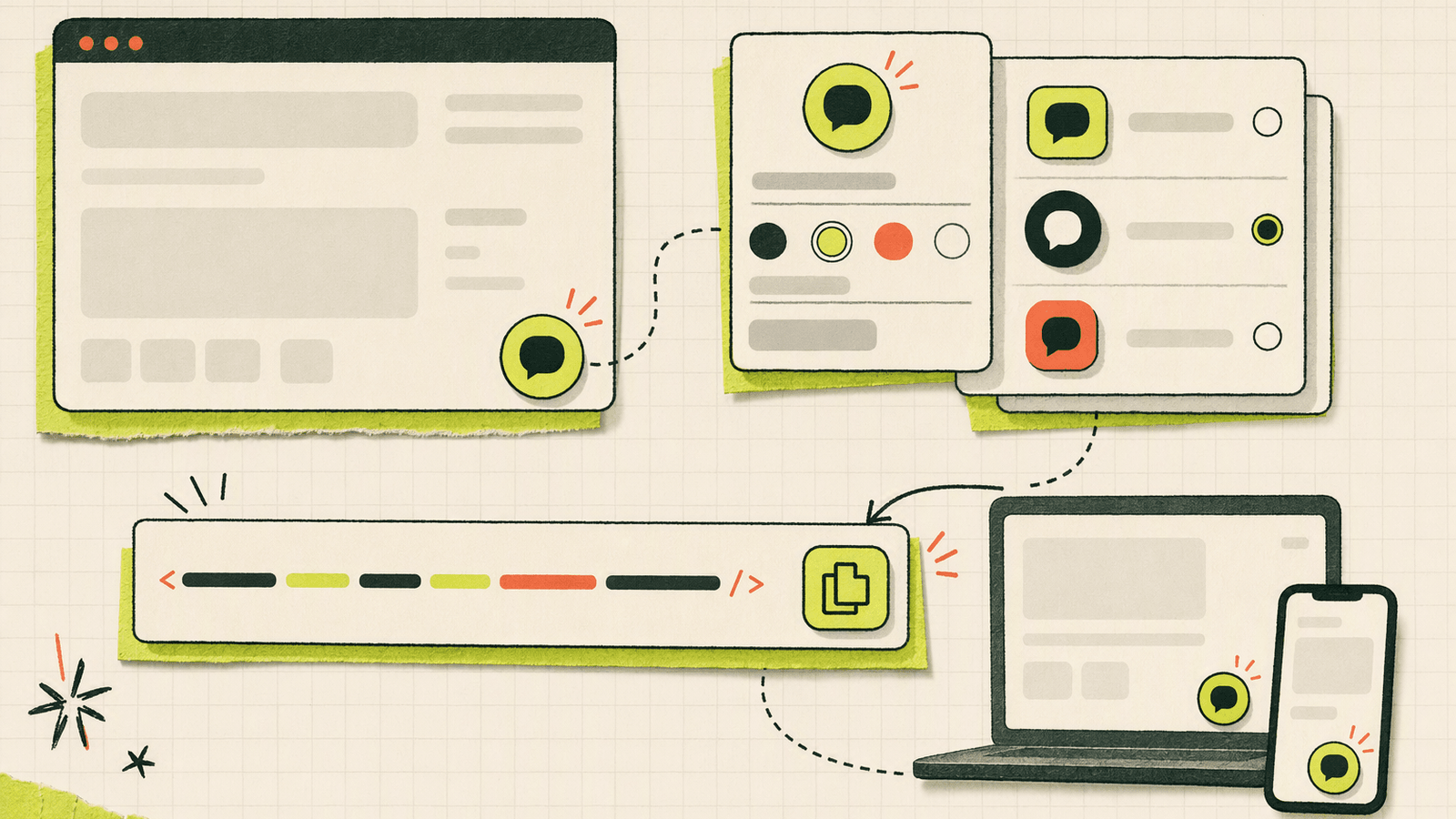
Open your Knocket installation dashboard and copy the complete code generated for your widget:
<script src="https://trtc.io/knocket-sdk/sdk.js?identifier=YOUR_ID" async></script>
Do not publish YOUR_ID; use the full code copied from the console.
The async attribute lets the browser download the script without pausing HTML parsing. Asynchronous execution order is not guaranteed, so avoid inline code that assumes the widget has loaded. See the MDN script element documentation.
Avoid these mistakes:
- Removing quotation marks around
src - Copying only the identifier
- Adding the tag inside visible content
- Changing the script URL
- Installing the tag twice
- Blocking it through a restrictive Content Security Policy
If you create separate staging and production widgets, label them clearly.
Add the Script to a Plain HTML Website
Open the shared HTML template, paste the generated script immediately before </head> or </body>, save, and deploy. A shared template such as layout.html, header.php, or footer.php is preferable to editing every page.
After deployment:
- Open the production URL in a private window.
- Confirm that the launcher appears.
- Send a message with a recognizable test phrase.
- Check that it reaches your Knocket inbox.
If the launcher appears only on some pages, they probably use different templates. Inspect the rendered production source. You can revisit the widget installation code to verify the identifier.
Install Live Chat on Next.js, Astro, Nuxt, and Other Frameworks
Framework-based sites use the same script through a shared layout.
Next.js
For an App Router project, add next/script to app/layout.tsx. The lazyOnload strategy waits until the page and important resources have loaded:
import Script from "next/script";

export default function RootLayout({ children }) {
  return (
    <html lang="en">
      <body>
        {children}
        <Script
          src="https://trtc.io/knocket-sdk/sdk.js?identifier=YOUR_ID"
          strategy="lazyOnload"
        />
      </body>
    </html>
  );
}
Use your real identifier. See the official Next.js Script component guide.
Astro
Place the generated script in the shared Astro layout’s <head>. Follow Astro’s guidance on scripts and client-side JavaScript.
Nuxt 3
Add the external script through useHead in app.vue or a shared layout. See the official useHead reference.
Website builders and hosted platforms
For WordPress, Shopify, Webflow, Framer, Wix, and Squarespace, use the global header area listed earlier, then publish the theme. You may need to clear the page cache.
Install the widget only once. Duplicate installations can create multiple launchers or repeated event handling.
Connect Telegram and Email Notifications
Connect Telegram and email so you do not miss messages while the console is closed.
In the Knocket console:
- Open your channel or notification settings.
- Connect Telegram using the displayed authorization steps.
- Add and verify your notification email.
- Enable the notifications you want.
- Send test messages to confirm delivery.
Website, app, Contact Page, Telegram, and email conversations can flow into the same Knocket inbox. With Telegram forwarding enabled, you can quote-reply to a notification and send the response to the visitor without opening the console.
Use Telegram for fast replies and email as a durable fallback. If you do not have a website, create a shareable Knocket Contact Page.
Test the Complete Visitor-to-Reply Workflow
Do not stop after seeing the launcher. Verify both directions:
- Open the website in a private window.
- Send a message containing the page name and current time.
- Confirm that it reaches the inbox and enabled notification channel.
- Reply from the inbox or through Telegram.
- Confirm that the response appears in the visitor window.
Repeat the test on a phone. Check launcher position, panel height, keyboard behavior, and whether page controls remain usable.
Also test an offline scenario: close the console, send another message, and confirm that Telegram or email alerts you.
Troubleshooting Common Installation Problems
| Problem | Likely cause | Fix |
|---|---|---|
| Widget does not appear | Wrong identifier or unpublished template | Recopy the complete code and redeploy |
| Widget appears twice | Script installed in two places | Remove one installation |
| Works locally but not in production | Different layout or CSP restriction | Inspect production HTML and browser console |
| Changes are not visible | CDN, plugin, or browser cache | Purge caches and use a private window |
| Telegram alert is missing | Connection or notifications disabled | Reconnect Telegram and retest |
| Reply does not reach the visitor | Wrong conversation or closed session | Retest in one private window |
| Launcher covers a button | Mobile spacing conflict | Adjust layout or widget positioning |
Use browser developer tools to confirm that the script request loads. A 404 usually indicates a modified URL; a Content Security Policy error means the site is refusing the external script.
If a consent manager blocks third-party scripts until consent, ensure that behavior matches your privacy policy and local requirements.
Frequently Asked Questions
Can I add live chat to a website for free?
Yes. Knocket is 100% free forever, with no ads and no seat limits. Create a widget, copy its script, and add it to your shared template.
Where should live chat HTML code be placed?
Place the script before </head> or </body>. On framework-based sites, use the root layout or official script-management component.
Do I need coding experience to install the widget?
You only need permission to paste a script tag. If your platform prohibits custom code, use a Knocket Contact Page.
Will the live chat script slow down my website?
The tag uses async, allowing HTML parsing to continue during download. Test production performance with your normal analytics and consent tools enabled.
Can I receive live chat messages in Telegram?
Yes. Connect Telegram, enable notifications, and test the workflow. Telegram forwarding can also let you reply without opening the console.
Can I add Knocket to a mobile app?
Yes. Knocket can be embedded as a Mobile Widget through a WebView in iOS, Android, React Native, or Flutter. It is a WebView integration, not a native SDK.
What if I do not have a website yet?
Publish a no-code Contact Page and share its URL through your social bio, email signature, QR code, waitlist, or launch announcement.
Ready to catch the next person who wants to discuss your product? Try Knocket for free and test your first visitor-to-reply conversation today.