Knocket at a glance — the three product forms
| Form | What it is | Where it lives | Install time |
|---|---|---|---|
| Web Widget | A floating chat bubble on a website | Any site with a </body> tag | ~1 minute |
| Contact Page | A shareable link that looks like a profile page | knocket.ai or a custom domain | ~1 minute |
| Mobile Widget | A chat bubble inside a native app | iOS, Android, React Native, Flutter apps | ~2 minutes |
The three forms are independent. A founder can ship the contact page on day one, the web widget on day seven, and the mobile widget when the app launches — without rebuilding any setup.
Who is Knocket built for?
Knocket is built for the kind of team that does not have a support team yet.
- Independent developers and indie hackers — a small SaaS, an open-source tool, or a side project that needs a way for early users to reach them.
- Early-stage founders looking for the first 100 users — pre-PMF teams that need to read every message and reply like a human.
- Small product teams running lightweight feedback loops — teams that want qualitative feedback without spinning up a customer service platform.
How do I install and customize the Knocket Web Widget?
The web widget is fully customizable from the Knocket console, and every change previews in real time. Below is the quick tour — for the full walkthrough (every field, every localization option, every theming trick), open the dedicated tutorial.
Every field in the widget customizer, plus the 50-language localization pack.
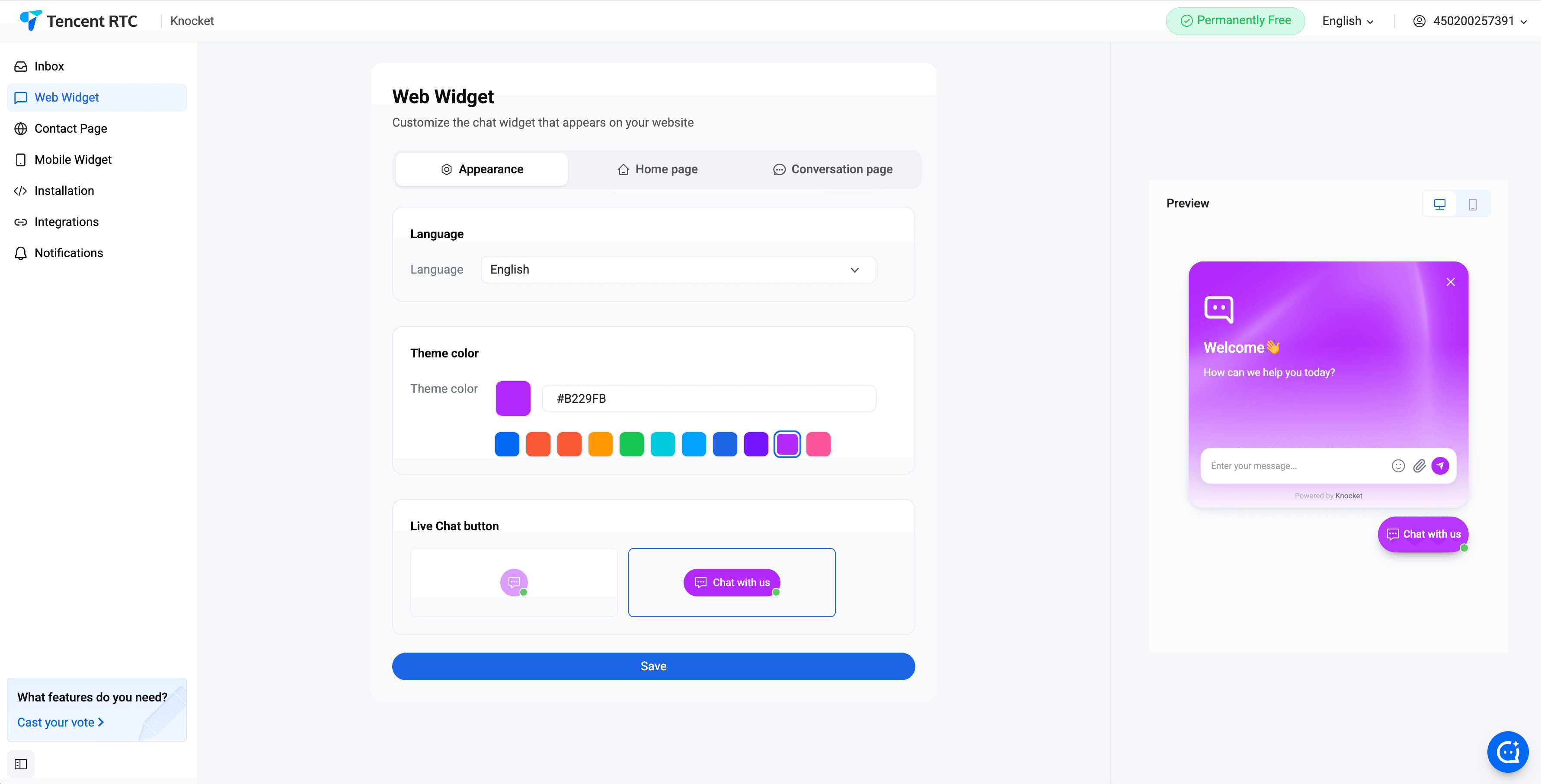
Theme color, logo, and avatar
Pick a primary color that matches the brand. The widget renders the launcher bubble, the header, the input field focus ring, and the send button in the chosen color. Upload a brand logo to appear in the widget header, and upload an avatar to represent the founder on the other side of the chat. Both assets are optional; the widget falls back to a clean text-only header if neither is provided.
Welcome message and welcome header
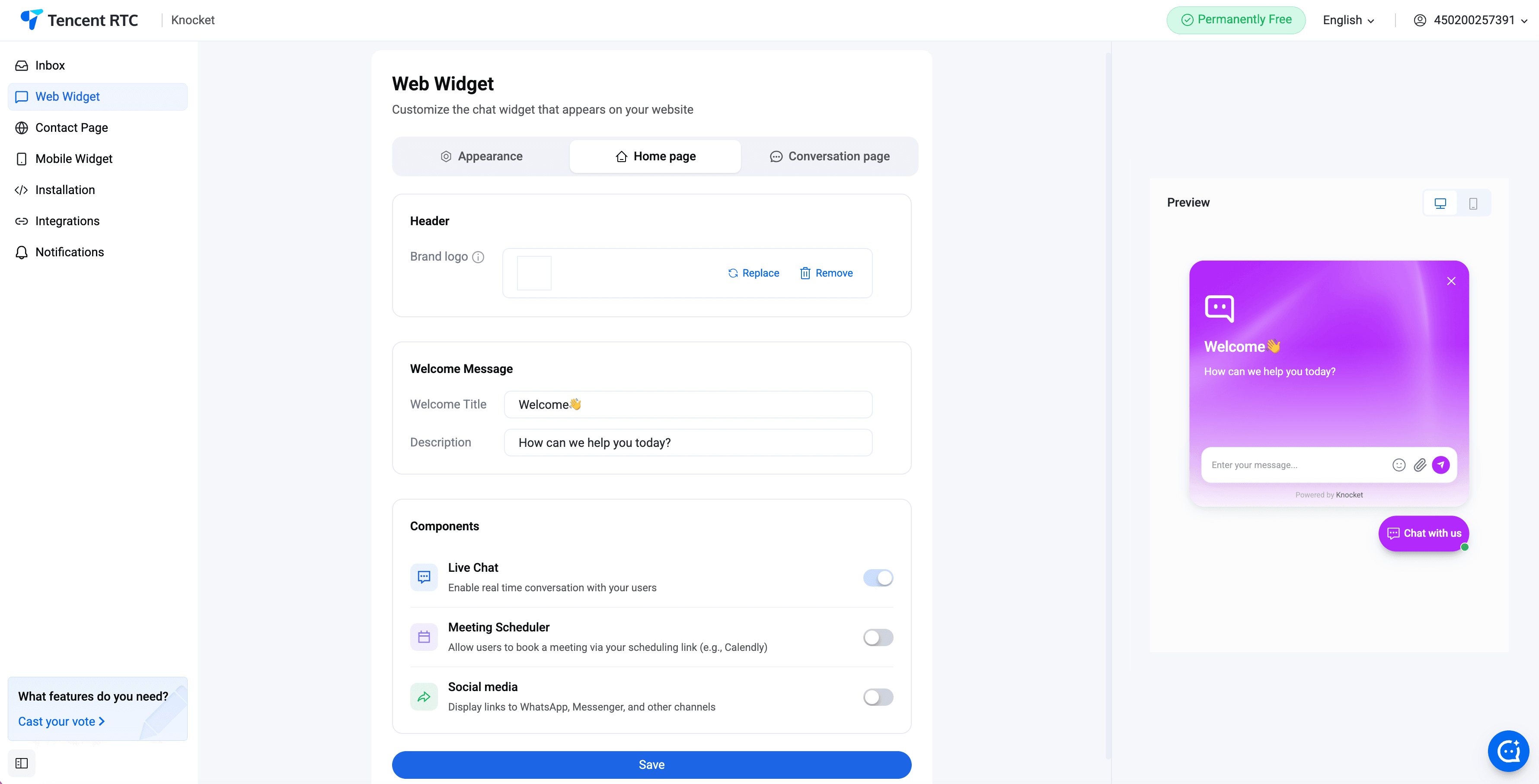
The welcome header is the first sentence a visitor reads when the widget opens. The welcome message is the body copy under the header. Both are short, both pre-fill, and both can be A/B tested from the console.
Proactive greeting
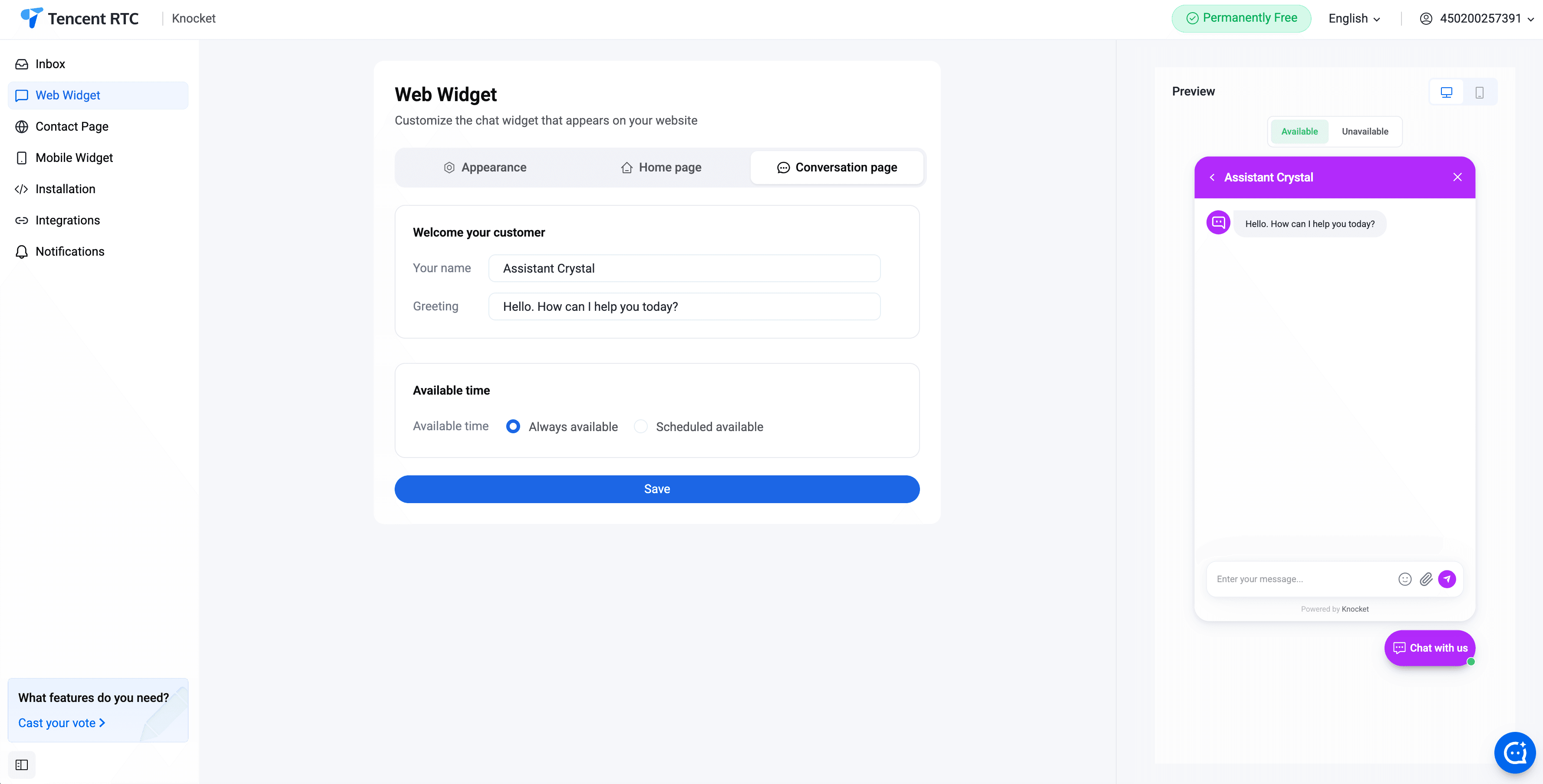
Turn on proactive greetings to show a short welcome message to first-time visitors after a configurable delay. Proactive greetings are the easiest way to convert a passive visitor into an active conversation.
Social link aggregation
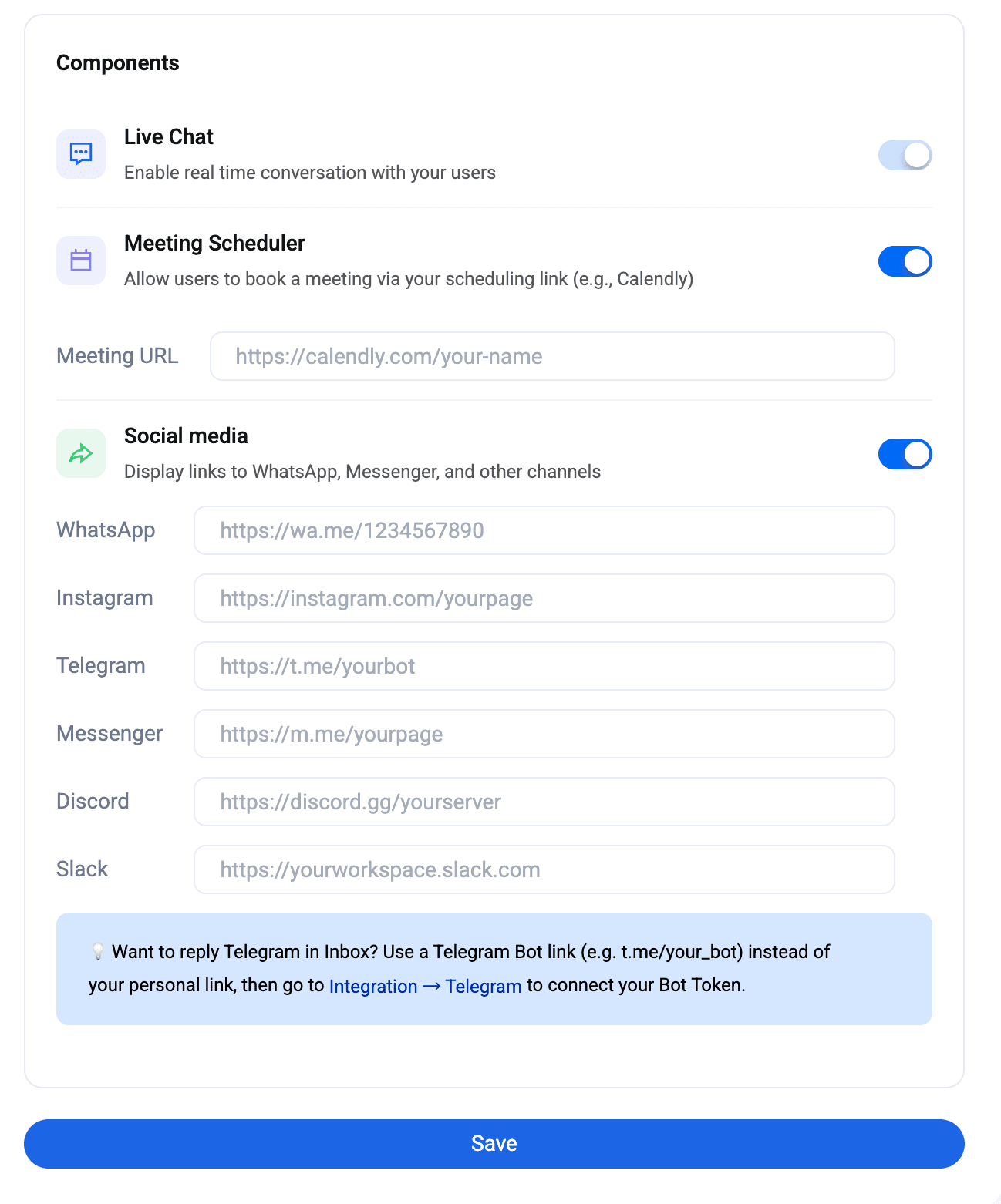
Add links to the team's WhatsApp, Instagram, Telegram, and Messenger accounts. The widget renders those links as alternative contact channels when the visitor prefers them over typing a message.
window.knocketConfig before the script tag. How do I publish a Knocket Contact Page?
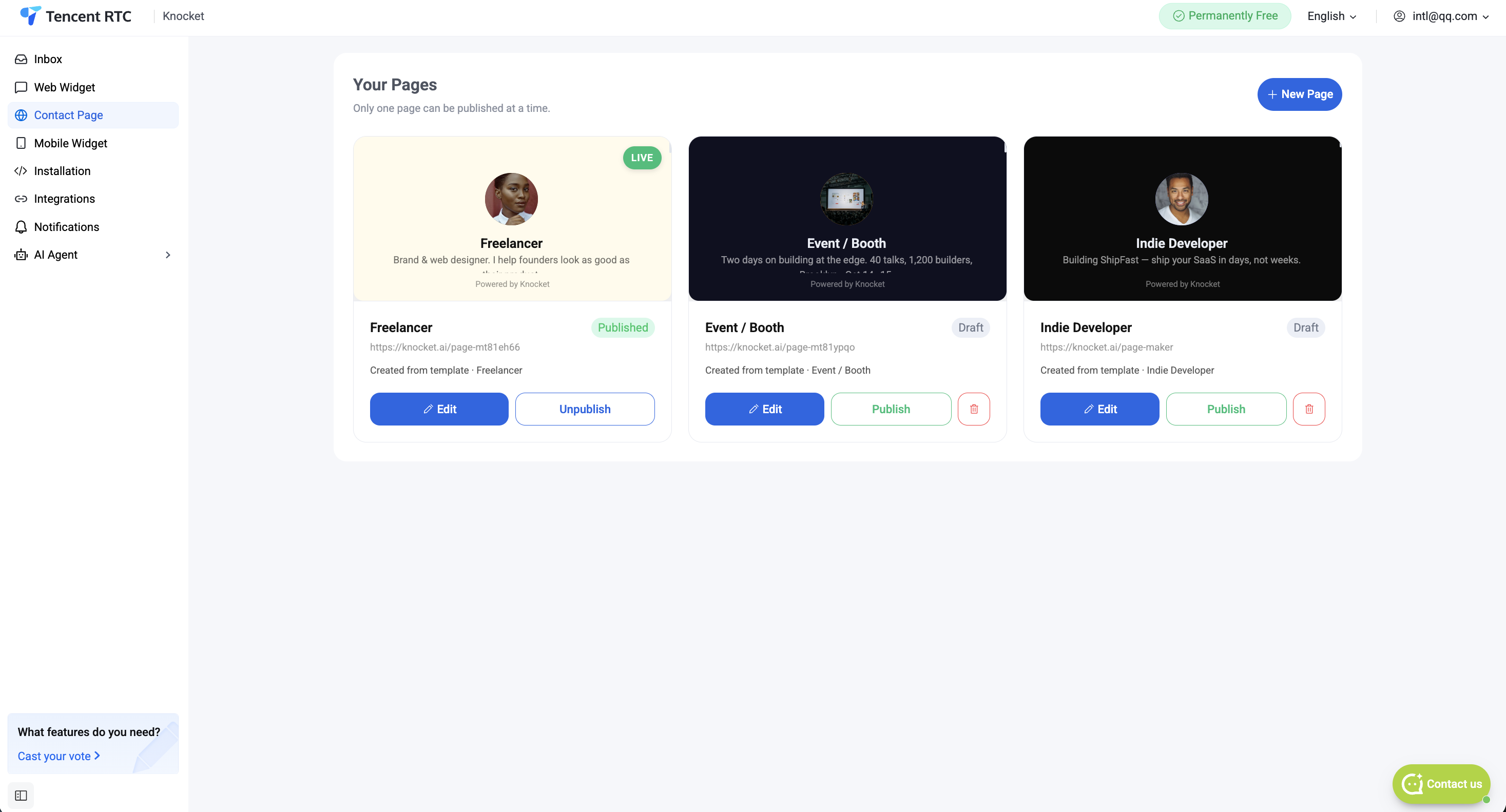
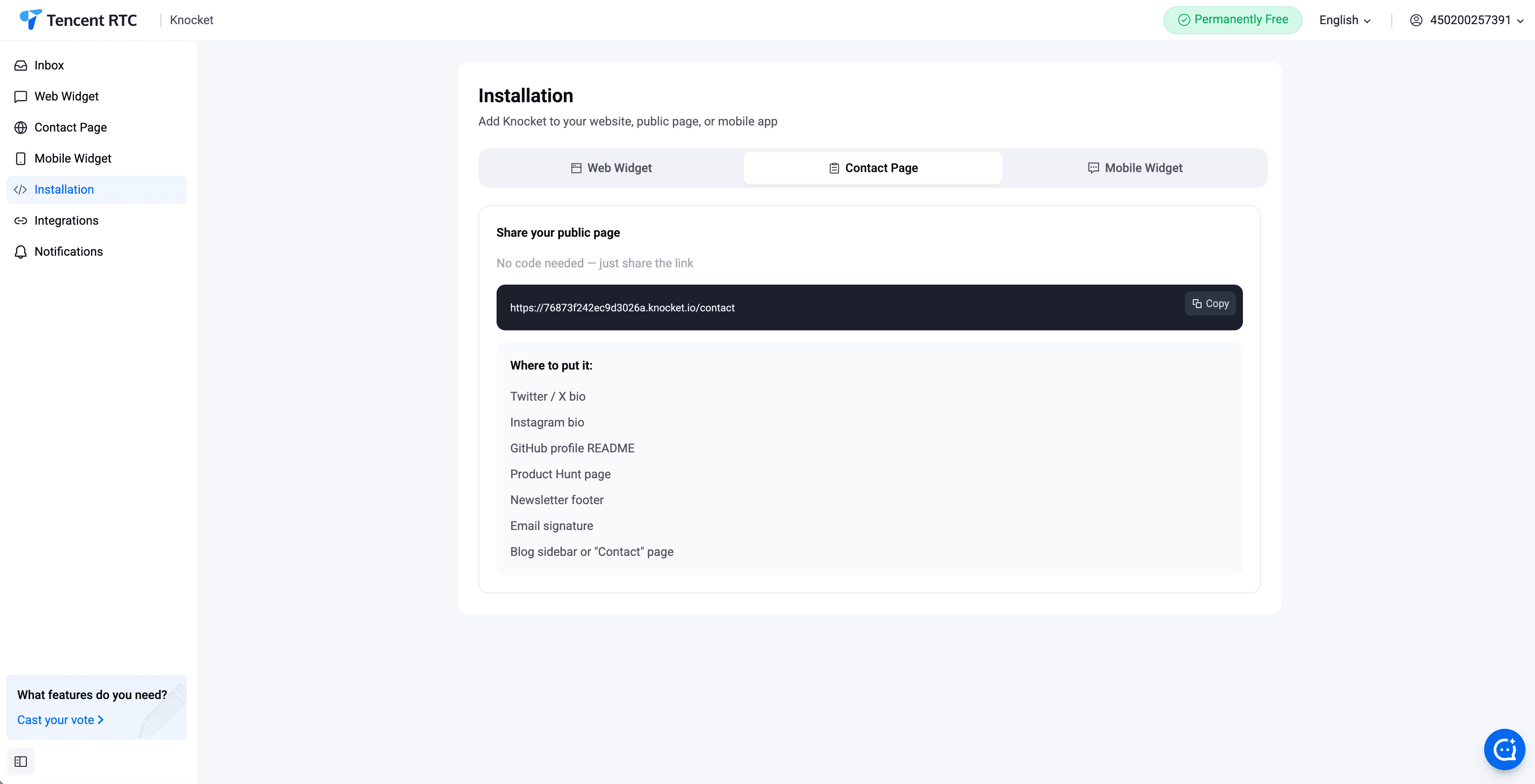
The contact page is the form to ship when there is no website, when the website is not ready, or when the contact link needs to live in a bio. A contact page is a shareable URL that looks like a profile page and acts as a contact form, a social link hub, and a chat entry point.
Template gallery, AI generator, block editor, media block, and publishing to a custom slug.
Quick summary
- Open Contact Pages → New, pick a slug, fill in avatar / display name / bio / social links.
- Publish. The page goes live at
https://knocket.ai/your-slug. - Share the URL in any bio, post, or DM.
How do I embed Knocket into a mobile app?
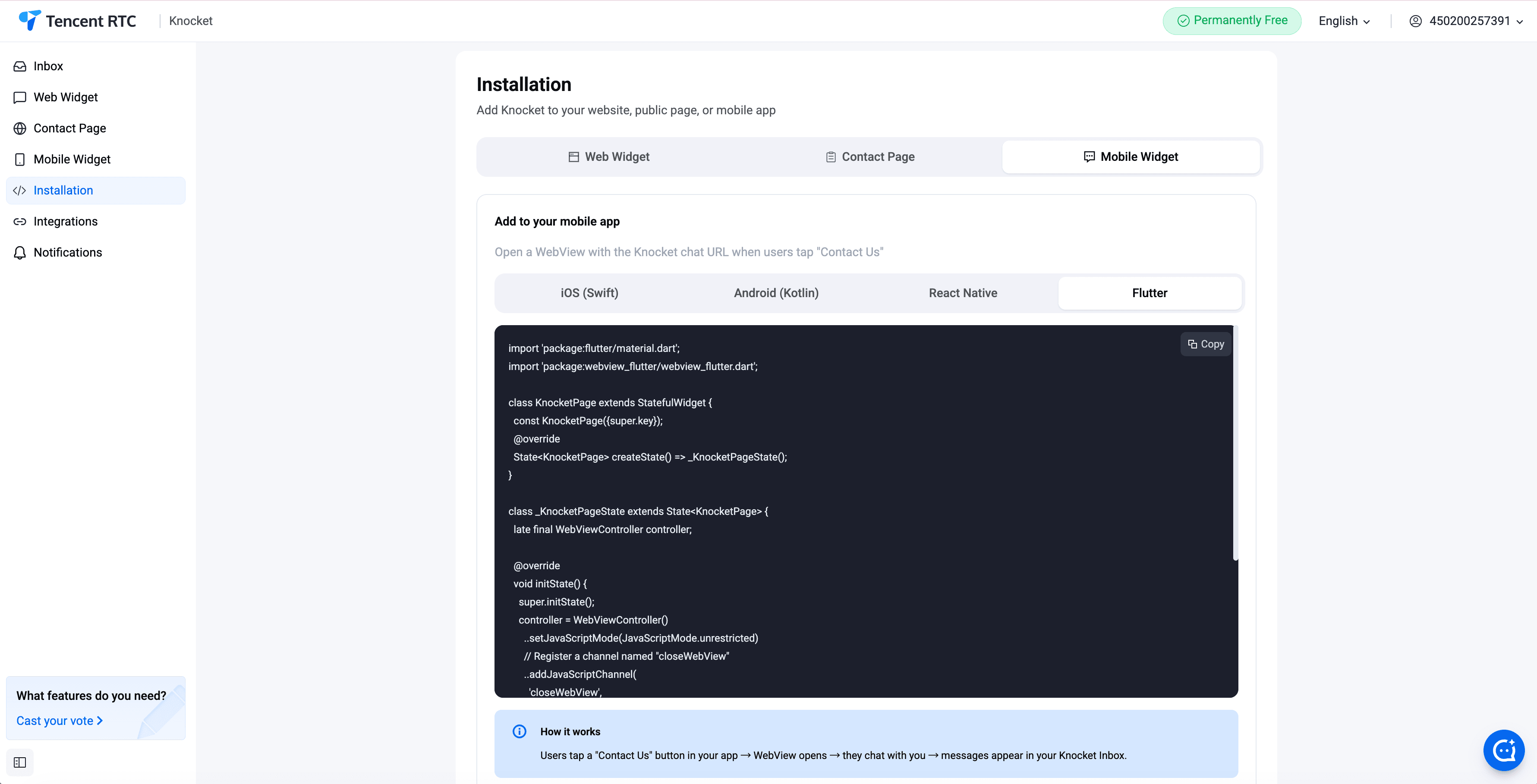
The mobile widget is a chat bubble that lives inside a native iOS, Android, React Native, or Flutter app. It uses the WebView approach — the widget loads the Knocket contact page inside an in-app webview and bridges native events back to Knocket. There is no native SDK to install and no per-platform chat UI to maintain.
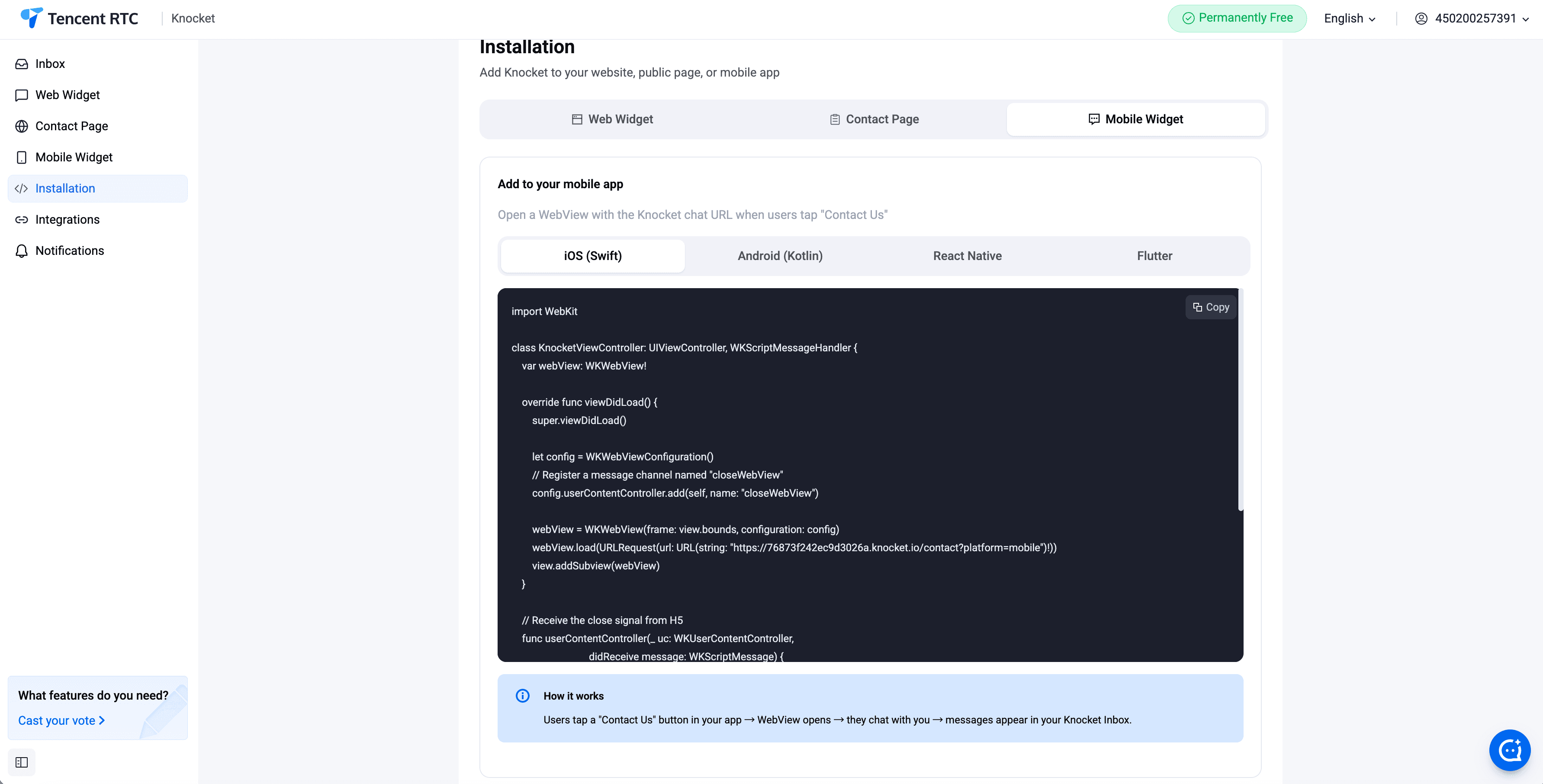
iOS (Swift)
Load the Knocket contact page in a WKWebView. Attach a WKUserScript at document-start to inject the user's identity and app version. Handle the knocket: URL scheme to route events (widget opened, message sent, etc.) back to the native layer.
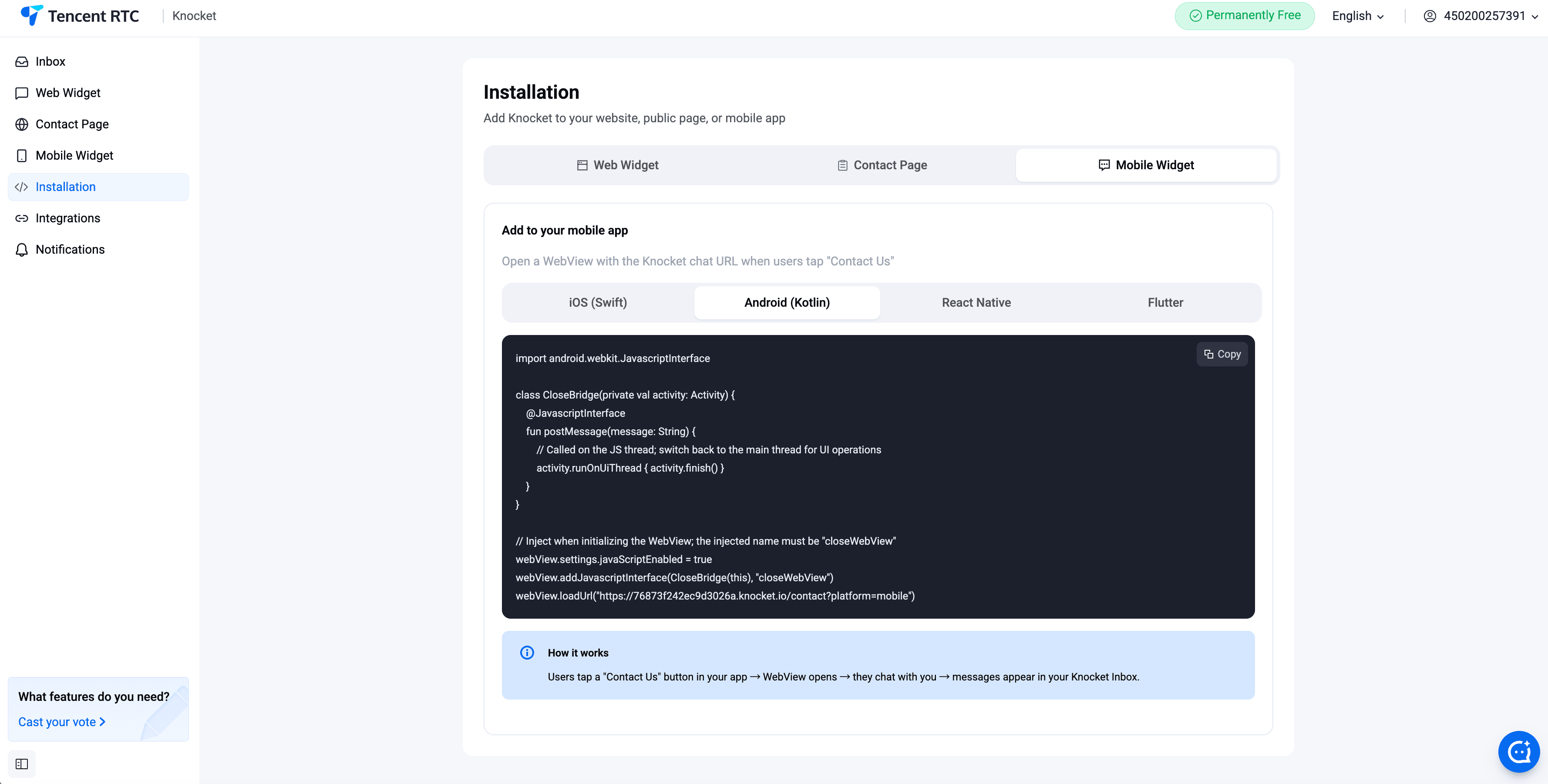
Android (Kotlin)
Load the Knocket contact page in a WebView. Call addJavascriptInterface to expose a native bridge for identity, version, and event callbacks. Use setWebChromeClient to handle attachment uploads from the widget.
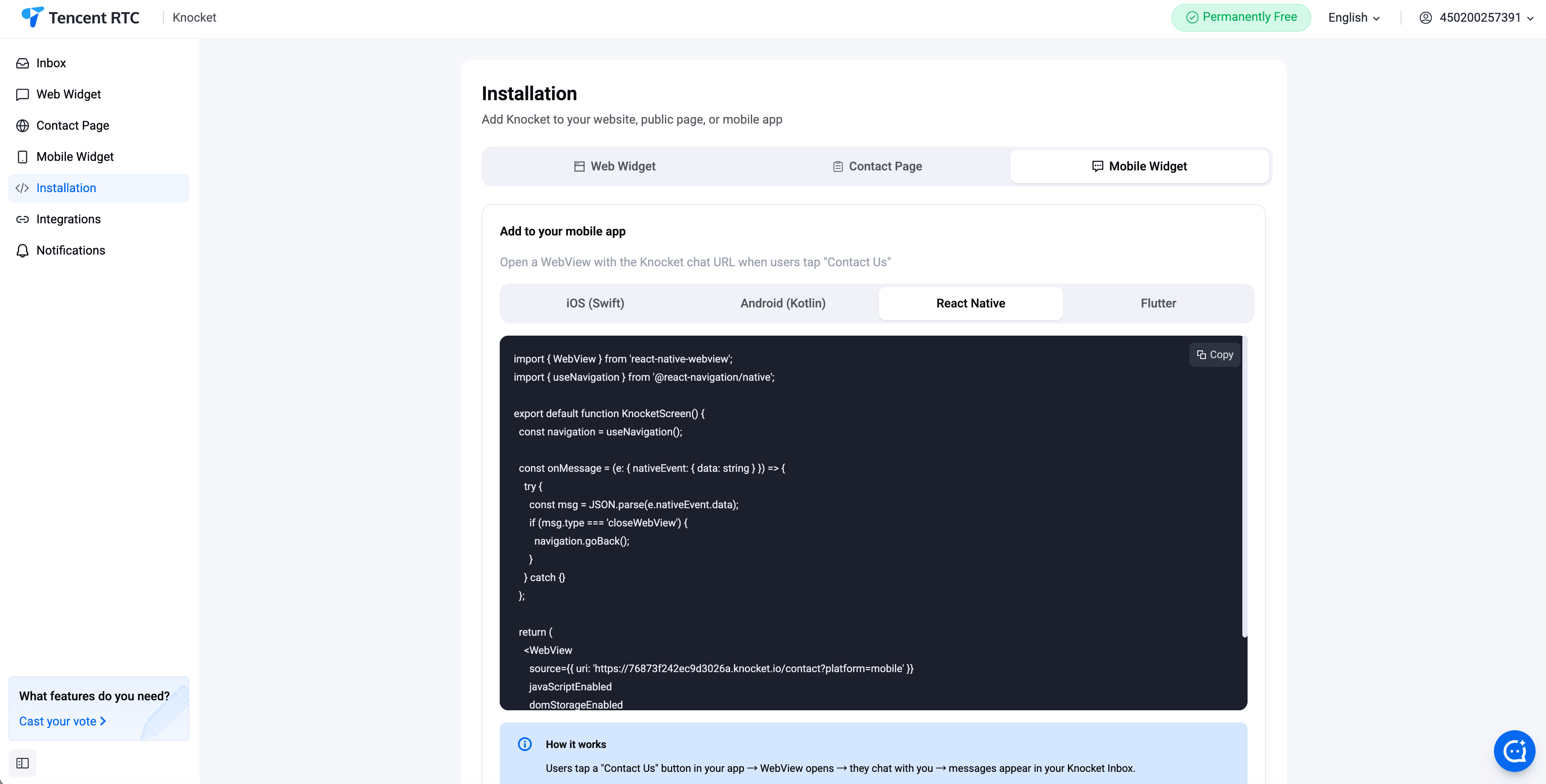
React Native
Use the react-native-webview package. Post identity messages from JavaScript with postMessage. Listen to the onMessage callback on the WebView for events flowing back from the widget.
Flutter
Use the webview_flutter package. Register a JavaScript channel with addJavaScriptChannel. Post identity and version on channel initialization, then listen for message events.
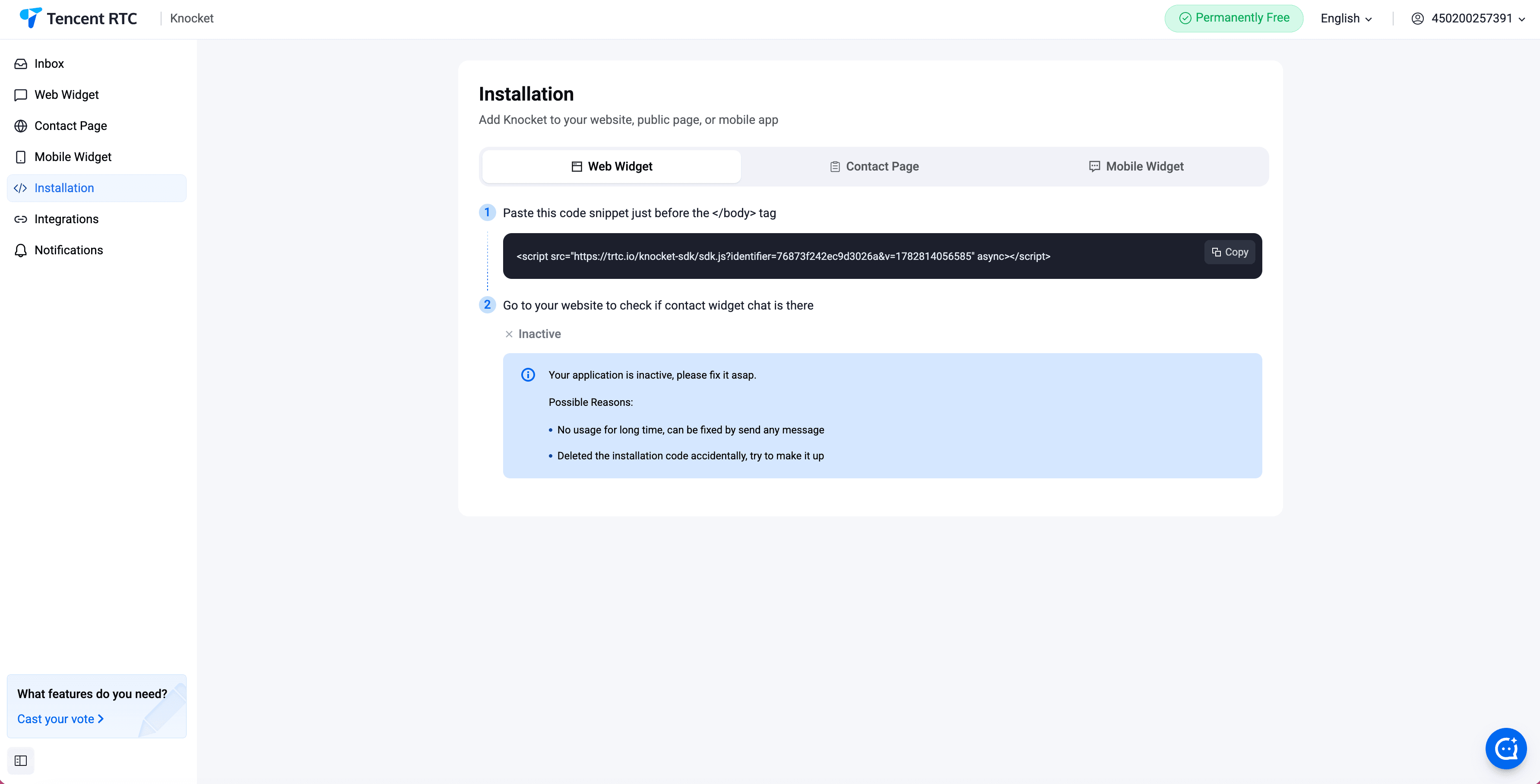
Installation — the copy-paste snippet
Open the Installation panel in the console. Copy the one-line snippet and paste it before the closing </body> tag of any HTML page. The widget appears as soon as the page reloads.
The Installation module also lists the shareable URL for every published contact page, so you can copy it and drop it into any bio, DM, or email signature.
Channel integrations
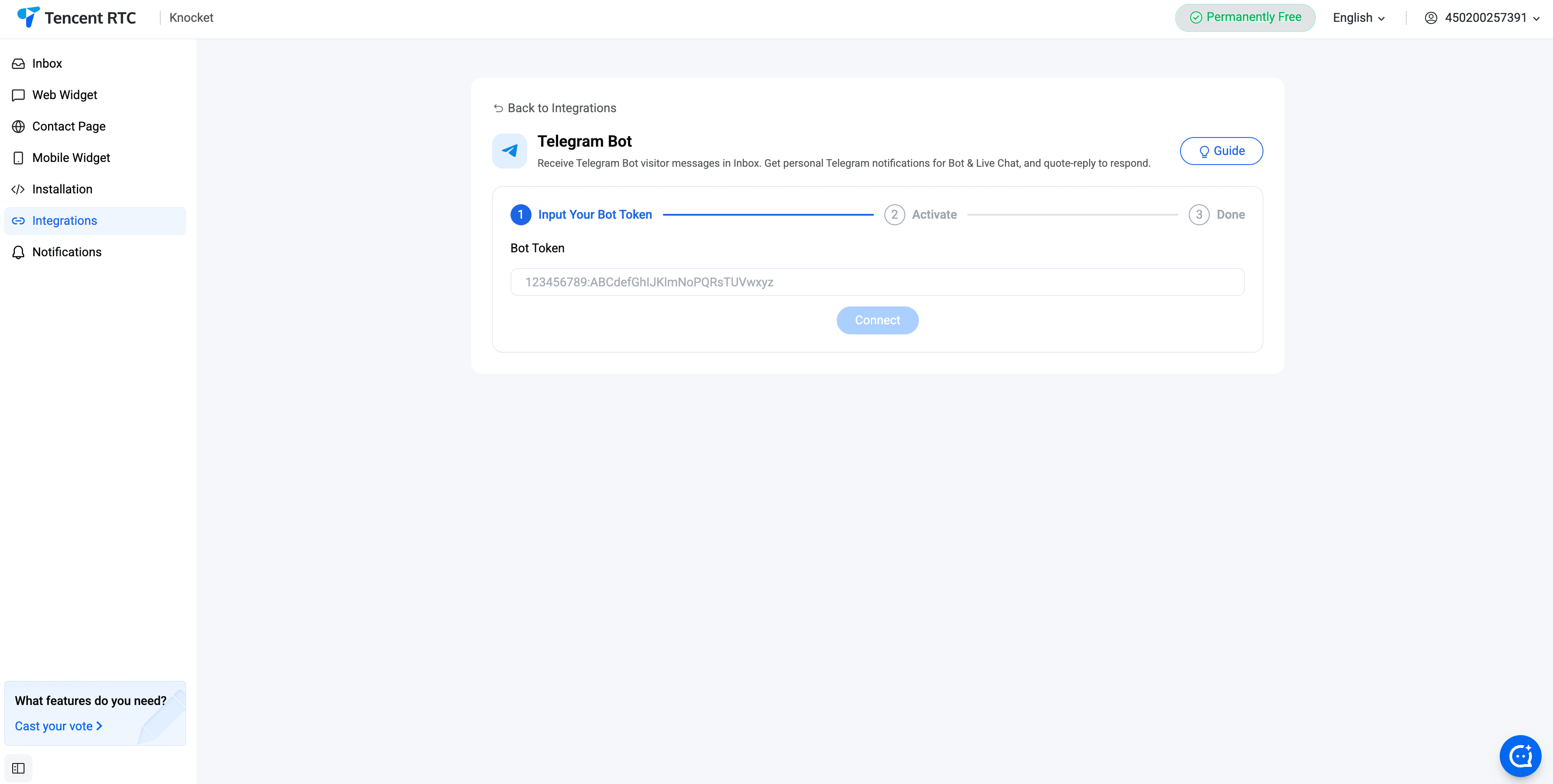
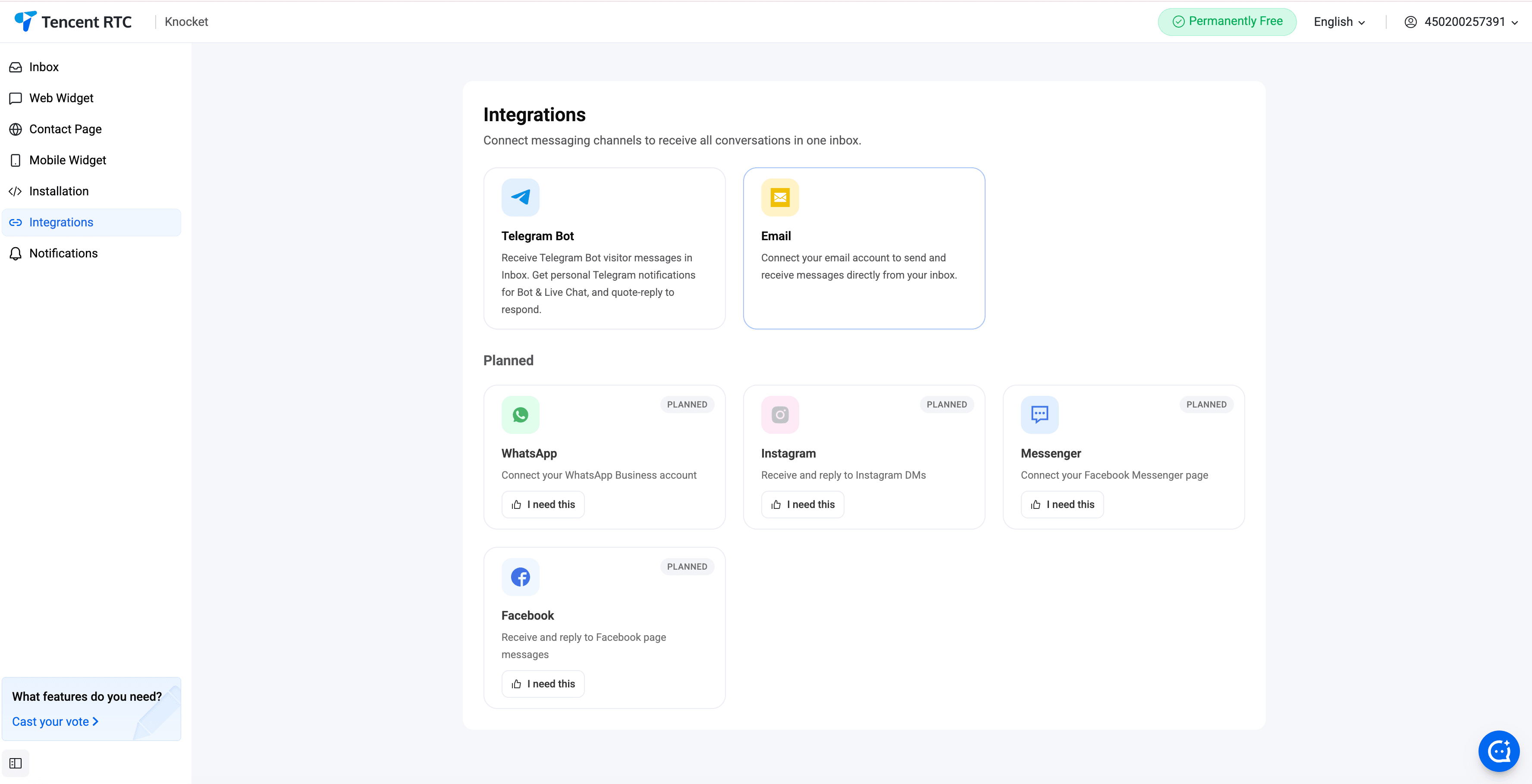
Integrations plug outside channels into the unified inbox. Messages sent to a Knocket-connected Telegram bot or a Knocket email alias appear as threads alongside chat messages. Quote-reply from Telegram to answer a chat message, or answer from the console.
Telegram
Create a new bot with @BotFather on Telegram. Copy the bot token. Paste it into Knocket console → Integrations → Telegram. Every visitor message now pings the bot; quote-reply in the bot chat to answer, and your reply lands back on the visitor's screen.
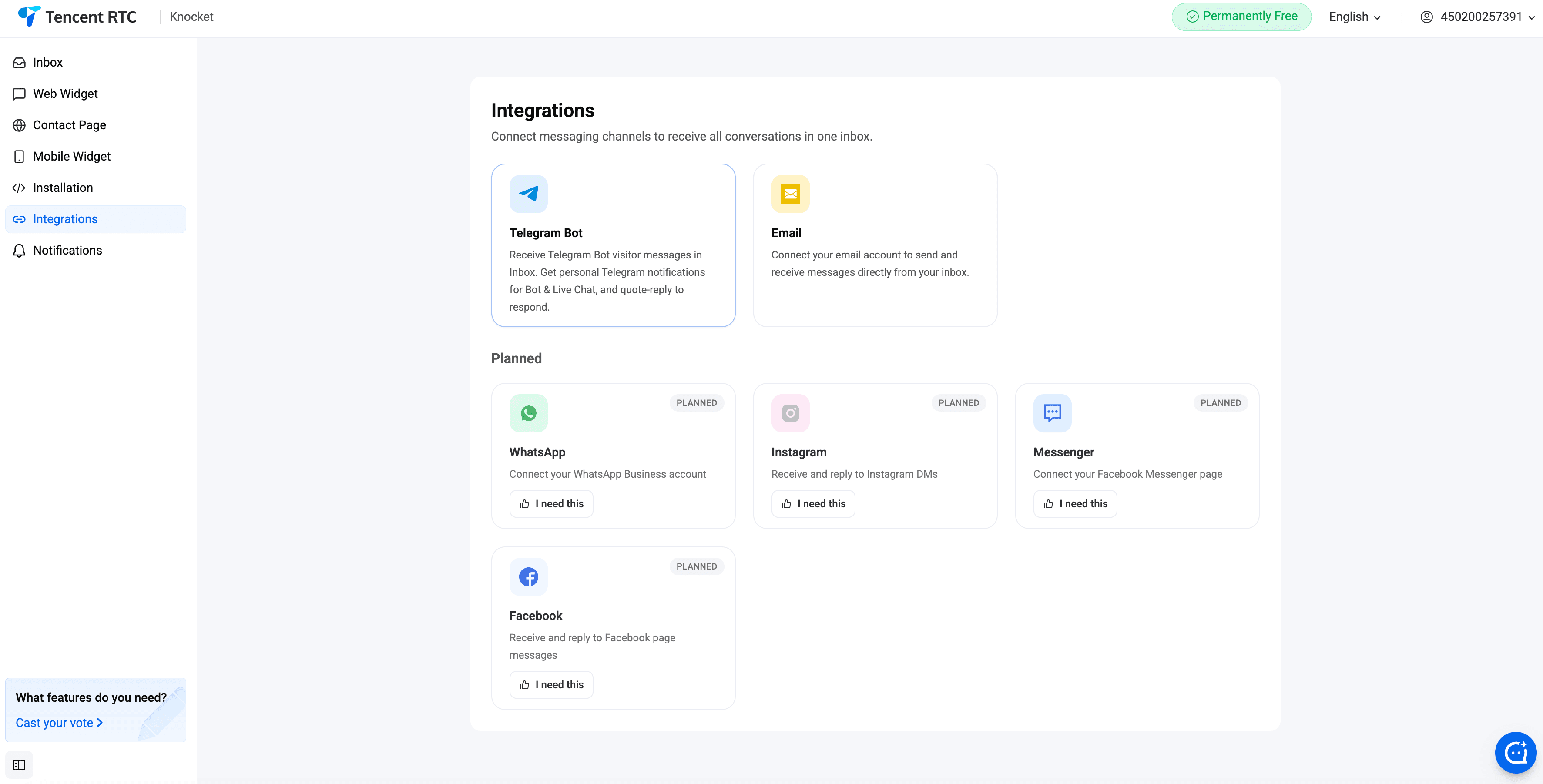
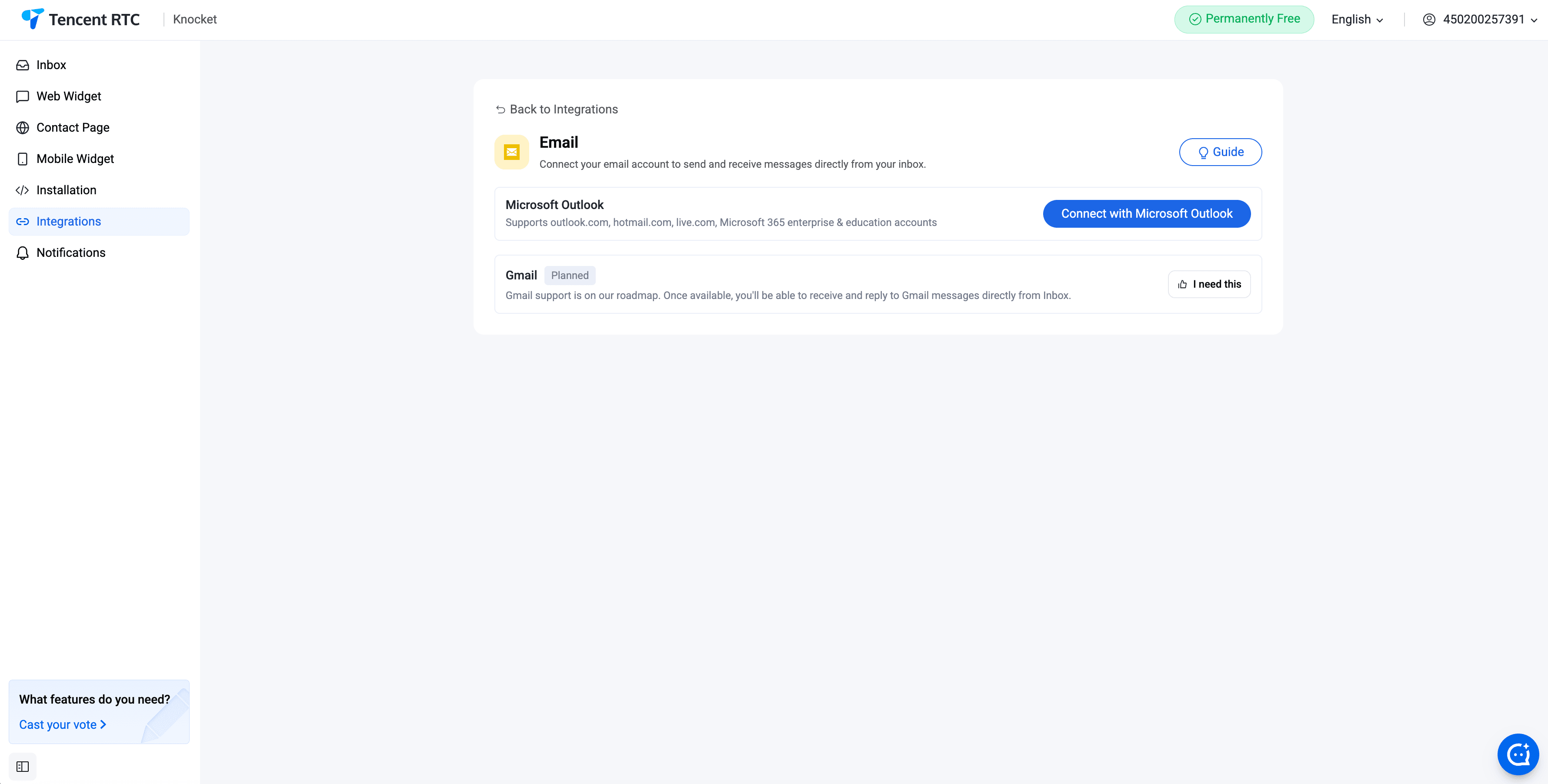
Knocket supports two options: a Knocket-managed email address (an alias like hello.you@knocket.ai) or a custom domain (set MX records to point to Knocket). Inbound emails become threads in the unified inbox alongside chat messages.
Notifications
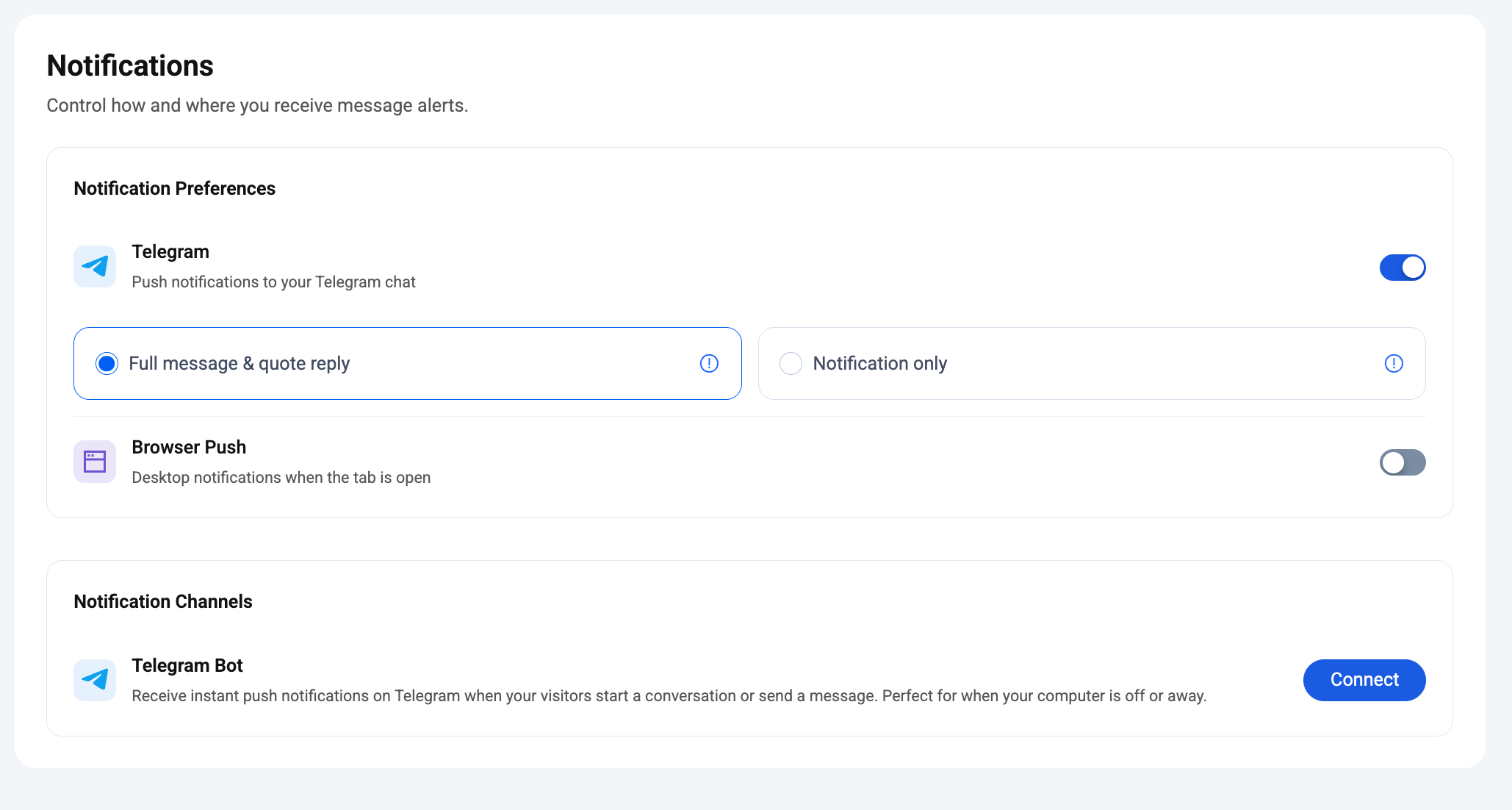
The Notifications module in the console decides how — and how much — you're pinged when a new visitor message arrives. Two delivery paths work in parallel:
- Browser push — the console tab pings even when it's backgrounded. Toggle it on the same page.
- Telegram bot — once the Telegram integration is wired up, every fresh message pings the bot in real time so you can quote-reply from your phone.
Telegram push — Full mode vs Notification-only
Under Notification Preferences → Telegram, there's a second choice once Telegram push is on: how much of the conversation actually lands in your Telegram chat.
You see the visitor's message text directly in Telegram. Quote-reply, forward, or tap through to open the inbox — all three work.
Trade-off: if message volume is high, some individual messages within a conversation may not appear in Telegram — the bot skips a few to stay under Telegram's rate limits.
Telegram pings you that a new message arrived — no message content is shown. Open the inbox from the ping to view the full conversation and reply there.
Trade-off: quieter, more private, but no quote-reply from Telegram — you always finish the reply in the console.
Founders typically leave Full on for the first month while volume is low, then switch to Notification only once the phone starts buzzing too often.
Notification Channels — connecting Telegram
Scroll down to Notification Channels → Telegram Bot and hit Connect. Follow the two steps: create a bot with @BotFather, paste the token into Knocket, then message the bot once from the account that should receive pings. Done — every fresh visitor message now pings that Telegram chat according to whichever preference (Full / Only) you picked above.
AI Agent
The AI Agent module in the console's left sidebar lets you plug an LLM-powered assistant into the same unified inbox. It answers visitors from a knowledge base you upload — product FAQs, pricing pages, docs — and hands the thread off to a human the moment a question falls outside the source material.
Setting (AI Agent, Bot, LLM, Handoff), Knowledge (FAQ, URL, File), and Usage — every card, every field.
How the agent behaves in the inbox
- Auto-answer — every incoming message runs through the AI agent first. If it's confident, the visitor gets an instant reply and the thread lands under the AI Resolved filter.
- Handoff — low-confidence threads bubble to the top of the human queue with the AI's draft attached, so you can send it, edit it, or discard it. Handoff also triggers on explicit trigger phrases from the visitor (default library covers 47 languages).
- Resume AI — from any thread's details panel, hit Resume AI to hand the conversation back after you've replied.
- Summary — the details panel shows a two-sentence recap written by the same agent so you skim before replying.
The three sub-pages in the sidebar
The AI Agent group in the sidebar expands into three sub-pages. Each maps to a phase of the setup — configure once, refine as your knowledge base grows:
- Setting — one page with four cards: AI Agent (master toggle, channels, hours), Bot (avatar, name, greeting, system prompt), LLM (provider, key, endpoint, model), and Handoff (trigger phrases + notify channels). One Save button at the bottom commits all four.
- Knowledge — three tabs: FAQ pairs (canonical Q&A), URL crawls (marketing pages, docs), and File uploads (PDF/DOCX/CSV/…). Up to 10 items per tab, 10 MB per file.
- Usage — daily AI request chart, handoff count, average response time, and per-model token spend. Range picker at the top.
Bring your own LLM
The LLM card takes any OpenAI-compatible endpoint — provider, API key, base URL, model ID. The default in the console today is kimi-k3 via the Tencent MaaS tokenhub, but Hunyuan, DeepSeek, OpenAI, and any custom endpoint that speaks Chat Completions all plug in the same way. The Test Connection button runs a live request against the endpoint before you save, so you catch a bad key or wrong URL immediately.
Human handoff has two layers
A deterministic dictionary of "transfer to human"-style triggers across 47 languages. Match one, transfer instantly, never call the model. Add your own phrases like talk to billing or escalate.
For everything else — frustration, repeated failed answers, out-of-scope questions — the model itself decides to call the built-in transfer_to_human tool. Layer 1 is the trip-wire; layer 2 is the judgment call.
Telegram reply flow
Telegram is the fastest reply channel for a solo founder. Once the Telegram bot is wired up under Integrations:
- A visitor sends a message from the web widget, contact page, or mobile widget.
- The Knocket bot forwards the message to your Telegram chat with the bot.
- You quote-reply to the bot message from your phone.
- Your reply lands back on the visitor's screen in whatever channel they came from — no manual channel switching.
Notifications, reads, and AI drafts all sync — a message answered from Telegram closes the thread in the console too.