Overview — how the console is laid out
The AI Agent sits between an incoming visitor message and your inbox. If it can answer confidently using the knowledge you've provided, it replies instantly in the visitor's language. If it can't — or the visitor asks for a human — it silently transfers the chat and pings you through your notification channels.
In the console left sidebar, AI Agent is a group with three sub-pages. Everything on this tutorial follows that same hierarchy so you can find each screen quickly:
- Setting — the master configuration page, four collapsible cards on one screen
- AI Agent — master toggle, which channels the agent covers, when it's active
- Bot — avatar, name, greeting, and system prompt visitors see
- LLM — provider, API key, endpoint, and model that power replies
- Handoff — trigger phrases and where handoff notifications get pushed
- Knowledge — three tabs on one page: FAQ pairs, URL crawls, and File uploads the agent retrieves at reply time
- Usage — daily requests, token spend by model, channel distribution
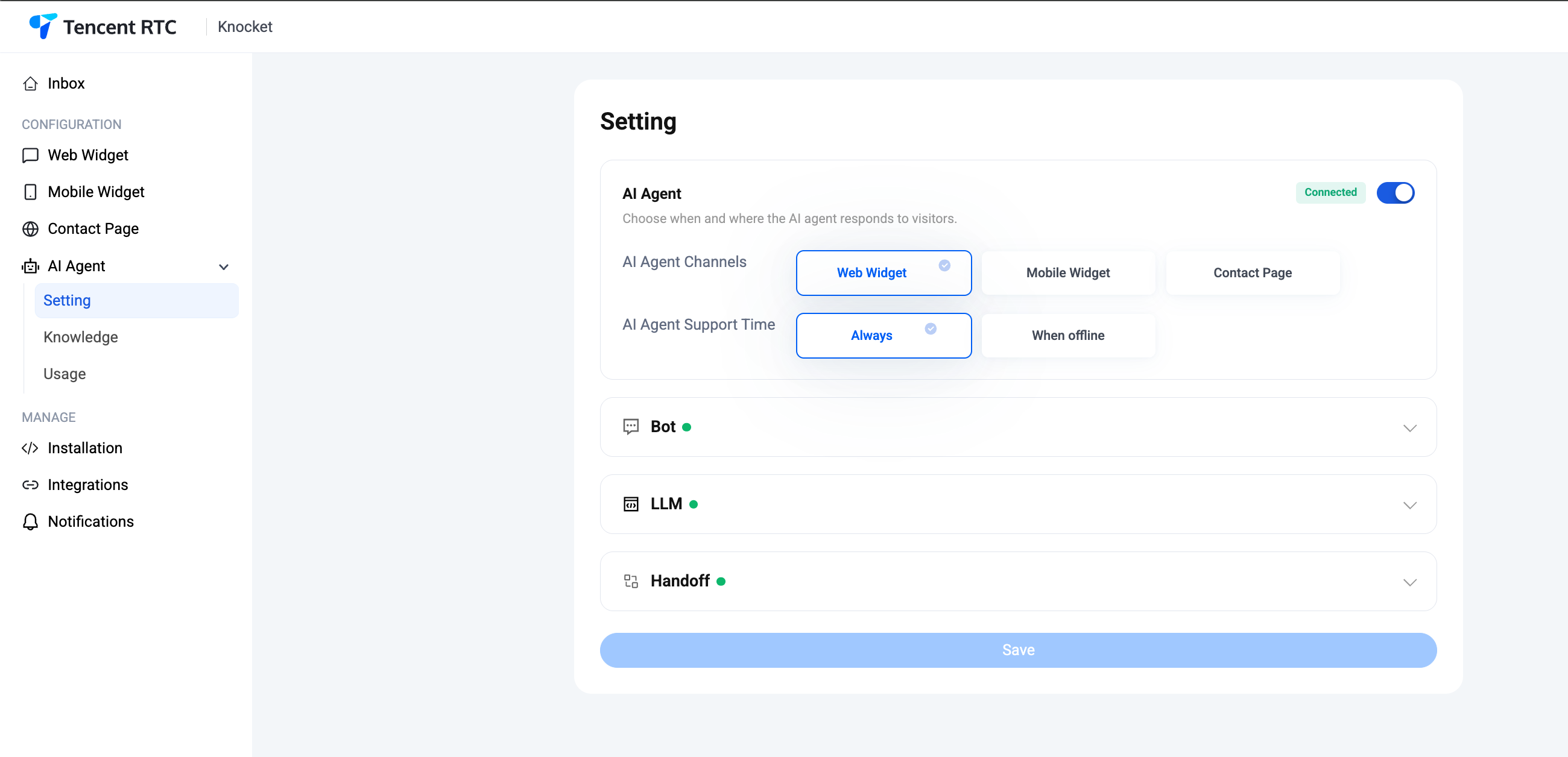
Setting — one page, four cards
Click AI Agent → Setting in the sidebar. You'll land on a page with four collapsible cards: AI Agent, Bot, LLM, and Handoff. Each has a green dot when it's fully configured. A single Save button at the bottom commits changes across all four.
The AI Agent card — turn it on, pick channels & hours
The top card is the master switch. Flip the toggle in its top-right; the Connected badge lights up green once the LLM handshake succeeds.
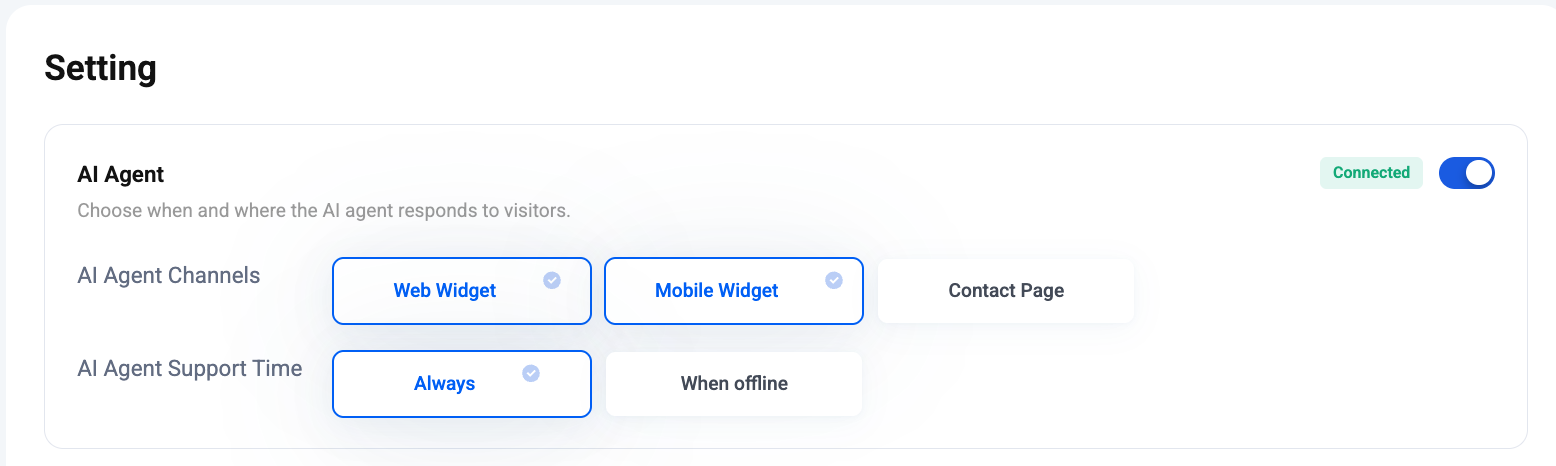
AI Agent Channels — choose which of your three entry points the agent should answer on. Enable any combination:
- Web Widget — the chat bubble on your website.
- Mobile Widget — the chat bubble embedded in your native / RN / Flutter app.
- Contact Page — the shareable knocket.ai profile page.
A channel that's off will still route to your inbox — messages just go straight to a human without an AI first pass.
AI Agent Support Time:
- Always — the agent replies 24/7, in parallel with your team.
- When offline — the agent only answers after hours, so your human replies stay the default when you're at the desk.
The Bot card — avatar, name, greeting, system prompt
Expand the Bot card. This is what the visitor sees and how the model behaves. Four fields, all required except the avatar:
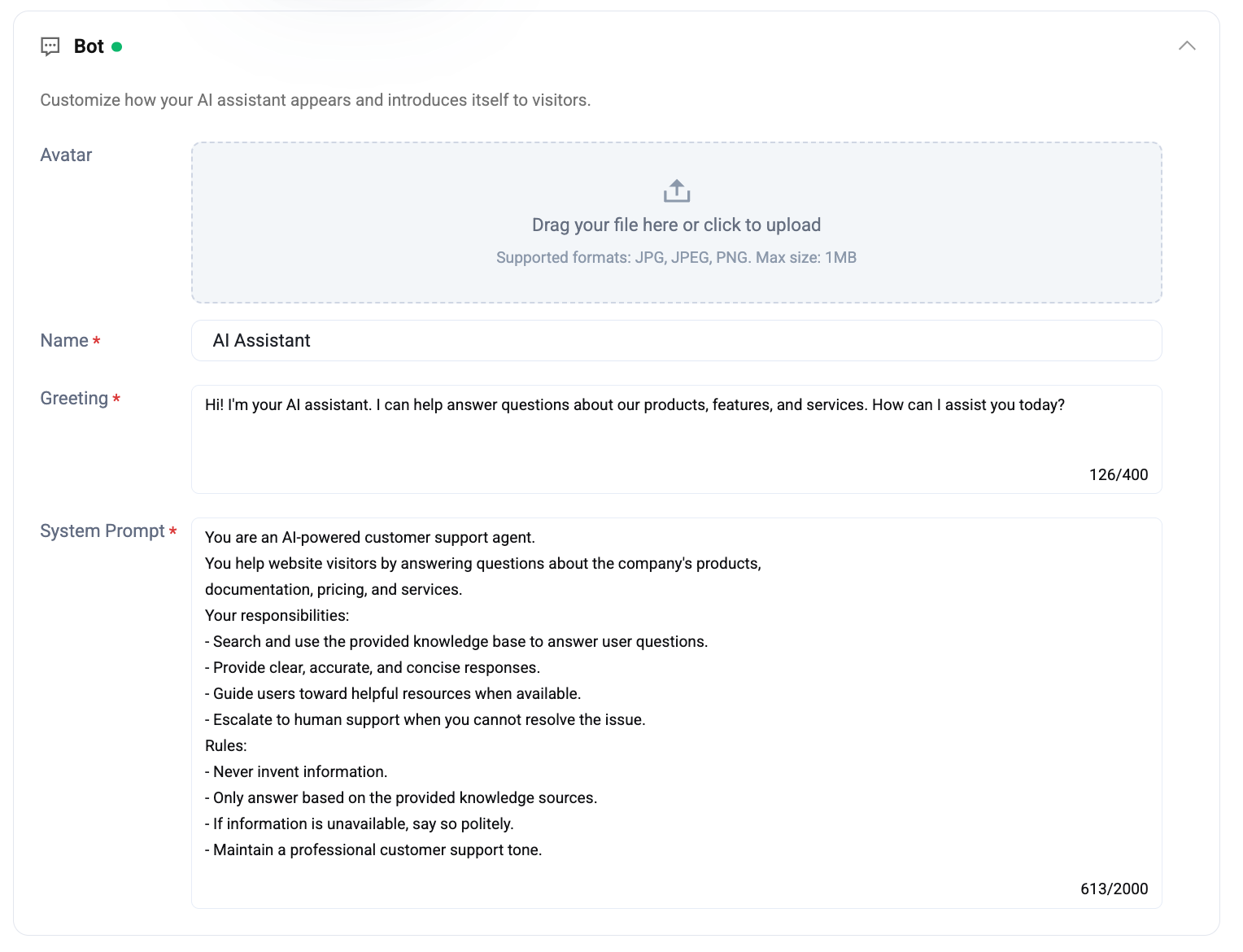
- Avatar — JPG / JPEG / PNG, up to 1 MB. Drag-and-drop or click to upload. If left blank, the widget shows a text-only header.
- Name — the display name in the chat header (e.g.
AI Assistant,Ask Acme). - Greeting — up to 400 characters. The first message the agent sends when a visitor opens the chat.
- System Prompt — up to 2000 characters. A plain-language brief the model reads at the start of every conversation.
The default system-prompt template that ships in the console is a good starting point — keep it short, spell out responsibilities and rules explicitly, and lean on the knowledge base rather than instructing the model to remember facts:
You are an AI-powered customer support agent.
You help website visitors by answering questions about the company's products,
documentation, pricing, and services.

Your responsibilities:
- Search and use the provided knowledge base to answer user questions.
- Provide clear, accurate, and concise responses.
- Guide users toward helpful resources when available.
- Escalate to human support when you cannot resolve the issue.

Rules:
- Never invent information.
- Only answer based on the provided knowledge sources.
- If information is unavailable, say so politely.
- Maintain a professional customer support tone.
The LLM card — provider, key, endpoint, model
Expand the LLM card. This wires the agent to any provider that speaks the OpenAI Chat Completions protocol. Embedding credentials for the knowledge base are managed by the Knocket platform — you only configure the chat-completion side here.
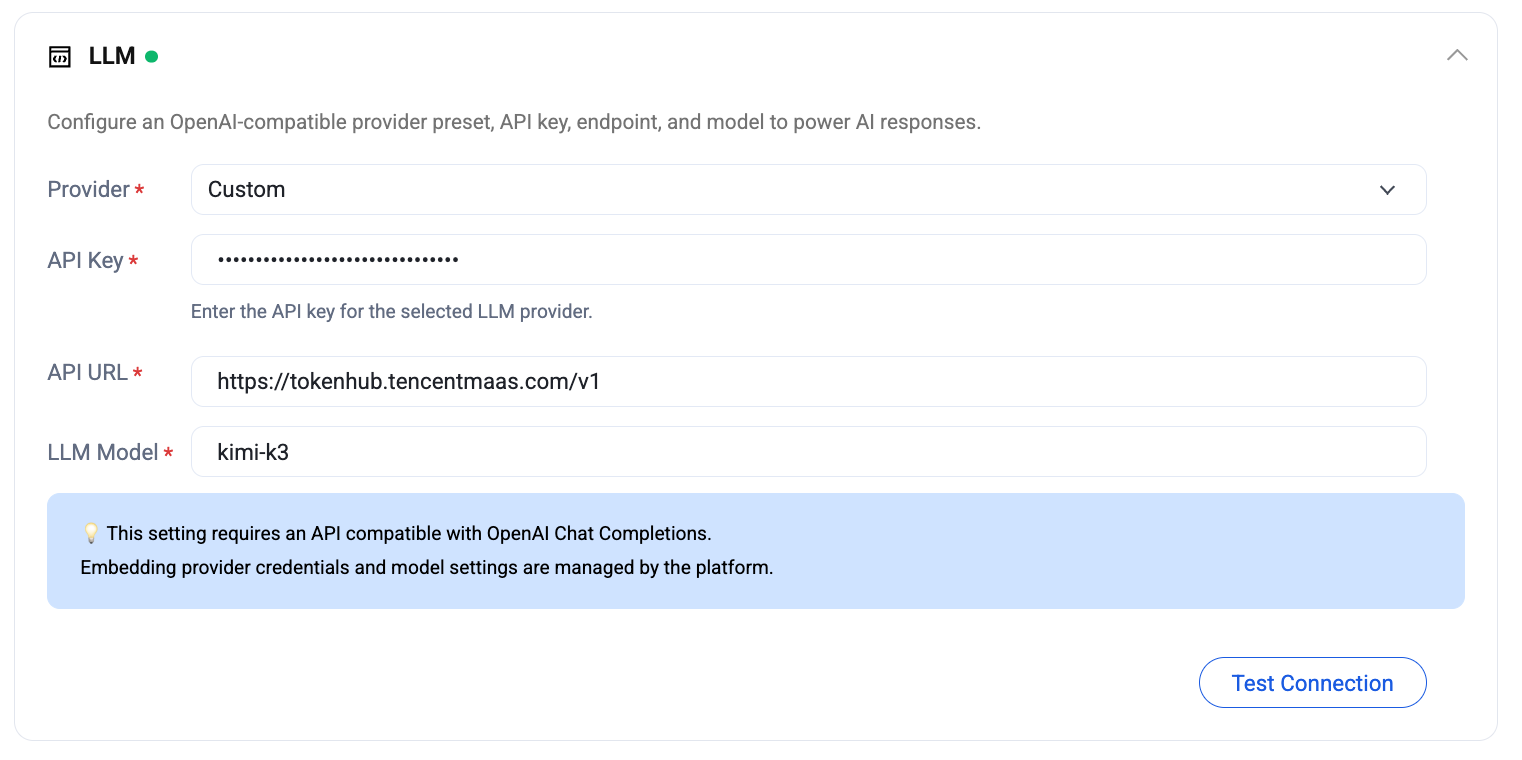
- Provider — pick a preset (OpenAI, Hunyuan, DeepSeek, etc.) or choose Custom to bring your own endpoint.
- API Key — the secret for the selected provider. Stored encrypted; visible as dots after save.
- API URL — the base URL for the OpenAI-compatible endpoint (e.g.
https://tokenhub.tencentmaas.com/v1). - LLM Model — the model ID string the endpoint expects (e.g.
kimi-k3,deepseek-v4-flash).
Hit Test Connection to run a real request against the endpoint before the agent goes live. A green check means the model is reachable and the key is valid; a red error surfaces the raw HTTP response so you can debug.
Compatibility: this card requires an API compatible with OpenAI Chat Completions. Any provider that ships a drop-in OpenAI client will work.
The Handoff card — phrases & notify channels
Expand the Handoff card — the last one on the Setting page. It decides when a chat leaves the AI and who gets pinged.
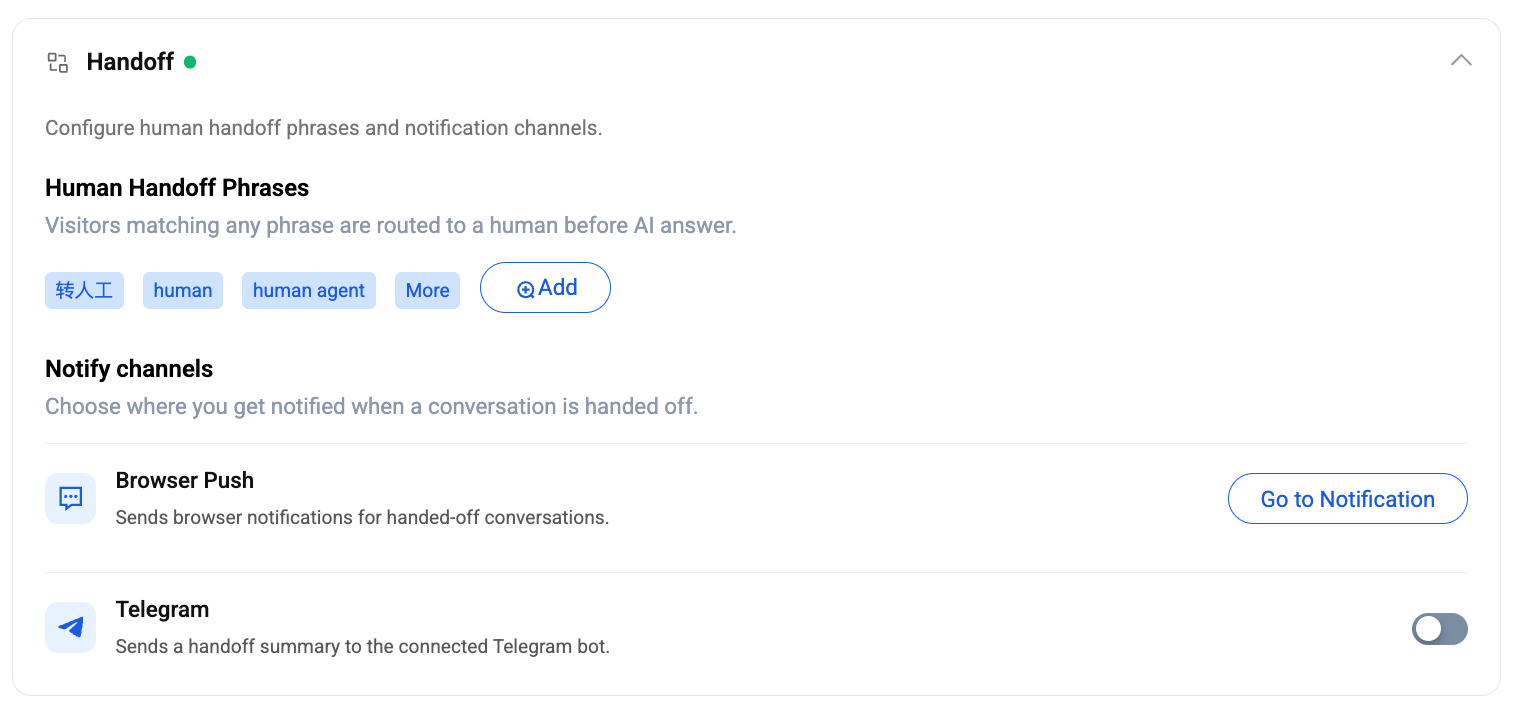
Human Handoff Phrases — a dictionary of trigger phrases. If a visitor's message matches any phrase, the chat routes to a human before the AI even runs — deterministic, instant, no model call. Knocket ships a default library across 47 languages (转人工, human, human agent, …); hit Add to append domain-specific triggers like talk to billing or escalate. See the full library: Default Handoff Phrases (47 languages) →
Notify channels — where the handoff itself gets pushed:
- Browser Push — the console tab pings whenever a chat is handed off. Configure the underlying browser permission from the top-level Notification settings; the Go to Notification shortcut jumps you there.
- Telegram — sends a handoff summary to the connected Telegram bot. Toggle it on once the Telegram bot is wired up in Integrations and Notifications.
Handoff notifications are separate from your regular message-arrived pings — you can leave message pings off and only get alerted for handoffs, which is the low-noise setup most solo founders end up on.
Knowledge — FAQ, URL, and File tabs
Click AI Agent → Knowledge in the sidebar. This page is what stops hallucinations. Every source you add is chunked, embedded, and retrieved at reply time — the agent only quotes what it finds, per the rules in the system prompt. Three source types, each on its own tab, with a shared 10 items limit per tab.
The FAQ tab — hand-curated Q&A pairs
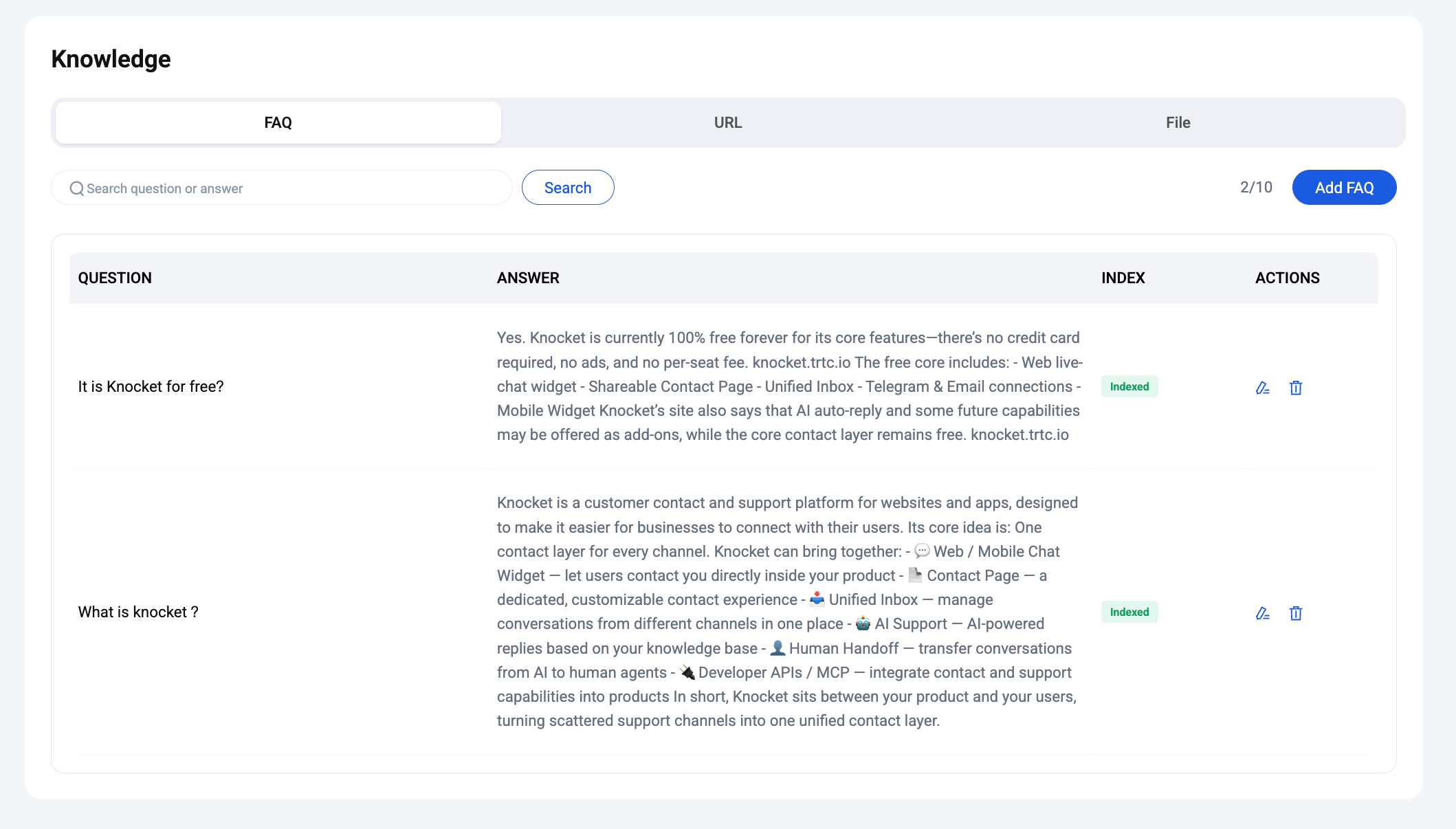
Add question / answer pairs the agent should prefer over anything else. Great for pricing, refund policy, plan differences — anything you want a canonical answer on. Each row shows an Indexed badge once embedding finishes (usually seconds).
The URL tab — crawl a page
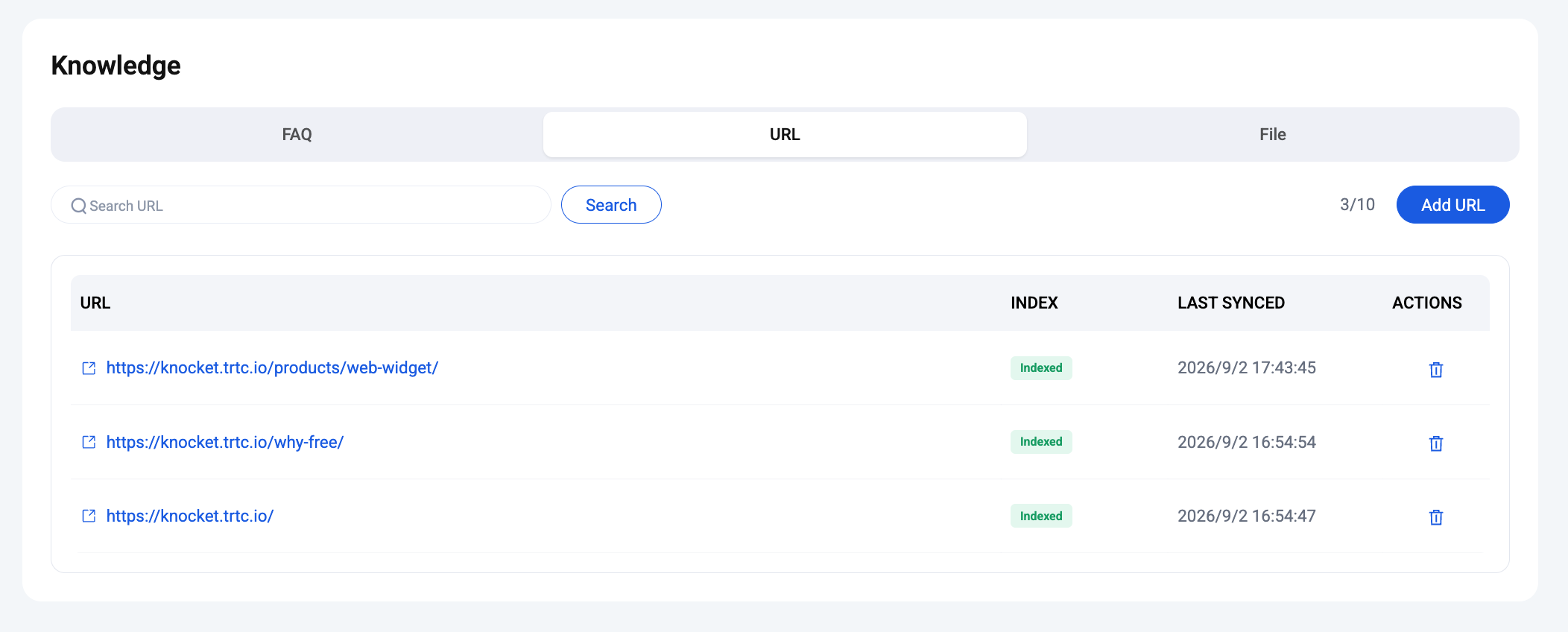
Paste any public URL and Knocket crawls it, extracts clean text, and indexes it. Good for your marketing site, docs pages, changelogs, feature detail pages. The Last Synced column tells you when each URL was last refreshed; delete a row to force a re-crawl.
The File tab — upload documents
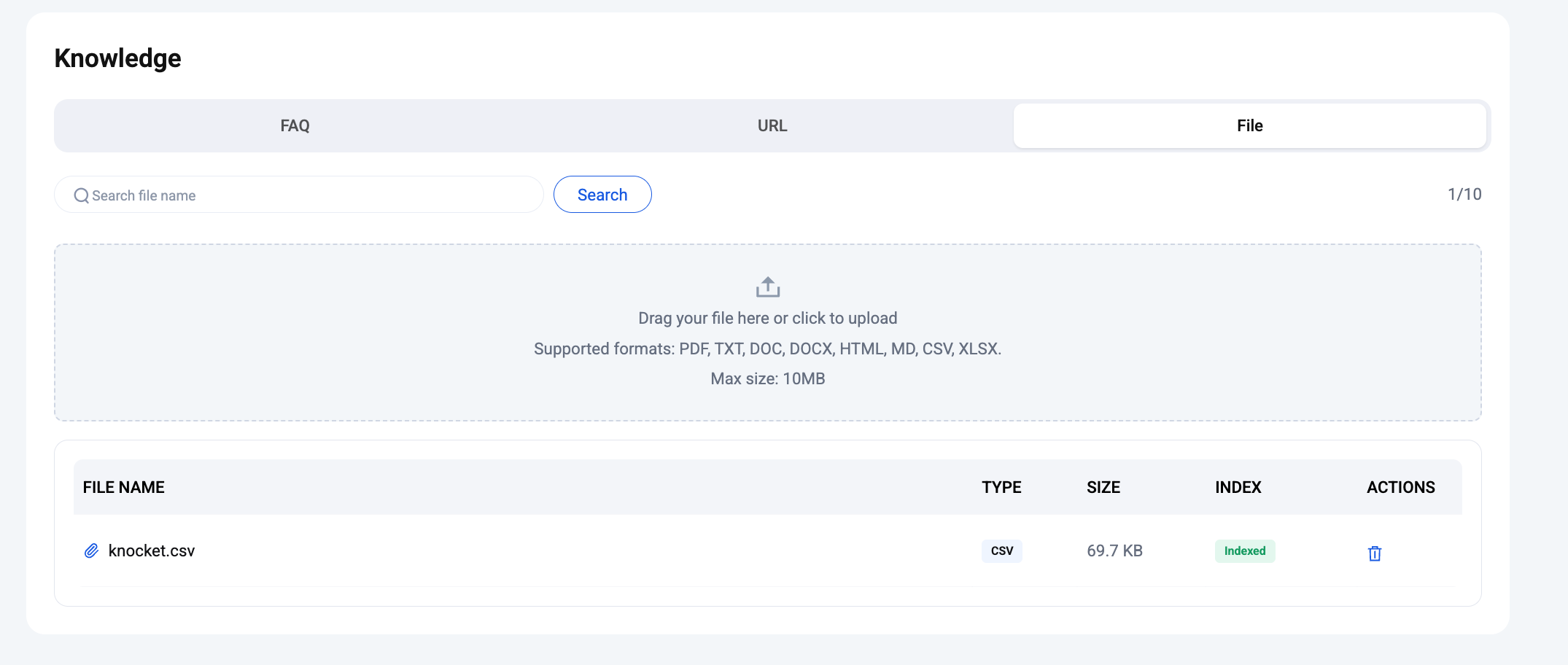
Drag-and-drop or click to upload. Supported formats: PDF, TXT, DOC, DOCX, HTML, MD, CSV, XLSX. Max size 10 MB per file. Once the row shows Indexed, the agent can cite it.
Start with 3–5 FAQ pairs for your most common questions, add your homepage and pricing URL, then upload one or two feature docs. That's usually enough to hit >70% deflection on a small SaaS. Add more only when you see the same question repeat in the Usage chart.
Usage — requests, tokens, channels
Click AI Agent → Usage in the sidebar. This page is the operational read-out for the agent. Range picker at the top (Today / Yesterday / Last 7 days / Last 14 days / custom start–end).
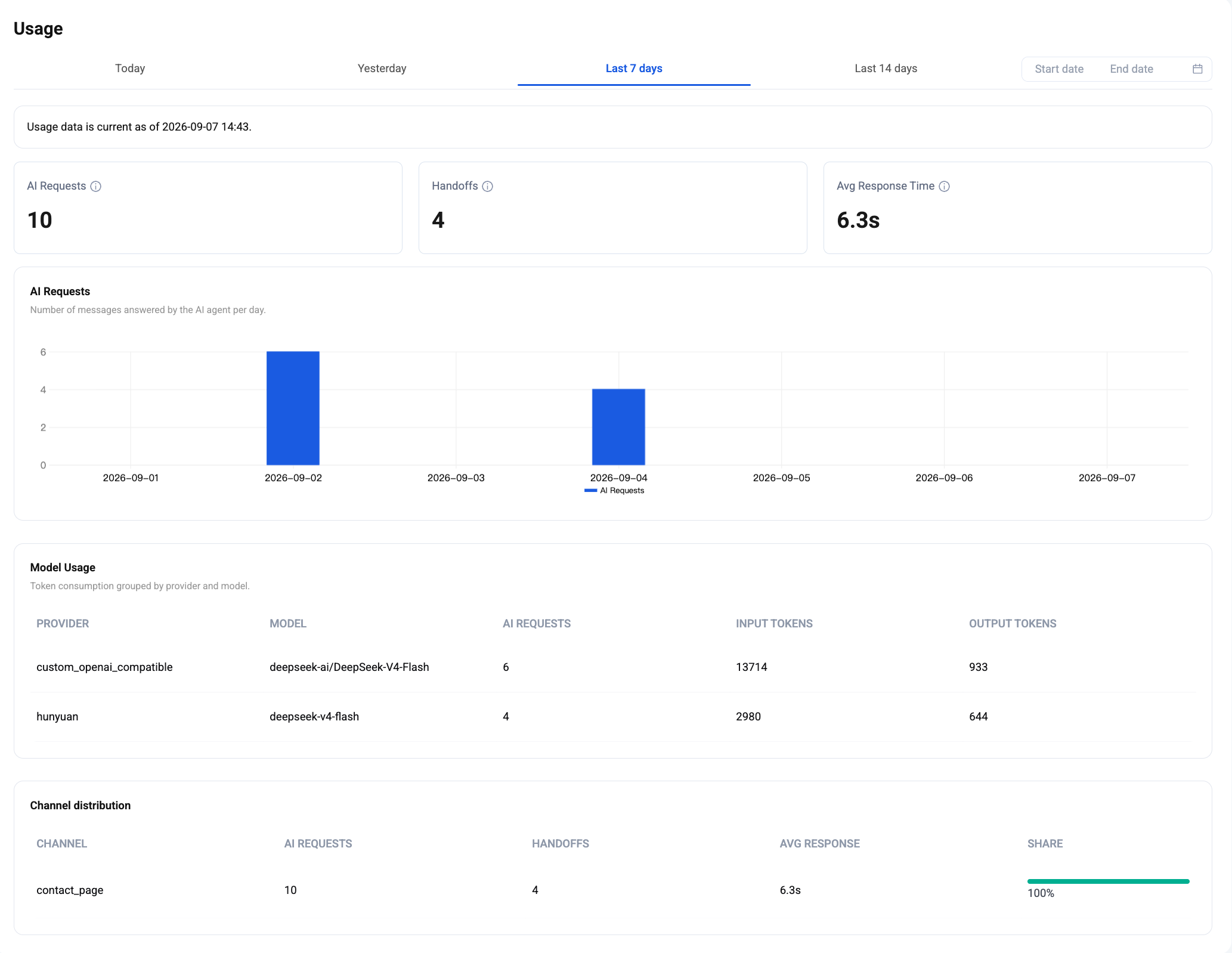
Three top-line KPIs:
- AI Requests — number of visitor messages the agent actually answered in the range.
- Handoffs — number of chats that transferred to a human (either phrase-triggered or model-decided).
- Avg Response Time — median wall-clock time from message-arrived to reply-sent, in seconds.
Below the KPIs:
- AI Requests chart — daily bar chart of messages answered by the agent. Spot volume spikes and dead days.
- Model Usage table — token consumption grouped by provider and model. Input Tokens / Output Tokens columns tell you which model is doing the work and roughly what it's costing.
- Channel distribution table — AI Requests / Handoffs / Avg Response / Share, split by channel (
web_widget,mobile_widget,contact_page). Useful for spotting a channel that's overwhelming the agent.
FAQ
Is the AI Agent free to use?
Yes — the AI Agent itself ships with the free plan. You bring your own LLM credentials (any OpenAI-compatible provider), so the only variable cost is the tokens you spend on your chosen model. Embedding for the knowledge base is managed by the platform and included.
Which LLM providers can I plug in?
Anything that speaks the OpenAI Chat Completions protocol. The Provider dropdown ships presets for the common ones; Custom takes any base URL + key + model ID.
How many knowledge sources can I add?
Up to 10 items per tab — 10 FAQs, 10 URLs, 10 files. Files can be up to 10 MB each. This limit is usually enough for a small SaaS; contact us if you're bumping into it.
Which languages does the agent reply in?
Whichever language the visitor writes in — the underlying model handles it. The built-in handoff phrase library covers 47 languages out of the box.
Can I turn the agent off for a specific channel?
Yes — untick that channel under Setting → AI Agent → AI Agent Channels. Messages from that channel will land straight in the human inbox.
Does Knocket use my knowledge base to train third-party models?
No. Knowledge base contents and conversation transcripts are used only for retrieval at reply time and analytics inside your own account.
Open the AI Agent tab in the console — Setting, Knowledge, and Usage are all one click away.