What you are building
Mobile Widget brings Knocket chat into your app through an in-app WebView. Configure its appearance and content in Mobile Widget, then open Installation → Mobile Widget for the platform-specific integration example.
The console provides examples for iOS (Swift), Android (Kotlin), React Native, and Flutter. These examples embed a hosted mobile page; they are not a separate native chat UI library.
Use the Mobile Widget URL from Installation. It has a
/mu/path. It is different from a published Contact Page URL under/u/, and different from thesdk.jsscript used to embed the Web Widget in a website.
1. Configure the mobile experience
Open Mobile Widget in the console sidebar. Its three tabs mirror the Web Widget configuration flow, but apply to the mobile channel.
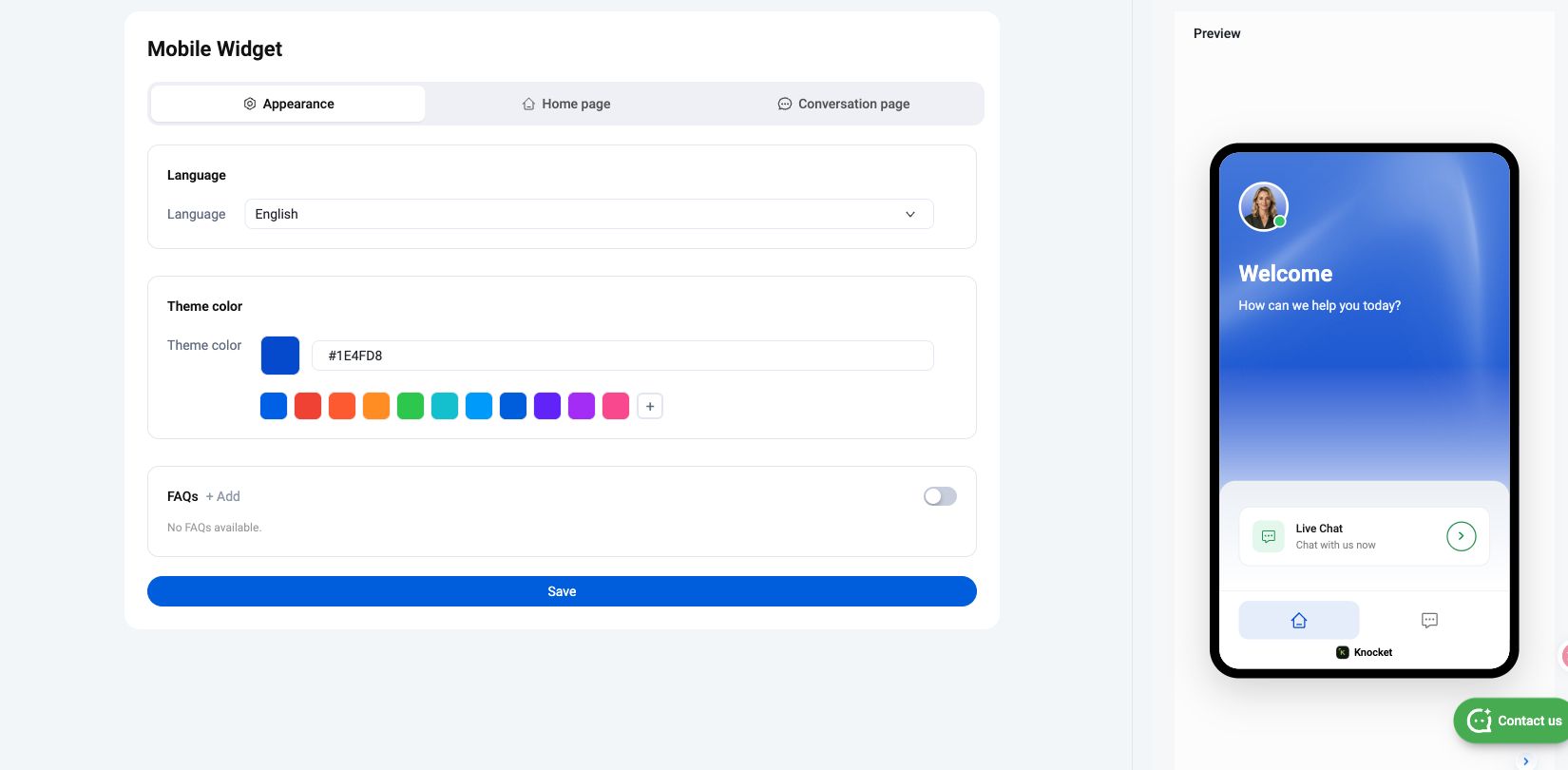
Appearance
Choose the interface Language and Theme color. Configure or enable FAQs when needed, then review the phone preview. Save the configuration when you are ready to apply it.
Home page
Set your Brand logo, Welcome Title, and Description. The Components section includes Live Chat, Meeting Scheduler, and Social media. In the current console, Live Chat stays enabled; the other components can be configured as needed.
- Use a JPG, JPEG, or PNG logo, up to 1 MB, as indicated by the upload control.
- Add a scheduling URL if visitors should be able to book a meeting.
- Add the social links you want visitors to see.
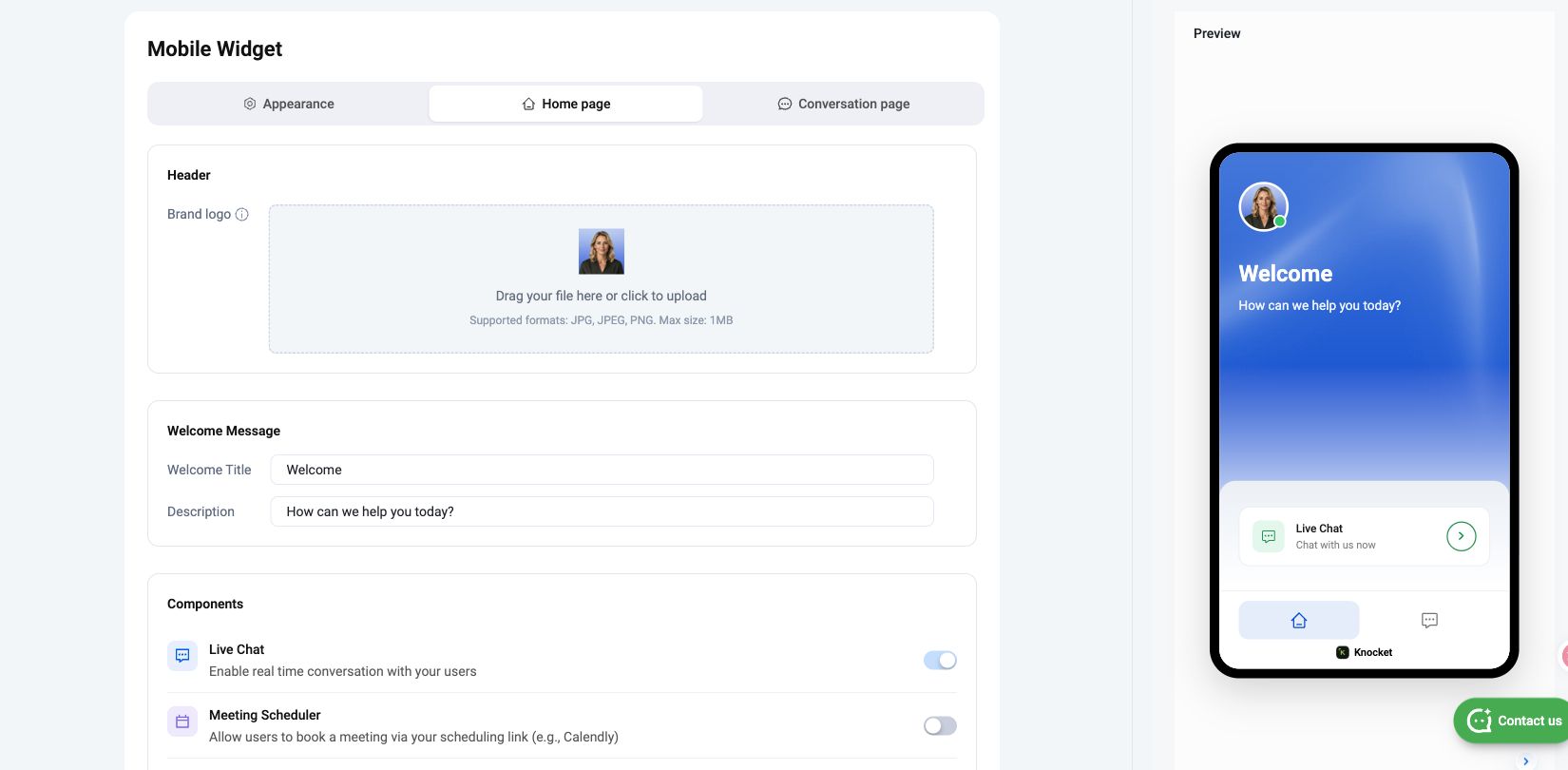
This mobile home page is configured separately from your public Contact Page. If a save prompt offers to sync shared settings to another channel, review the destination and existing differences before confirming.
Conversation page
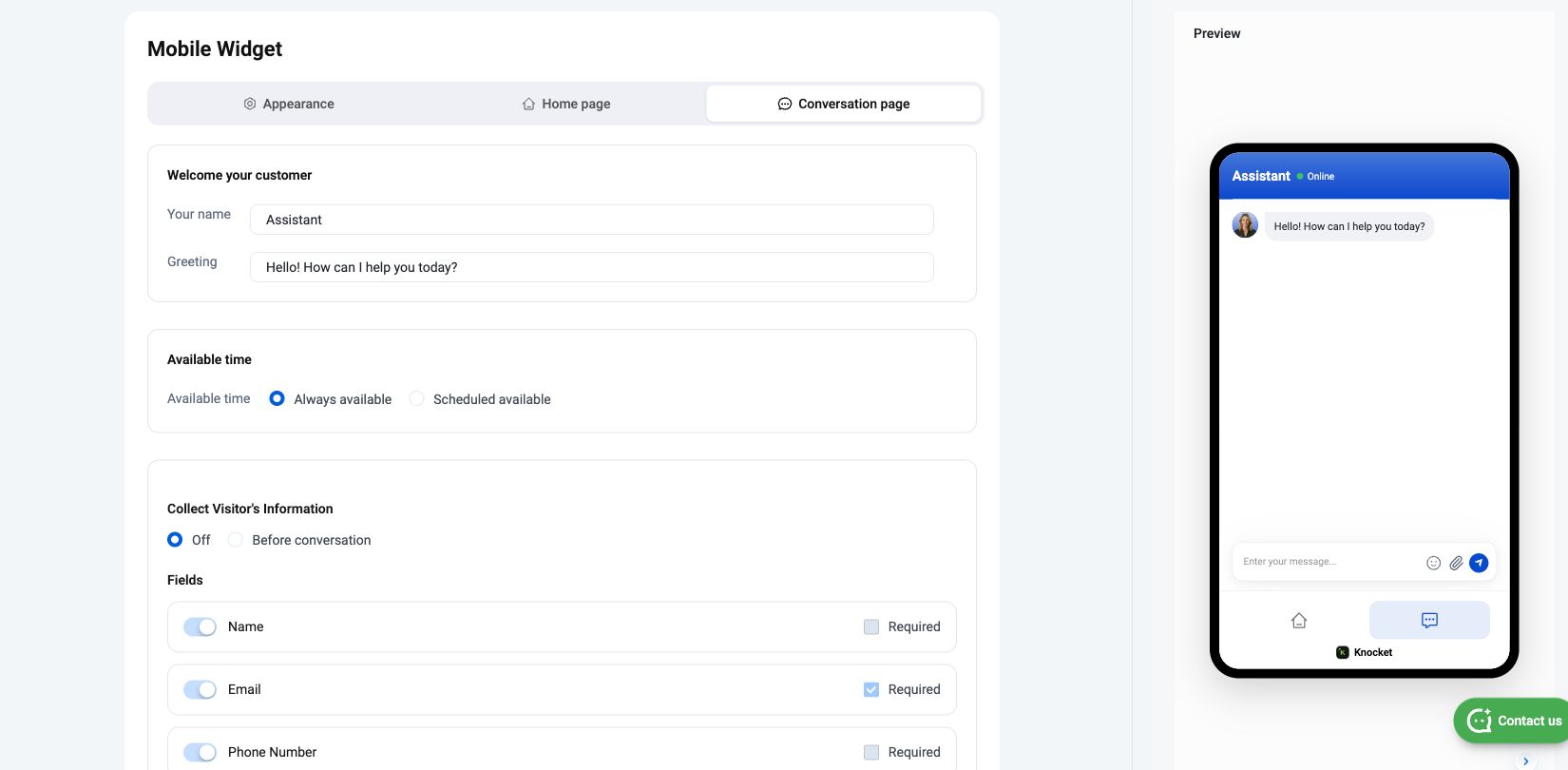
Configure Your name, the Greeting, and Available time. Choose Always available or Scheduled available for the channel’s service hours. AI support time is configured separately in AI Agent → Setting.
Under Collect Visitor’s Information, choose whether to show a form before the conversation. Review the Name, Email, Phone Number, and Message fields and their Required options. Controls can be disabled while collection is off.
2. Get the right installation example
Go to Installation → Mobile Widget and choose your platform. Copy the complete example generated for your account, including its mobile chat URL. Do not use your public Contact Page URL in its place.
The following downloadable snapshots were taken from the console on November 26, 2026. They replace the account-specific ID with YOUR_IDENTIFIER. Replace that placeholder with your own identifier, or use your current console-generated example directly.
| Platform | Integration shown in the console | Example |
|---|---|---|
| iOS | Swift with WKWebView; iOS 15.4+ and Swift 5.7+ in this snapshot. |
Download Swift example |
| Android | Kotlin with Android WebView; API 26+ and Android System WebView 105+ in this snapshot. | Download Kotlin example |
| React Native | TypeScript with react-native-webview, React Navigation, safe-area support, and network monitoring. |
Download React Native example |
| Flutter | flutter_inappwebview, url_launcher, and connectivity_plus; Flutter 3.24+ and Dart 3.5+ in this snapshot. |
Download Flutter example |
Follow the dependency versions and setup comments in the complete example. Installation is the source for the latest platform requirements.
What the host app needs to handle
The examples do more than load a URL. Keep the parts that handle:
- Closing the chat screen and returning to the app.
- Opening external web, email, and phone links through the host app.
- Attachment selection and the platform’s applicable camera, microphone, and photo permissions.
- Load errors, reconnecting after the network returns, and app foreground transitions.
- The expected chat origin and route. Do not loosen the sample’s checks or reuse the privileged chat bridge for arbitrary third-party pages.
The generated examples use host-control messages such as closeWebView and openExternal. Keep their names and validation consistent with the example. They are not visitor identity APIs or general-purpose chat-message callbacks.
3. Use the same AI setup, for the mobile channel
You do not need to create a separate AI configuration flow for the app. Open AI Agent → Setting, enable the agent, connect your model, and select Mobile Widget in the channel settings.
Then review AI Agent → Knowledge. Each knowledge source has channel controls, so select Mobile Widget for the information your in-app visitors should use. A source configured only for Web Widget or Contact Page should not be assumed to apply to the mobile channel.
Test normal questions, questions outside your knowledge, and requests for a human. Check that human replies return to the same in-app conversation.
4. Validate on a real device
Before shipping your app, check the complete flow:
- The configured mobile home and chat screens load with the expected branding.
- The keyboard, safe areas, and back/close controls behave correctly.
- Attachments work with the permissions and system pickers your app supports.
- Booking links, phone links, and social links open in the appropriate app or browser.
- A visitor message appears in Knocket Inbox, and your reply returns to the app.
- The correct AI channel and knowledge sources are enabled, and human handoff works.
- Backgrounding, network interruption, and returning to the foreground do not strand the chat screen.
The Web Widget JavaScript API applies to the website widget loaded with
sdk.js. This Mobile Widget integration uses a hosted page and the host controls in the platform example; the website identity and display APIs are outside its documented scope.
Troubleshooting
The wrong home page appears. Check that you used the /mu/ URL from Installation and edited Mobile Widget, rather than Contact Page.
AI is not replying. Check the agent switch, model connection, Mobile Widget channel selection, and the selected knowledge sources.
Attachments or external links fail. Compare your host app with the complete platform example. Loading the URL alone does not implement every host behavior.
The browser widget API is missing. The hosted mobile page and embedded website widget are separate integrations. Use the API reference only for its documented environment.