Choose where to receive alerts
Keep conversations moving even when you are away from Knocket Inbox. Use Telegram to answer inside dedicated visitor topics, WeCom or Feishu to alert your team, and Browser Push for desktop notifications while Inbox is open.
| Destination | What it does | Where you reply |
|---|---|---|
| Telegram · Direct reply | Keeps each visitor in a separate group topic and syncs the conversation during human handling | Directly inside that visitor’s topic |
| Telegram · Notification only | Sends a personal reminder | Knocket Inbox |
| WeCom / Feishu | Sends visitor-message and human-handoff alerts to your team’s group | Knocket Inbox |
| Browser Push | Shows desktop alerts while the Inbox tab is open | Knocket Inbox |
Connect the destination first, then enable the appropriate notification switch. The Telegram connection lives in Integrations. WeCom and Feishu have their connection controls in the console’s Notifications setup. For Telegram, WeCom and Feishu human-handoff alerts, both the destination’s switch in Notifications and its matching switch in AI Agent → Setting → Handoff must be enabled.

Telegram
Keep every visitor in a separate topic
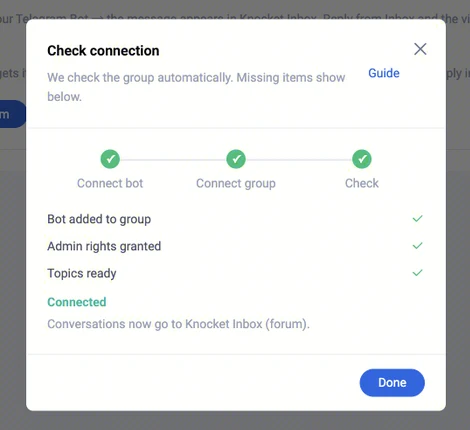
With Direct reply, each visitor gets a dedicated topic in your Telegram group. Read and answer there directly. You do not need to quote a bot message to select the visitor you are replying to.
- Without AI: Live Chat messages sync into the visitor’s topic from the first message.
- With AI enabled: AI handles the initial exchange. When the conversation is handed to a human, Knocket creates or reuses the visitor’s topic and posts the handoff context. Subsequent visitor messages and Inbox replies sync into the same topic, even while the console is online.
- A later handoff from the same visitor: Knocket reuses the existing topic, keeping that visitor’s history together.
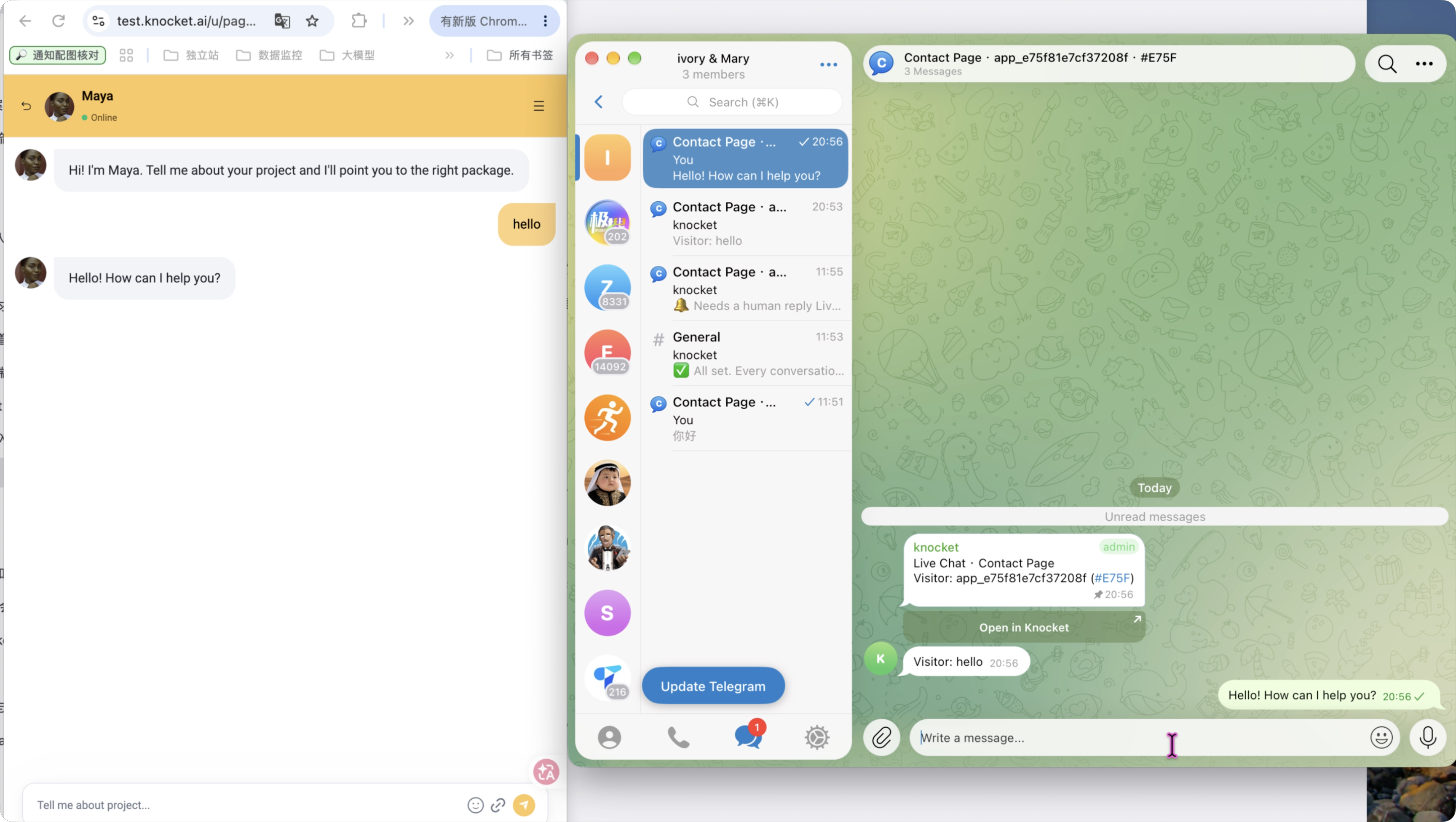
Step 1 — Connect your bot
Open Integrations → Telegram → Connect Telegram. Create a bot through @BotFather, copy its token, and paste it into Connect your bot. Select Next.
Keep the token private. If the console reports that this bot is already connected somewhere else, continuing moves its connection to this account and stops the previous connection from receiving its messages.
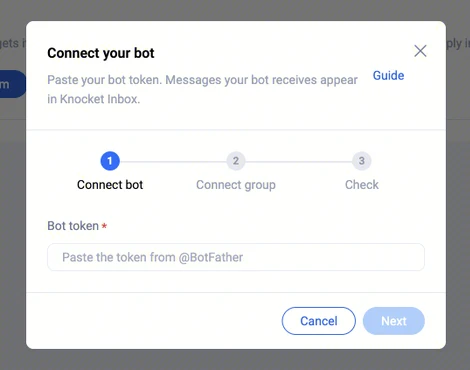
Step 2 — Enable Topics and add your bot as an admin
Use a Telegram group for visitor topics. Open the QR code or Telegram link shown in your Knocket setup dialog and add your bot to that group. Use your own console’s link, rather than the code in the example image.
A. Turn on Topics in Telegram
- Open the group and go to its settings. On Desktop, use ⋯ → Manage group. On Android, tap the group name and then the pencil icon. On iPhone/iPad, tap the group name and open Group Settings (or Edit, depending on the app version).
- Find Topics, turn it on and save the change. If you cannot edit these settings, ask the group owner to do this.
- Return to the group. You should see a topic list with General. Knocket creates the visitor topics when conversations qualify; you do not create one for each visitor manually.
B. Grant the bot administrator rights
- In the same group settings, open Administrators → Add Administrator and select your bot by its exact
@username. - Enable Manage Topics, then save. Adding the bot as an ordinary member is not enough; it needs administrator status and this permission to create visitor topics.
- Return to Knocket and check Bot added to group, Admin rights granted and Topics ready. If a check is missing, revisit the bot’s permissions in the group you selected.
If you added the bot manually, a group administrator can send /start@your_bot in the group, replacing your_bot with its real username. The bot token belongs only in Knocket’s connection form.
Telegram’s official guides explain where to find group administrator settings and how group Topics work. The required permission is also documented in the official Bot API.
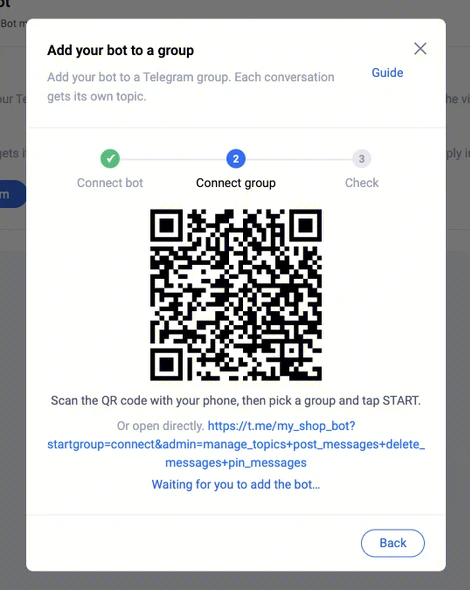
Step 3 — Confirm the connection
Return to Knocket and wait for all three checks: Bot added to group, Admin rights granted, and Topics ready. Select Done once all checks pass. Bot and Telegram group should both show Connected in Integrations.
Select your notification mode
In Notifications, turn on Telegram and choose:
- Direct reply: handle conversations inside the connected group’s visitor topics. Connecting the group enables this mode.
- Notification only: receive personal reminders and reply in Knocket Inbox. Complete the personal-alert setup in Integrations by opening the private bot chat and tapping START; this is separate from connecting a group.
For AI conversations, keep Telegram enabled in Notifications and enable the Telegram handoff notification under AI Agent → Setting → Handoff. Choosing a Telegram mode does not replace the AI handoff setting.
Reply and resume AI
- Open the topic with the matching channel and visitor label.
- Type and send your reply directly in that topic. Knocket returns it to that visitor’s Live Chat.
- Use Open in Knocket when you need the complete Inbox view.
- After handling an AI handoff, a group administrator can use Resume AI on the active handoff to return the conversation to AI. An older round’s button cannot resume a newer round.
General is not a visitor conversation: messages sent there are not delivered to a visitor. Ordinary conversations without AI do not have an AI handoff summary or Resume AI button. Replying does not automatically close a conversation.
If topic replies stop working
Open Integrations → Telegram and use View status to inspect the checks. For Topics off, enable Topics in Telegram; for Needs admin rights, restore administrator access and Manage Topics. If the bot has been removed, use Connect group to reconnect it.
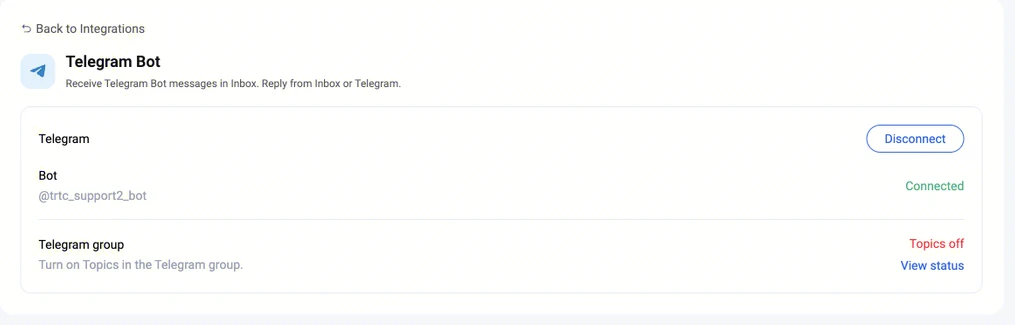
Required checks must remain valid. Direct reply does not automatically switch to Notification only when a group loses permissions. Disconnect removes both the bot and group connection and stops Telegram messages and alerts; check the confirmation before using it or changing groups.
WeCom
When alerts are sent
WeCom sends one-way group notifications when your team is offline in Knocket. You read the alert in WeCom and select Open Inbox to reply to the visitor. This connection does not support replies typed to the WeCom group bot.
- Live Chat message: receive a visitor-message reminder from Web Widget or Contact Page when your team is offline.
- AI handoff: receive the request for a person, with the issue summary and why AI could not resolve it. Enable both WeCom in Notifications and WeCom under AI Agent → Setting → Handoff.
- While your team is online in the console: handle conversations in Inbox; these offline group alerts are not sent.
Connect your group bot
- In WeCom, open the group that should receive alerts. Open its Group Bots settings, add a bot and name it, for example, Knocket.
- Copy that bot’s Webhook URL. The address starts with
https://qyapi.weixin.qq.com/cgi-bin/webhook/send?key=. Keep the full URL private. - In Knocket, open Notifications → Connect WeCom and paste the webhook URL. Complete the connection and send the test message to check that the intended group receives it.
- Confirm Connected and enable WeCom notifications. For AI handoff alerts, also enable WeCom in AI Agent → Setting → Handoff → Notify channels.
The receiving group is determined by the webhook you connect. This setup uses a group bot, with no custom app or inbound callback. WeCom’s official group bot documentation describes this webhook capability.
What the alert contains
A message alert identifies the visitor conversation, channel and time, followed by a message preview. A handoff alert instead includes the visitor’s issue and the reason AI needs help. Message previews are limited to 200 characters; attachments may be represented by labels such as [Image] or [File]. Open Inbox for the complete conversation.
New Live Chat Message
Visitor #a1b2c3 · Web Widget
Time · 15:30
“How do I add live chat to my website?”
Open Inbox →New Human Handoff Request
Visitor #a1b2c3 · Contact Page
Time · 15:30
Issue: Help choosing an integration.
AI Unable To Resolve: The available knowledge does not answer the question.
Feishu
When your team is offline, Feishu group alerts cover the same two important moments: incoming Live Chat messages without AI and AI-to-human handoffs. Your team sees the reminder in Feishu and handles the conversation in Knocket Inbox.
- Open Notifications → Connect Feishu.
- In your Feishu group, open Settings → Group Bots → Add Bot → Custom Bot. Copy the new bot’s Webhook URL.
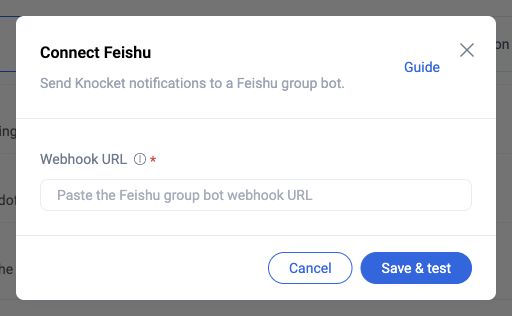
- Return to Knocket, paste the URL into the connection dialog, and follow the current Guide for supported webhook settings.
- Select Save & test. This sends a real test message to the selected group; confirm it arrives.
- Once the connection is ready, enable Feishu notifications. If your channel uses AI, also enable Feishu under AI Agent → Setting → Handoff.
Browser Push
Open Notifications, find Browser Push, and turn on the switch. Allow notifications when your browser asks, and keep the Inbox tab open. The feature is a desktop reminder while Inbox is open, rather than a guarantee of delivery after the browser is closed.
If no desktop alert appears, check the site’s notification permission in your browser and the browser’s notification permission in your operating system. For AI handoffs, also check AI Agent → Setting → Handoff → Browser Push. Return to Inbox to respond.
Check your setup
- Confirm the destination is connected and its notification switch is enabled.
- With AI off, test a visitor message. With AI on, test a handoff and check the separate Handoff setting.
- For Telegram Direct reply, confirm the message reaches the right visitor topic and that an answer typed there reaches that visitor.
- For WeCom or Feishu, confirm the group receives the alert and that you can open the right conversation in Inbox.
For related setup, see AI Agent and channel-specific knowledge or Web Widget.